 By Denys Medvediev
Guide
Dictation software for academics
Researchers, professors, and PhD candidates draft papers and grant proposals faster by voice. Press a hotkey, speak, and the transcript lands at your cursor in Word, an Overleaf tab, Google Docs, or Scrivener. It runs offline, so unpublished work never leaves your machine.
Last updated: June 2026

Dictation software for academics turns spoken sentences into typed text inside any writing app — Word, LaTeX editors, Google Docs, or Scrivener — through a system-wide hotkey. A tool like Whisper runs fully offline, so unpublished research stays on the machine, and it learns domain jargon and author names so technical terms transcribe correctly.
A literature review is a strange document to type. You already know what you want to say — you read the forty papers, you have the argument in your head — and then you spend an hour turning that argument into keystrokes one finger-cramp at a time. The thinking is done. The typing is just tax. That gap, between knowing the sentence and physically producing it, is where dictation earns its place in an academic workflow.
People search for "dictation software for academics" expecting something built for the academy — citation handling, reference managers, the works. It isn't that, and any tool promising it is overselling. What you actually get is plainer and more useful: a way to talk a paragraph into existence, in whatever editor you already use, without the audio of your unpublished results ever touching a server. Two minutes to set up, and it works the same in Word and in a LaTeX file.
Here's the part most pages chasing this keyword skate past. A manuscript draft is just a text box. So is the methods section, the cover letter to an editor, the abstract you keep rewriting. Dictation that pastes at your cursor doesn't care whether that cursor is in Microsoft Word, an Overleaf editor, a Google Doc, or a Scrivener card. It types where you point it.
So the real question isn't "is there special dictation software for academia." There mostly isn't, and you don't need it. The question is which dictation tool you run on top of your editor, whether it stays offline for work you can't risk leaking, and whether it can spell the names and terms your field is full of. I'll walk all of that, set one up, and tell you the one job where you should reach for a different tool entirely.
Why researchers reach for dictation
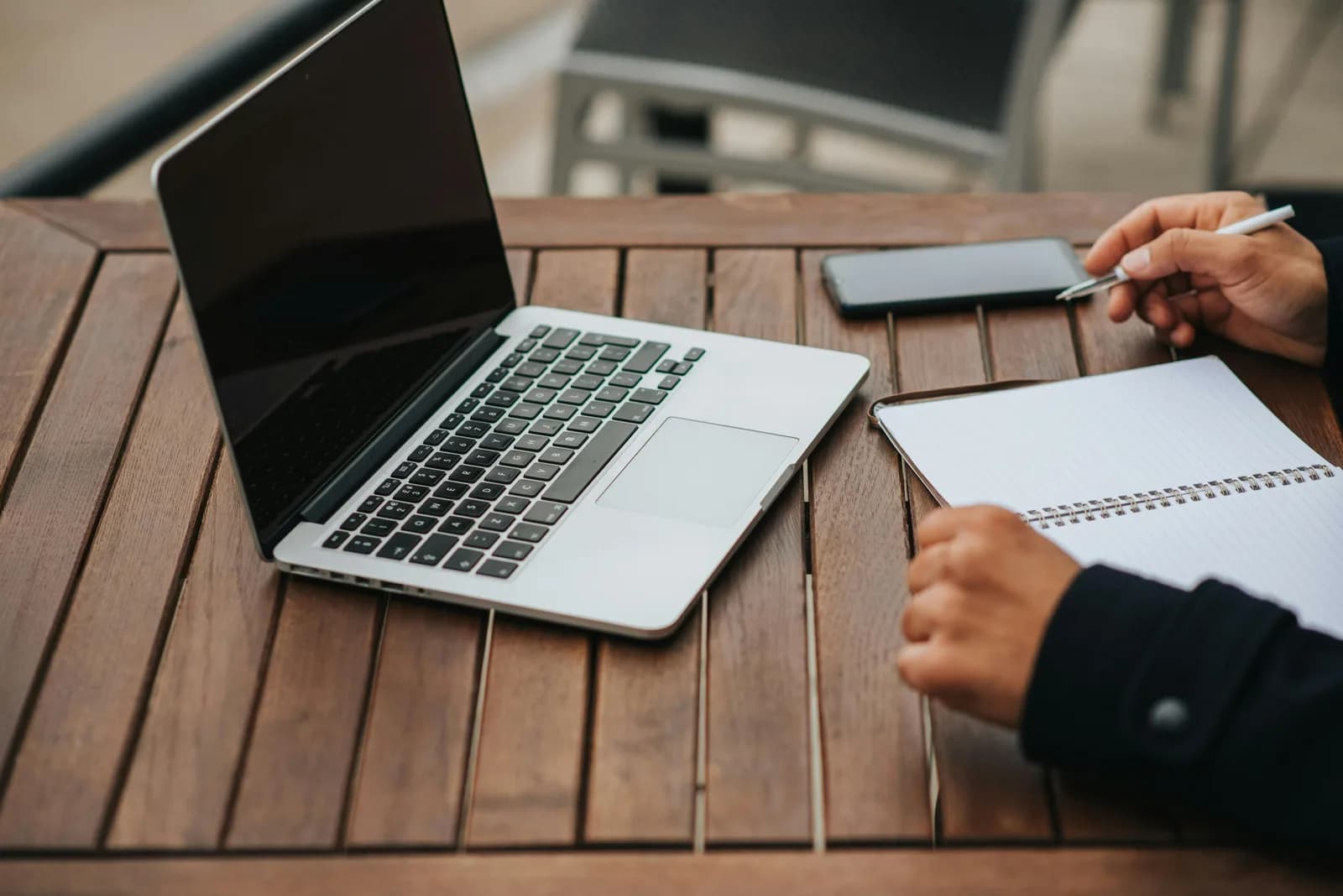
The honest job-to-be-done is volume. Academic writing is long-form by nature — a paper runs eight thousand words, a thesis chapter far more, a grant proposal arrives with its own word count and a deadline that doesn't move. Typing all of that is slow, and the slowness compounds when you already know the content. Spoken English runs around three to four times faster than typing for most people, which is why dictating a first draft and then editing it beats typing a clean draft you'll edit anyway.
The second reason is your hands. Long writing sessions are how repetitive strain starts, and a lot of researchers I've heard from picked up dictation not as a speed hack but as a way to keep writing on the days their wrists were complaining. To be clear, this is a productivity and accessibility aid, not a medical device and not advice — it removes keystrokes, nothing more. But removing keystrokes is exactly what you want when a thesis defense is six weeks out and your hands are the bottleneck.
The third reason is capture. The good idea for the discussion section arrives while you're walking to the coffee machine, not while you're sitting at the keyboard. A hotkey you can hit and talk into means the idea becomes a paragraph in your draft before it evaporates. Drafting, not typing — that's the shift. You stop producing text character by character and start producing it sentence by sentence, which is closer to how the argument actually lives in your head.
Press a hotkey, talk, the text lands in your draft
This is the whole mechanic, and it's boring in the best way. You press a hotkey, you speak, you release, and the transcript pastes at your cursor in whatever text field has focus. Whisper holds a short tail after you let go of the key, so your last word doesn't get clipped. Because it pastes at the operating system's cursor, your editor is just "any text box" — a Word document, an Overleaf source pane, a Google Docs paragraph, a Scrivener card, the comment box on a journal's submission portal.
That's the part the marketing pages overcomplicate. There's no plugin to wedge into Word, no LaTeX package to add, no add-on to authorize inside Google Docs. Your cursor is in the manuscript, you talk, the words appear in the manuscript. A small capsule shows up while you speak so you know it's listening:
The hotkey is the one thing worth getting right up front. On Windows it's Ctrl+Space; on Mac it's Command+Option, a modifier-only push-to-talk you hold while speaking. Both are changeable in Settings if they clash with a shortcut your editor already uses — and academic tools are full of clashing shortcuts, so this matters more here than usual. If you've set up dictation on Windows or on Mac before, this is the same muscle memory pointed at your draft.
Set it up in two minutes (Windows or Mac)
You need a Mac on Apple Silicon or a Windows 10-or-newer PC, a working microphone, and your editor open — Word, a browser tab with Overleaf or Google Docs, Scrivener, whatever you draft in. The whole local pipeline is free for any signed-in account, with no payment method asked for at sign-up. Here's the sequence.
Step 1 — Install Whisper and sign in.
Download from the download page, install, and create a free account. No card. The whole local transcription pipeline opens right away.
You'll know it worked when the app's tray icon appears and the setup wizard offers to pick a model.
Step 2 — Pick a transcription path.
The app doesn't choose for you. You get three: Cloud (OpenAI, bring your own key), Local Parakeet, or Local Whisper. For unpublished work, start local — more on which one two sections down.
You'll know it worked when a model finishes downloading and shows as ready.
Step 3 — Confirm your hotkey.
Windows defaults to Ctrl+Space, Mac to Command+Option held as push-to-talk. On Mac, grant the Accessibility permission when prompted; without it, the paste-at-cursor can't reach other apps.
You'll know it worked when a test recording pastes into any text field.
Step 4 — Put your cursor in your draft and talk.
Open your manuscript, click where the next sentence goes, hold the hotkey, say the sentence, release. The transcript appears at the cursor, in the document.
You'll know it worked when your spoken sentence is sitting in the draft as text.
The slow part is the model download, not the setup. Everything else is the four steps above. Once it's running, drafting a paragraph stops being a typing task and becomes a talking task, and your editor never knew anything changed.
Domain jargon, author names, and keeping it offline
Two problems are specific to academic writing, and both have a real answer. The first is vocabulary. Your field is full of terms a general speech model has never seen — a gene name, a chemical compound, a method named after the three people who invented it, the surname of the author you cite forty times. Out of the box, any dictation engine will mangle some of those, because it's guessing common words that sound similar. Local Whisper handles this with hotwords and custom vocabulary: you give it the terms and author names you use, and it biases toward transcribing them correctly instead of the nearest everyday word. Parakeet, the faster local engine, does not support hotwords — so if your manuscript is dense with jargon, that trade-off is the reason to pick Whisper over Parakeet.
The second problem is privacy, and for unpublished research it isn't paranoia — it's the job. Results before publication, a grant proposal before submission, a paper under embargo, anything with an NDA or a patent waiting on it. Cloud dictation sends your audio to a vendor's server to be transcribed. Local dictation does not. Both Whisper and Parakeet run entirely on your own machine, with nothing leaving it, which means the audio of you reading your own unpublished findings never becomes someone else's log file. If that distinction matters in your work — and in a lot of research it's non-negotiable — the offline-first case is laid out in full in private, offline speech-to-text.
Between you and me, this is the part I'd refuse to compromise on if I were the one writing the paper. A draft is the most sensitive version of your work — it's the one with the mistakes still in it, the one a competitor would love, the one you haven't claimed priority on yet. Routing that through a server you don't control to save yourself a model download is a bad trade. Your laptop already has a microphone and a CPU. For a paragraph of text, it doesn't need a server in the loop.
Local or cloud: which mode for academic work
For most academic drafting, start local. The whole reason privacy comes up at all is that the work is unpublished, and local mode is the only one that keeps the audio on your machine. If your Mac is Apple Silicon or your PC is from the last few years, local handles everyday dictation without complaint, and cloud becomes the escape hatch rather than the default. Here's how the three paths the app makes you choose between actually differ.
I'd rather you pick well than pick fast, so here's the plain version of each:
- Local Parakeet — NVIDIA's TDT engine, around 600 MB, and the fastest local option — 5 to 10 times faster than Whisper on CPU. Covers English plus 24 other European languages, 25 in total. No translate-to-English, and no hotwords, so it can't be tuned for your field's jargon. Pick this for fast, fully offline drafting in plain prose where the vocabulary is ordinary.
- Local Whisper — slower than Parakeet on the same machine, but it supports hotwords and custom vocabulary — the thing you want for author names and technical terms — and the multilingual builds cover 99 languages and can translate to English. The English-only builds are English-only, not 99. Default English model is around 480 MB. For a jargon-heavy manuscript, this is the local pick.
- Cloud (OpenAI, BYOK) — best accuracy and web access, using your own OpenAI key billed straight by OpenAI. Transcription runs on gpt-4o-mini-transcribe by default. Needs internet, so it's the one path that leaves your machine — fine for non-sensitive writing, the wrong call for embargoed results. The Cloud surface is part of Whisper Pro.
The boring truth is that for the kind of prose most papers are made of, local Whisper is plenty, and the hotword support is what makes it the right local engine for research specifically. Cloud earns its place when you want top-tier accuracy on a hard recording, or you need a fact pulled off the web mid-sentence and the work isn't confidential. For a draft you can't risk leaking, the choice makes itself.
Turning a spoken draft into clean prose
Raw dictation comes out as a run-on. You say "so the results suggest a correlation between the two variables although we should note the sample size was small," and that's the unpunctuated wall any speech engine hands you. Cleaning it up is where the modes diverge.
Windows Voice Typing adds punctuation as you speak, and macOS Dictation handles basic punctuation when you say "comma" or "period." For heavier cleanup — stripping the false starts, fixing the run-ons, turning a spoken paragraph into something you'd put in a manuscript — Whisper can run an AI pass. Say the activation phrase "Hey whisper" and the text gets enhanced before it lands. On a local model that runs through Ollama, so the cleanup stays offline too; in cloud mode it's gpt-5-mini by default.
so the results suggest a correlation between the two variables although we should note um the sample size was fairly small here
The results suggest a correlation between the two variables, although the sample size was fairly small.
A fair warning, because overselling this helps no one: the AI pass tidies grammar and filler, it does not fact-check your claims or fix your statistics, and it can quietly "correct" a precise technical term into a common word that sounds like it. Read what it produced — you would anyway, this is your paper. Treat the cleanup as a faster first draft, never as a final one. The honest answer is that voice gets the words down quickly, and your own judgment still does the science.
That same speak-then-clean flow pays off well beyond the manuscript — you can also dictate clean prose into Google Docs the same way, so a co-authored document or a reviewer reply becomes a few spoken sentences instead of a paragraph you type out.
When to skip dictation and use a transcription tool
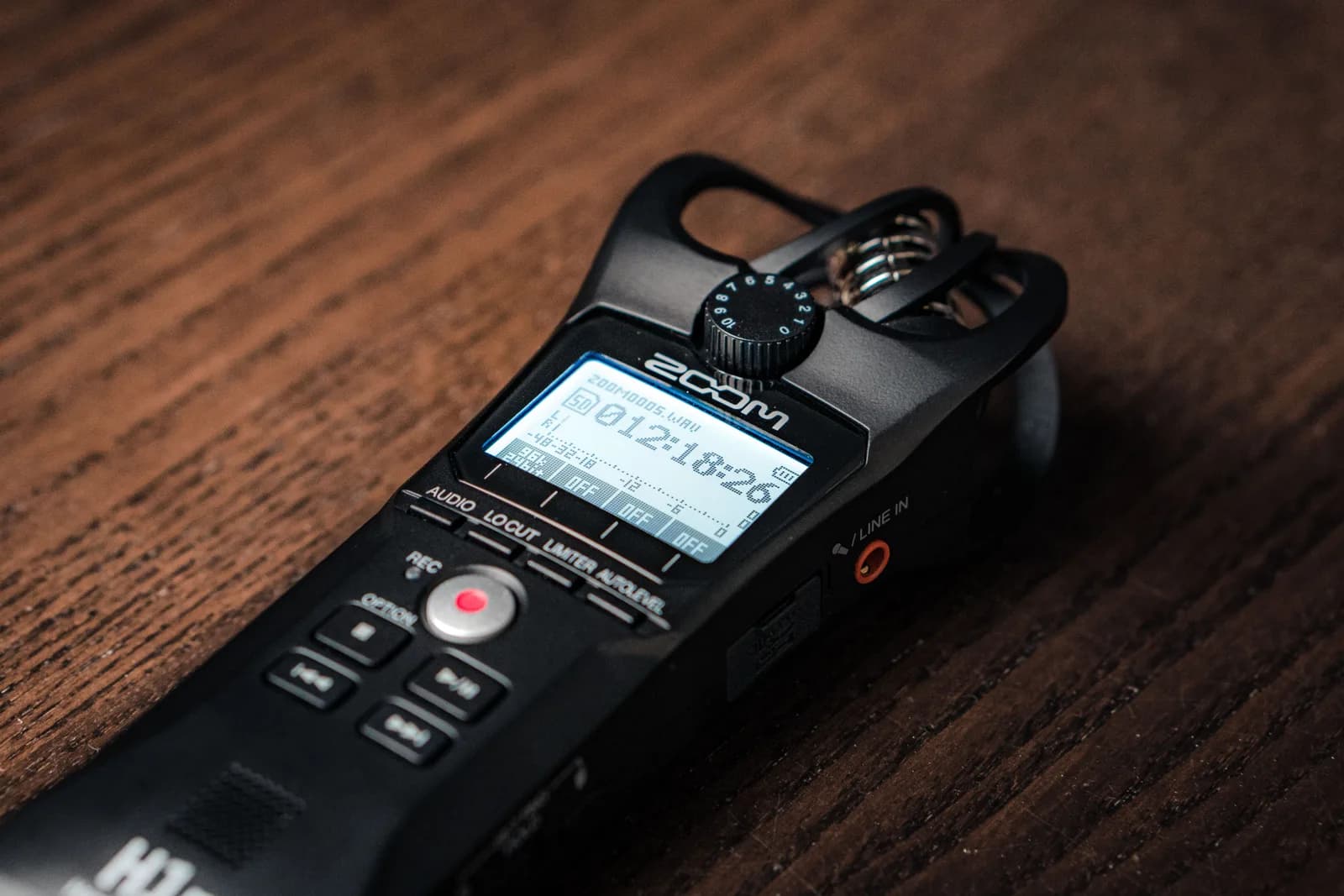
Dictation and transcription get conflated constantly, and for academic work the difference is the whole game. Dictation is you, speaking on purpose, in real time, producing your own text. Transcription is turning an existing recording — an interview, a focus group, a lecture, hours of fieldwork audio — into text after the fact. Those are different jobs, and a dictation hotkey is the wrong tool for the second one.
If your task is qualitative research audio — sit-down interviews, recorded sessions, a corpus of field recordings you need turned into a transcript with speaker labels and timestamps — reach for a dedicated transcription service or a tool built for batch audio files. That's a job about processing recordings, often with multiple speakers, and you want software designed for exactly that. Dictation software, including this one, is for the part where you are the one talking and the words are meant to land in your draft as you speak them.
And for the genuinely small stuff, the free built-ins are fine. On Windows, Windows key + H opens the Voice Typing bar wherever your cursor is; it punctuates on its own and routes through Microsoft's servers, so it isn't offline. On Mac, Dictation lives in System Settings under Keyboard, and on Apple Silicon general text can be processed on-device. For a one-line note or a quick email to a co-author, that's all you need. Reach for a dedicated, offline, system-wide tool when the work gets long, the vocabulary gets technical, or the results can't leave your machine.
If your draft lives in a browser more than a desktop app, the same logic plays out in voice typing in Google Docs where the cursor, not an add-on, is again the real integration.
There's no dictation software built specifically for the academy, and after writing this I'm convinced there doesn't need to be. The manuscript is just a text box, the cursor is the integration, and the only academic-specific parts — keeping unpublished work offline and teaching the tool your field's jargon — are settings, not separate products. I drafted most of this into a plain text editor that has never heard of a citation, with a tool that kept every word on my own laptop, then edited it like the first draft it was. That's the whole trick.
Draft your next paper by voice
Hold the hotkey, talk, release. The transcript lands wherever your cursor is — Word, LaTeX, Google Docs, Scrivener — and offline, so unpublished work stays on your machine.
Free local mode for any signed-in account. No card required to start.



