 By Denys Medvediev
Tutorial
Voice to text in VS Code, the honest version
VS Code Speech dictates inside the editor, on-device and free. The honest part: for the commit message, the terminal, and the browser, a system-wide hotkey reaches where an editor extension can't.
Last updated: June 2026

Voice to text in VS Code works through VS Code Speech, Microsoft's free official extension, which dictates into the editor on-device and powers voice chat with Copilot. For dictation outside the editor — the terminal, the browser, a commit message elsewhere — a system-wide tool like Whisper pastes text at the cursor in any app. Both run offline.
So the short answer is yes, and it's good. If you assumed VS Code couldn't do voice, stop searching. Microsoft shipped VS Code Speech with version 1.87 in February 2024, it runs locally, and it's free. Most developers who want to dictate inside the editor are done after two paragraphs. I'm fine with that. The interesting part is what happens when the thing you want to dictate isn't in the editor at all.
Here's the part nobody tells you up front. Voice to code is a bad idea — say "open paren, camel-case, user ID, close paren" out loud and you'll quit by lunch. But voice for the prose around code — commit messages, comments, READMEs, the PR description you've been avoiding — beats typing. Dictation runs around 145 words per minute against roughly 40 for typing. That gap is the whole reason this is worth ten minutes of setup.
VS Code's voice situation: the VS Code Speech extension
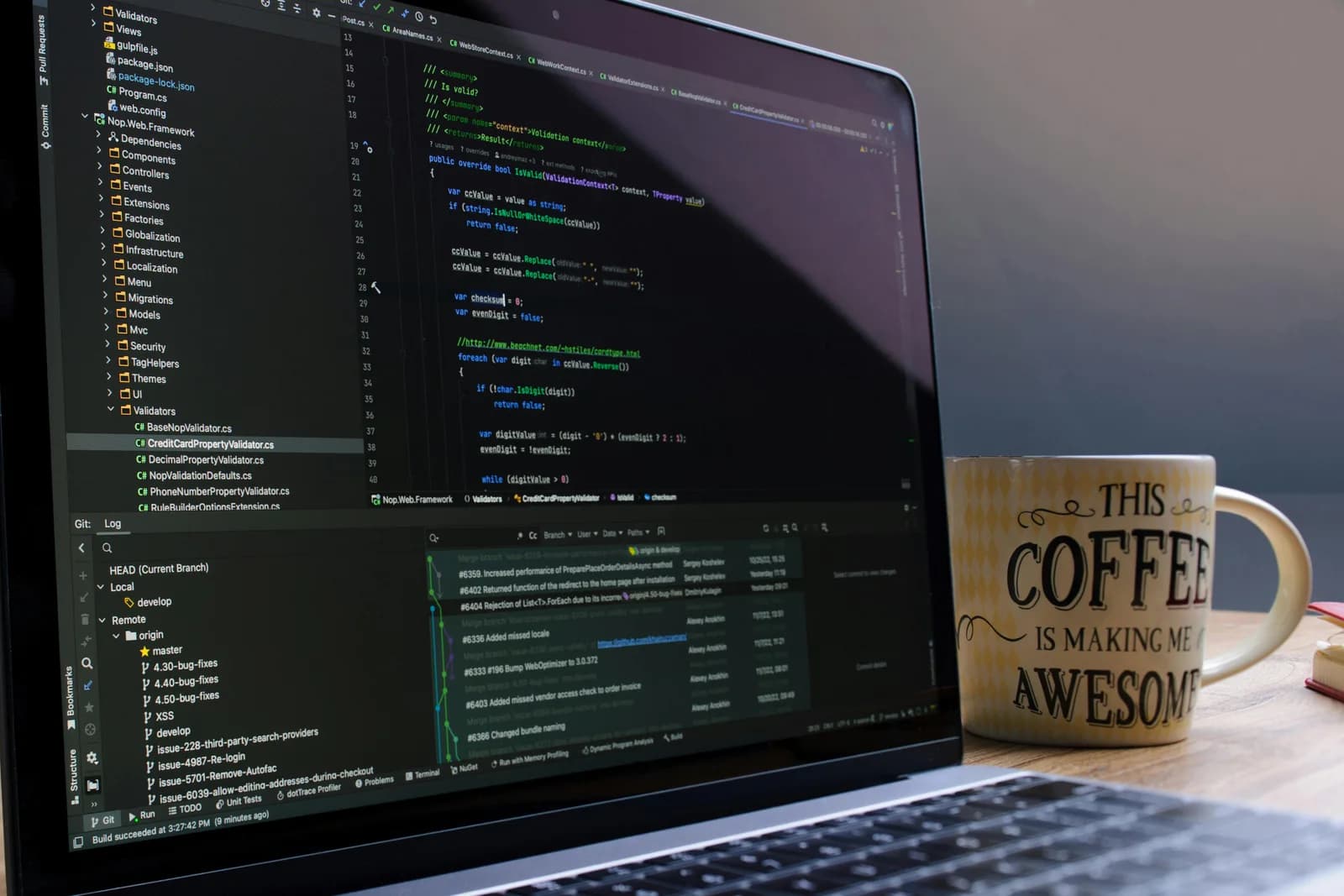
VS Code doesn't have voice to text turned on by default. You add it with one official extension. Open the Extensions view, search for VS Code Speech, confirm the publisher is Microsoft (the ms-vscode.vscode-speech Marketplace listing), and install. There's no API key, no sign-up, and no paid tier. It downloads a small on-device speech model and you're running.
To dictate into the editor, run the command Voice: Start Dictation in Editor — Ctrl+Alt+V on Windows and Linux, Opt+Cmd+V on Mac. Stop with Voice: Stop Dictation in Editor, bound to Escape. Press and hold the same shortcut for what Microsoft calls "walky-talky mode": recognition stays on while you hold the keys and submits the moment you let go. It's the closest thing to a push-to-talk button the editor has.
The same extension does a second, separate thing: voice chat with GitHub Copilot. Run Chat: Start Voice Chat (Ctrl+I / Cmd+I), or turn on the "Hey Code" wake word and talk to Copilot Chat hands-free. No general dictation tool replicates that. If talking to Copilot is what you came for, VS Code Speech is the answer, and there isn't a second one.
One housekeeping note: the official VS Code docs list 26 supported languages, set via the accessibility.voice.speechLanguage setting. You may hit an older microsoft/vscode wiki page that says "English only" — it's stale. The live docs win.
It runs on your machine, offline — and that matters less than you'd think

VS Code Speech is on-device. Per the official VS Code voice support docs, "Recordings are never sent to any online service but computed locally on your machine." No internet needed once the model is down; your spoken comments stay on the laptop.
I want to be straight about this, because it's where a lot of "alternative" articles get sneaky. Whisper's local mode is also fully offline, audio never leaving the machine. So offline isn't a Whisper-only win. It's parity. Same for price — VS Code Speech is free, and Whisper's local pipeline is free with no card at signup. If someone tells you to switch tools "because it's offline and free," they're selling you something you already have.
The honest difference is reach. VS Code Speech is on-device and free inside VS Code. The question is what you do when the text lives somewhere else.
What VS Code Speech can't reach: everything outside VS Code
VS Code Speech dictates into the editor and into chat. That's the scope, by design — it doesn't type into the integrated terminal as general input, doesn't reach the browser, and doesn't touch Slack, Jira, or your git GUI. None of that is a flaw. An editor extension that quietly hijacked your whole keyboard would be a worse extension.
But think about where developer prose actually lives. The commit message in a terminal or a separate git client. The PR description on GitHub in a browser. The bug repro you paste into a Jira ticket or a GitHub issue. The Slack message explaining why the build is red. Almost none of that happens in the editor pane. It happens in five other windows, and the editor extension can't follow you there.
That's the gap — the editor is one window out of eight.
Whisper for the prose around your code, in any app
Whisper is a desktop app for Windows and macOS, not a VS Code extension. Because it sits at the operating-system level, it pastes transcription at the cursor in any app where you can type — the VS Code editor and the integrated terminal, yes, but also the browser, Slack, Teams, Gmail, your JetBrains IDE, Notion. One hotkey, every window.
The hotkey is Ctrl+Space on Windows and Command+Option (push-to-talk) on macOS. Hold it, talk, release, and the text lands where your cursor already was. If Command+Option looks a lot like VS Code Speech's Opt+Cmd+V — good eye. Same modifier keys, different mechanisms: one is a VS-Code-internal command, the other a system-wide hotkey you can re-bind in Settings. They don't fight; they live in different layers.
This is the one opinion I'll spend here: the best productivity hack is fewer steps, not faster steps. Switching windows, finding the right voice command for that app, remembering which tool dictates where — those are steps. A single system-wide hotkey that works the same in the terminal as in the browser deletes the step. The speed is nice, but the real win is not having to think about which window you're in.
The whole app, live
That's the real desktop app above — settings, modes, the lot. Whisper supports over 90 languages in both local and cloud mode (the multilingual model line reaches 99+; the .en builds are English only). VS Code Speech covers 26. I'd never tell you to switch for the count, though. You'd switch for the reach.
Clean up the dictation automatically
Here's the one thing raw dictation can't do for you. Whisper has an optional AI cleanup pass that turns a rambled-out commit message into clean prose — local via Ollama in free mode, or OpenAI in Pro. You say "uh, fix the thing where the login button, you know, doesn't work on Safari," and it comes out as a sentence you'd actually put in a commit. I once shipped a commit that just read "fix the thing." Future me did not thank past me. VS Code Speech does straight dictation; the cleanup pass is a Whisper thing. For commit messages and PR descriptions, that's the difference between dictation that saves time and dictation you redo by hand.
Don't dictate the code itself
This is the boundary, and a developer audience smells it instantly if I'm vague, so I'll be blunt: don't write source code by voice, and don't trust any tool that claims you can. The seventeen symbols on a line of TypeScript make voice-to-code slower than the trackpad you were avoiding. Whisper is for the prose around the code, not the code. Comments, commit messages, markdown docs, READMEs, PR text, the Slack thread. Where you write English, voice wins. Where you write syntax, the keyboard already won.
And to be equally clear the other way: Whisper does not do Copilot voice chat. It's not a VS Code Speech replacement — it's the tool for the eight other windows.
When VS Code Speech is the better pick

I'd rather lose you to the right tool than keep you on the wrong one. So, plainly: if all you need is to dictate inside the VS Code editor, or to talk to Copilot Chat by voice, install VS Code Speech and skip Whisper entirely. It's free, official, on-device, supports 26 languages, and does the "Hey Code" wake word no general dictation tool replicates. Don't add a second app for a job the built-in already does.
Two more cases. First, Linux — VS Code Speech ships on Linux; Whisper desktop is Windows and macOS only. If you're on Linux, the question's already answered. Second, strictly-in-editor workflows — if your dictating genuinely happens only in the editor pane, a system-wide hotkey solves a problem you don't have. Reach for Whisper when the prose lives outside VS Code. Otherwise the built-in is enough, and "enough" is a good place to stop.
If the editor is the only place you dictate, you finished this article three sections ago, and that's a good outcome. VS Code Speech is the right default, it's free, and it talks to Copilot. The day your voice needs to land in the terminal, the browser, and a commit message without you tracking which window you're in — that's when a system-wide hotkey earns its keep. I dictated most of this article without touching the editor. The code, naturally, I typed.
Dictate your next commit message
Download Whisper, hold the hotkey, and watch the transcript land in the terminal, the browser, or the editor — wherever your cursor already is.
If you're on a Mac, here's the macOS setup.
Free local mode for any signed-in account. No card required to start.



