 By Denys Medvediev
Guide
Voice to text when you can't type
If typing is off the table — sore hands, a cast, or you'd just rather not — voice to text lets you write in any app by speaking. Press a hotkey, talk, and the words land at your cursor. This is a productivity guide, not medical advice.
Last updated: June 2026
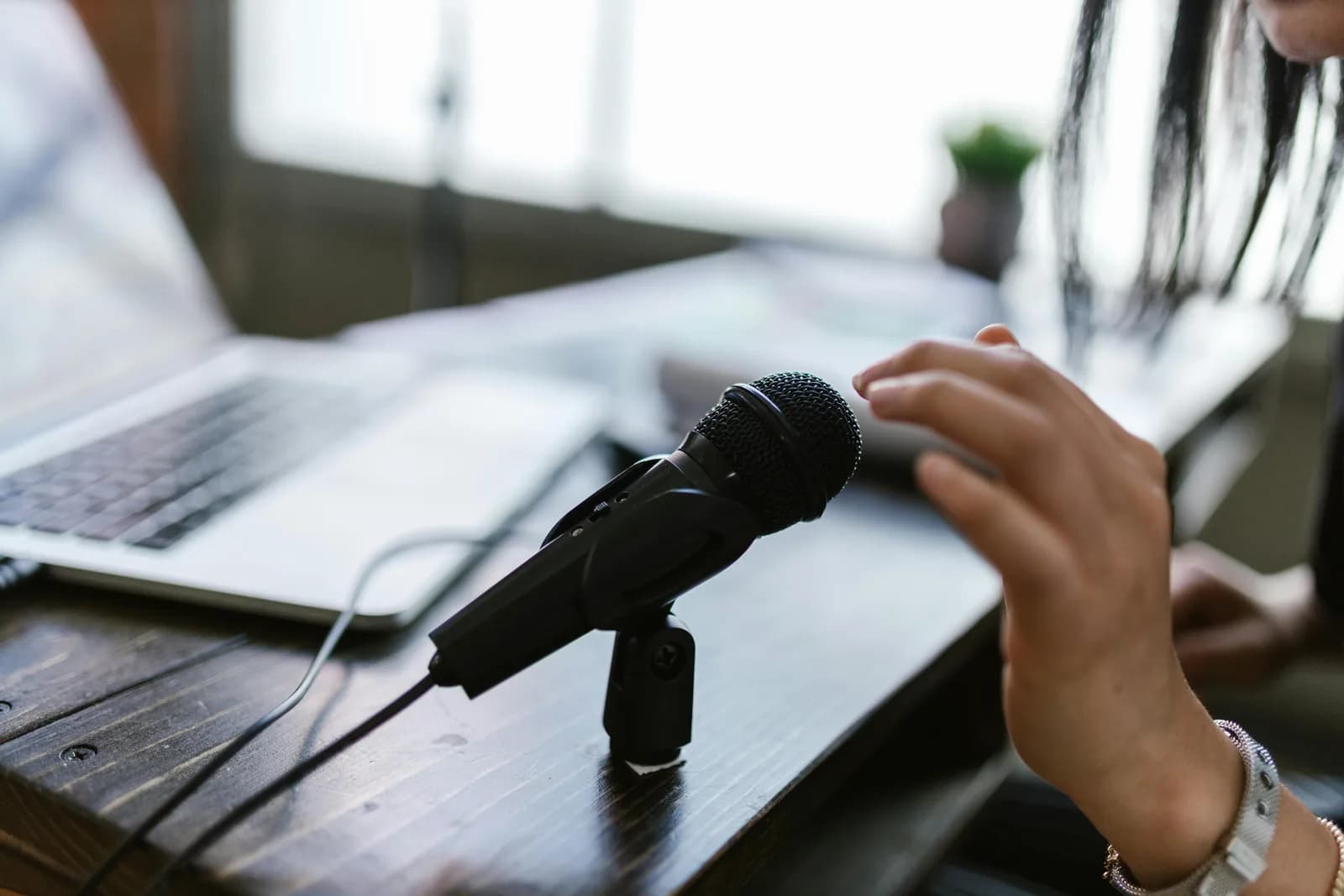
Voice to text for people who can't type works through a system-wide tool, not the app you're writing in. You press a hotkey, speak, and the transcript pastes at the cursor in any program. A tool like Whisper runs offline on Windows or Mac, with a free local tier. This is a productivity aid, not medical advice.
Some weeks I dictate more than I type, and not always by choice. A jammed finger from catching a falling plate, a long stretch where the wrist just says no — the keyboard stops being an option and the work doesn't. So I talk to the computer instead, and it writes. That's the whole idea behind voice to text for people who can't type, or can't type comfortably, or are done typing for the day.
Before anything else, the honest framing. I build dictation software. I am not a doctor, and this is not medical advice — nothing here treats, prevents, or fixes any condition. What dictation does is narrow and useful: it makes text without keystrokes. If pressing keys is the problem, making text without pressing them is the lever you can actually pull. That's the pitch, and I'd rather describe the mechanism than dress it up.
Here's the part most pages skip. A text box is a text box — your email, a Google Doc, a chat window, the search bar. Dictation that pastes at your cursor doesn't care which box it's in. So the real question isn't "does this app do voice typing." It's "which tool do I run on top of everything," and the answer is one hotkey that behaves the same in every program.
There's a second honest line worth getting out early. A dictation tool writes text; it does not drive the whole computer. It won't click menus, move the mouse, or navigate windows for you by voice. For a lot of people the keyboard pain is the text, so handing off the text moves the needle a long way. If you need the computer to run hands-free — clicking, scrolling, the lot — there's a section at the end that points you at the right tools, because those aren't us.
Why people reach for keyboard-free writing

The reasons land in a few honest buckets, and none of them require a diagnosis to be real. Some people's hands hurt and they want to rest them for the day — the productivity side of that lives in a separate guide on dictation when typing causes strain. Some have a temporary block: a splint, a cast, a bandaged finger. Some have a permanent reason to keep their hands off a keyboard. And plenty just write faster out loud than they ever did with ten fingers.
Whatever the reason, the job is the same. There's text that needs to exist — an email, a paragraph, a reply, a note — and the keyboard is either painful, slow, or unavailable. Dictation produces that text by voice. The keys you would have pressed, you don't press. For an inbox you'd normally answer over forty minutes of typing, that's a few hundred keystrokes you simply skip.
Speaking runs about 145 words per minute for most people; typing sits closer to 40. So beyond the rest for your hands, you're moving roughly three and a half times faster, which is a pleasant side effect when the slow option was the only one on the table. I'll keep saying this plainly, because it matters: this is a productivity and accessibility aid. It is not therapy, it is not treatment, and if any pain is involved, the person to ask is a clinician, not a blog post.
Press a hotkey, talk, the words land at your cursor
This is the entire mechanic, and it's dull in the best possible way. You press a hotkey, you speak, you release, and the transcript pastes at your cursor, in whatever text field has focus. Whisper holds a short tail after you let go of the key, so your last word doesn't get clipped. Because it pastes at the operating-system cursor, your email client, your document, and your chat app are all just "any text box." Same behaviour everywhere.
That's the part the landing pages overcomplicate. There's no extension to wire into one app, no token to paste, no separate window to fish your words out of. Your cursor is where the text should go, you talk, the words appear there. A small capsule shows up while you speak so you know it's listening:
The hotkey is the one thing worth setting up right. On Windows it's Ctrl+Space; on Mac it's Command+Option, a modifier-only push-to-talk you hold while speaking and release to stop. If holding a chord is itself uncomfortable, switch to tap-to-toggle in Settings under Recording — one tap starts, one tap stops, and you never hold anything down. The whole hotkey panel exists because I once shipped a hardcoded one and it collided with someone's music software at two in the morning. I have a master's degree. Once it's running, the trade you've made is the same one in dictating instead of typing across every app: the keyboard becomes optional.
Set it up in two minutes (Windows or Mac)
You need a Mac on Apple Silicon or a Windows 10-or-newer PC, a working microphone, and the app you want to write in open in front of you. The whole local pipeline is free for any signed-in account, with no payment method asked for at sign-up. Here's the sequence.
Step 1 — Install Whisper and sign in.
Download from the download page, install, and create a free account. No card. The whole local transcription pipeline opens right away.
You'll know it worked when the app's tray icon appears and the setup wizard offers to pick a model.
Step 2 — Pick a transcription path.
The app doesn't choose for you. You get three: Cloud (OpenAI, bring your own key), Local Parakeet, or Local Whisper. If privacy or staying offline matters, start local — more on that two sections down.
You'll know it worked when a model finishes downloading and shows as ready.
Step 3 — Set a hotkey you can reach.
Windows defaults to Ctrl+Space, Mac to Command+Option held as push-to-talk. If holding keys is hard on your hands, switch to tap-to-toggle so one tap starts and one tap stops. On Mac, grant the Accessibility permission when prompted; without it, the paste-at-cursor can't reach other apps.
You'll know it worked when a test recording pastes into any text field.
Step 4 — Put your cursor where the text goes and talk.
Click into any text box, start recording, say a sentence, stop. The transcript appears where the cursor is, as if you'd typed it.
You'll know it worked when your spoken sentence is sitting in the text field as text.
The slow part is the model download, not the setup. Everything else is the four steps above. Once it's running, putting a thought into any app stops being a typing task and becomes a talking task — which is the entire point when typing is the thing you can't do.
Writing in any app — and what voice won't do
Almost all of it, honestly. Email is the big one: replies, follow-ups, the long apologetic message you've been avoiding. Documents and reports, where you'd rather think out loud than fight the cursor. Chat across Slack, Teams, Discord, whatever your team lives in. Notes, both the meeting kind and the 11pm reminder kind. Search bars, form fields, a comment box. If it's text going into a box, you can say it instead of typing it, and the same hotkey does it everywhere.
Here's the limit, stated plainly so you don't find out the hard way. Whisper puts words where your cursor already is. It does not move the cursor, click menus, scroll, switch windows, or run your computer by voice. You still reach the text box the usual way — a mouse, a trackpad, a tap — and then you dictate into it. For most people the bulk of the keyboard load is the writing, not the navigation, so handing off the writing is most of the win. But if your hands need a break from everything, not just the typing, a dictation tool isn't the whole answer.
That gap is on purpose, not an oversight. We make the act of writing-by-voice fast and reliable across every app, and we'd rather do that one thing well than half-build a full hands-free desktop. When full control is what you need, the right tools exist and I'll name them at the end. Between you and me, knowing exactly where a tool stops is more useful than a feature list that pretends it does everything.
Local or cloud: which mode when typing isn't an option
Try local mode first. If you're leaning on dictation because the keyboard is hard for you, the last thing you want is for the tool to also depend on a steady internet connection or a per-minute bill. Local mode runs entirely on your own machine, fully offline, with nothing sent to a server. If your Mac is Apple Silicon or your PC is from the last few years, local handles everyday dictation without complaint, and cloud becomes the escape hatch rather than the default.
Here's how the three paths differ, because the app makes you pick and I'd rather you pick well:
- Local Parakeet — NVIDIA's TDT engine, around 600 MB, and the fastest local option — 5 to 10 times faster than Whisper on CPU. Covers English plus 24 other European languages, 25 in total. No translate-to-English. If you write in English or another European language, this is the quick, fully offline pick.
- Local Whisper — slower than Parakeet on the same machine, but the multilingual builds cover 99 languages and can translate to English. The English-only builds are English-only, not 99. Pick this for Chinese, Japanese, Korean, or any translation work, which Parakeet can't do. Default English model is around 480 MB.
- Cloud (OpenAI, BYOK) — best accuracy and web access, using your own OpenAI key billed straight by OpenAI. Transcription runs on gpt-4o-mini-transcribe by default. Needs internet, so it's the one path that leaves your machine. The Cloud surface is part of Whisper Pro.
The boring truth is that for everyday writing, local is plenty. Both local engines run fully on your machine, which matters more than usual here: the email to a doctor, an insurance form, the message you'd rather not route through a vendor's logs — none of it leaves your laptop. Your computer already has a microphone and a CPU; for one paragraph it doesn't need a server in the loop. Cloud earns its place when you want top-tier accuracy on a hard recording or need a fact pulled off the web mid-sentence. Start local, reach for cloud only when local leaves you wanting.
Cleaning up and editing without going back to the keyboard
Spoken language is messy. You say "um," you restart sentences, you trail off. If you then have to fix all of that by typing, you've put the keystrokes right back — which defeats the point when typing is the thing you're avoiding. So the cleanup step matters more here than it does for most people.
Whisper has an optional AI pass that trims filler and tidies phrasing before the text lands, so you paste something close to finished. Say the activation phrase "Hey whisper" and the enhanced version is what appears. On a local model that runs through Ollama, free, on your own machine; in cloud mode it's gpt-5-mini by default. Either way, fewer corrections means fewer keys.
uh yeah so the report is basically done i think and i'll send it over thursday before the meeting um if that works
The report is basically done, I think. I'll send it over Thursday before the meeting, if that works.
Editing is the honest weak spot of any voice workflow, and I won't pretend otherwise. Fixing a single wrong word by voice is fiddlier than reaching over and retyping it, which is fine if you can spare the occasional keystroke and a problem if you can't. Two things help. Dictate in short bursts, so a mistake is one quick re-record instead of a re-do of a whole paragraph. And let the AI cleanup catch the filler and punctuation up front, so there's less to fix at all. For deeper voice editing — selecting and replacing words entirely by command — that's squarely the job of the full-control tools in the next section.
That same speak-then-clean flow is the everyday habit behind dictating clean text into any app so a long message becomes a few spoken sentences instead of a paragraph you have to type out.
When a dictation tool isn't the right tool

Here's the most important honesty in this guide, and the line I'd want a friend to give me straight. If you need to run the whole computer hands-free — not just write text, but click, scroll, move the cursor, switch apps, and navigate by voice — Whisper is the wrong tool. We dictate text into the focused field. We do not control the computer. For full hands-free control, you want software built for exactly that, and there are three honest answers.
On Windows 11, there's Voice Access, built into the OS, which lets you control the screen, click, and navigate by voice as well as dictate. On Mac, Voice Control does the same — open it in System Settings under Accessibility, and you can click, scroll, and move the cursor with spoken commands, with dictation on top. Both are free, both are made for full-computer control, and if that's what you need, start there before you install anything. And for the most capable, scriptable hands-free setup — voice commands paired with eye tracking and noise-based clicking, the lot programmable in Python — Talon Voice runs on Mac, Windows, and Linux and is in a different class for true hands-free use.
The smaller skip is the same one as always: if you only ever drop a short message into a box now and then, your operating system's built-in voice typing covers it for free. On Windows that's the Windows key + H bar; on Mac it's the Dictation shortcut, on-device on Apple Silicon. A dedicated tool earns its place on volume and friction — the filler cleanup, tap-to-toggle so you never hold a key, working offline, one hotkey behaving the same in every app. Below that bar, use what's free. I'm not going to tell you to install an app for a one-line reply.
If the reason you're here is a reading or writing difficulty rather than your hands, the framing shifts a little — the logic in speech to text as a writing aid covers that case, and it's a productivity guide too, not a medical one.
A keyboard is one way to put text into a computer. It is not the only way, and on the days it isn't an option, it's a relief to remember that. Talk into the box, get text, let the cleanup smooth it over, and edit in short bursts so a stray word is a quick re-record, not a chore. For everything past the text — driving the whole machine by voice — Voice Access, Voice Control, and Talon are built for it, and I'd send you there without a second thought. I dictated most of this guide one-handed, into apps that don't know or care that I wasn't typing. That's the trick: the cursor doesn't ask how the words got there.
Write your next message without the keyboard
Set a hotkey you can reach, talk, and the transcript lands in whatever app your cursor is in — offline, on your own machine.
Free local mode for any signed-in account. No card required to start.



