 By Denys Medvediev
Comparison
MacWhisper alternative for Windows
MacWhisper is a Mac-only app, so it never runs on Windows. For live dictation that types at your cursor in any Windows app, Whisper by Remskill is the closest match — local, offline, and free to start. If your real job is transcribing existing audio files, that's a different tool.
Last updated: June 2026

MacWhisper has no Windows version; it runs only on macOS and iOS. The closest Windows alternative for live, system-wide dictation is Whisper by Remskill, which pastes transcribed speech at the cursor in any app, runs fully offline, and is free for the local pipeline. For batch-transcribing audio files, a dedicated file tool fits better.
You found MacWhisper, liked what you saw, opened the download page, and then read the part that ruins the afternoon: it's a Mac app. There is no Windows build, there is no waitlist for one, and no amount of refreshing the page changes that. I've watched people lose an hour to "surely there's a way," and I'd rather save you the hour.
So the question becomes which Windows tool does the job you actually wanted. That depends on one thing most pages gloss over: were you going to talk and have text appear as you write, or were you going to feed it a folder of recordings and get transcripts back. Those are two different jobs. I'll be straight about which is which, and which tool wins for each.
Here's the honest split. MacWhisper does several things, and it does them on a Mac. It transcribes audio and video files you drop in, it records meetings from Zoom and Teams, and it also has a system-wide dictation feature that types into any text field. The first two are its center of gravity. The dictation is real, but it's not the headline.
On Windows you can't run any of it. So the right alternative depends on the job. If you mostly want to dictate — talk, watch words land where your cursor is, in your email and your editor and your CRM — Whisper by Remskill is the close match, and it's local and free to start. If you mostly want to turn existing recordings into transcripts, that's a file-transcription job, and I'll point you at the right kind of tool for it near the end.
What MacWhisper is and who it's for
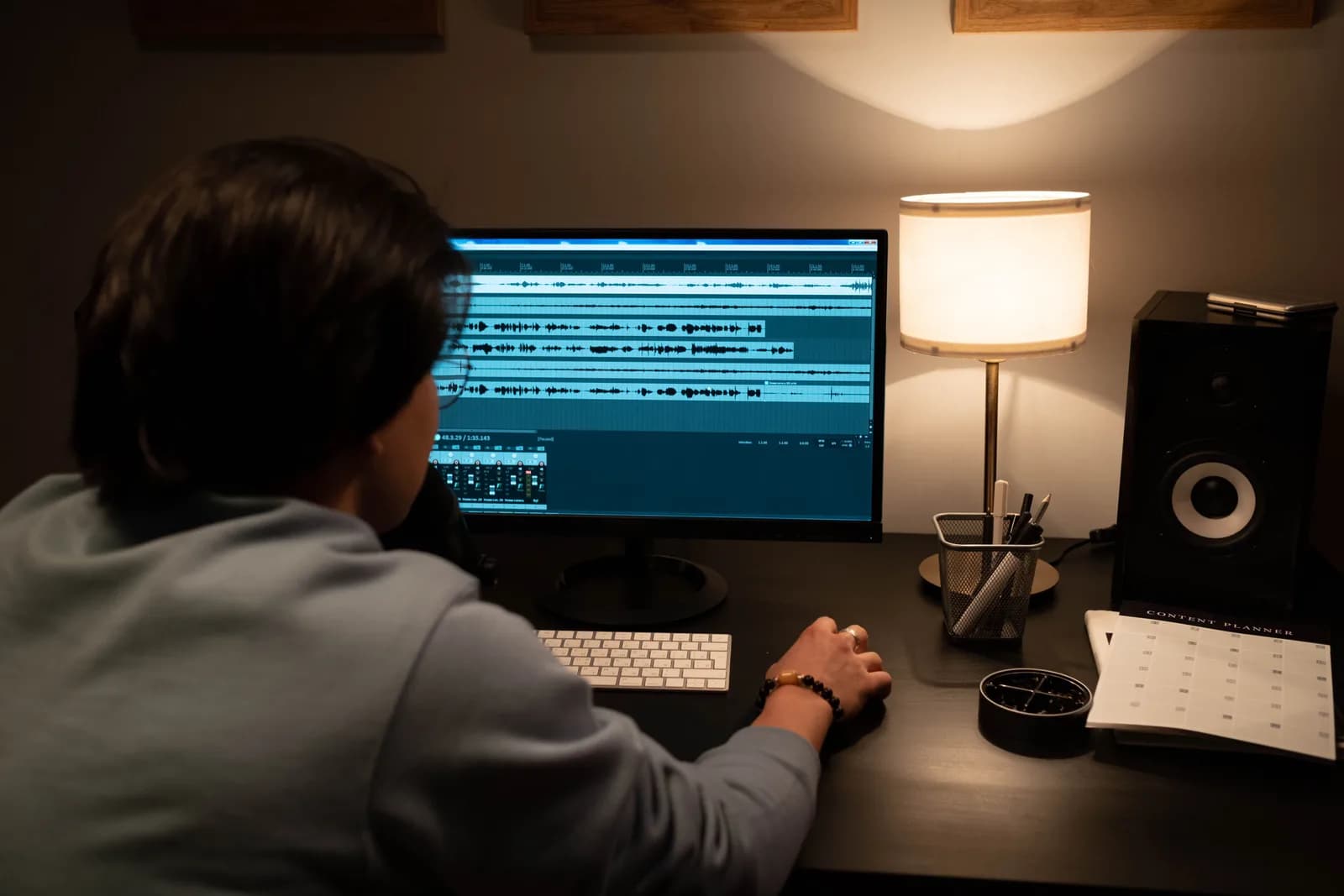
Credit where it's due: MacWhisper is a good app, and it's clear what it's built for. By its own description it transcribes audio and video files on the Mac, you drag a file in and get text back, it can record and transcribe meetings from Zoom, Teams, Webex and a handful of others, and it exports subtitles and documents in formats like .srt, .vtt, docx and pdf. All the transcription happens on your device, which makes it a sensible pick for sensitive recordings like interviews.
It also does live dictation. The direct-download version lists "dictation into any text field on your Mac," pitched as a replacement for Apple's built-in dictation. So it isn't a file-only tool. But look at the feature list end to end — meeting recording, speaker search through transcripts, subtitle export, batch file handling — and the picture is a transcription workbench first, with dictation as one feature among many. That's not a knock. It's just the shape of the product, and the shape matters when you're choosing an alternative.
The thing it cannot do is run on Windows. MacWhisper ships as a Mac download and on the Mac App Store, and there's a companion app on iOS. That's the whole platform list. If you're reading this on a Windows PC, the app you were looking at was never coming to your machine, and that's the gap this guide fills.
Why there's no MacWhisper for Windows
MacWhisper is built for Apple's platforms. The official support docs list three places to get it: a direct Mac download, the Mac App Store, and the iOS App Store. No Windows entry, no "coming soon," nothing. It's a Mac-native app from a Mac-focused developer, and that's a perfectly fine choice for them — it just doesn't help you on a PC.
So a Windows alternative has to do its own thing rather than port MacWhisper's. For the dictation half of MacWhisper's job, the mechanic you want is system-wide, hotkey-driven dictation: press a key, talk, release, and the transcript pastes at your cursor in whatever window has focus. That's exactly what Whisper by Remskill does on Windows, the same way MacWhisper's dictation does on a Mac. A small capsule shows up while you speak so you know it's listening:
Because it pastes at the OS cursor, the target app doesn't matter. Outlook, a browser tab, Slack, your code editor, a commit message — all of them are just "a text box" to dictation. On Windows the default hotkey is Ctrl+Space, held push-to-talk while you speak, and it's changeable in Settings if it clashes with something. (My younger daughter once told me a hotkey "didn't work" in her drawing app. It was a conflict, not a bug, which is how I learned the average person has no idea what a hotkey conflict even is. So now every hotkey is customisable.)
Setting up dictation on Windows in two minutes
You need a Windows 10-or-newer PC, a working microphone, and an account. The whole local pipeline is free for any signed-in account, with no payment method asked for at sign-up. Here's the sequence.
Step 1 — Install Whisper and sign in.
Download from the download page, install, and create a free account. No card. The whole local transcription pipeline opens right away.
You'll know it worked when the tray icon appears and the setup wizard offers to pick a model.
Step 2 — Pick a transcription path.
The app doesn't choose for you. You get three: Cloud (OpenAI, bring your own key), Local Parakeet, or Local Whisper. For private dictation, start local — more on that two sections down.
You'll know it worked when a model finishes downloading and shows as ready.
Step 3 — Confirm your hotkey.
Windows defaults to Ctrl+Space, held as push-to-talk. Pick a different combo in Settings if it collides with anything you already use.
You'll know it worked when a test recording pastes into any text field.
Step 4 — Put your cursor anywhere and talk.
Click into an email, a document, a chat box, hold the hotkey, say a sentence, release. The transcript appears where the cursor is.
You'll know it worked when your spoken sentence is sitting in that field as text.
The slow part is the model download, not the setup. Everything else is the four steps above. Once it's running, dictating an email stops being a typing task and starts being a talking task — the same shift MacWhisper users get on a Mac, just on the machine you actually own.
How they compare, honestly
Start with the part that isn't close: platform. MacWhisper runs on macOS and iOS; Whisper by Remskill runs on Windows and macOS. If you're on a PC, that single row settles most of the decision before you read another word. Whisper covers Windows; MacWhisper doesn't, and won't.
On the things they both touch, they're more alike than not. Both transcribe on-device, so your audio doesn't have to leave your machine — MacWhisper says all its transcription is local, and Whisper's local modes run fully offline. Both lean on the open Whisper speech models under the hood, so accuracy is in the same family. Both cover a wide spread of languages: MacWhisper advertises over 100, and Whisper's multilingual local models cover 99 plus translate-to-English. On pricing model, both offer a one-time license rather than forcing a subscription, though I'll keep exact numbers on the pricing page where they belong instead of letting them rot in an article.
The honest difference is emphasis. MacWhisper is a transcription workbench that also dictates: file drops, meeting capture, subtitle export, transcript search. Whisper by Remskill is dictation-first: its whole reason for existing is talk-and-it-types, system-wide, on one hotkey, with an AI cleanup pass on top. If you came to MacWhisper for the dictation, Whisper on Windows is a clean match. If you came for the file-and-meeting transcription, Whisper isn't built for that, and I'll say so plainly in the last section rather than pretend otherwise.
Local or cloud: which mode to run on Windows
Like MacWhisper, Whisper does everything on-device in its local modes, and for most dictation that's the right starting point. If your PC is from the last few years, local handles everyday talking without complaint, and cloud becomes the escape hatch rather than the default. Here's how the three paths differ, because the app makes you pick and I'd rather you pick well:
- Local Parakeet — NVIDIA's TDT engine, around 600 MB, and the fastest local option — 5 to 10 times faster than Whisper on CPU. Covers English plus 24 other European languages, 25 in total. No translate-to-English. If you dictate in English or another European language, this is the quick, fully offline pick.
- Local Whisper — slower than Parakeet on the same machine, but the multilingual builds cover 99 languages and can translate to English. The English-only builds are English-only, not 99. Pick this for Chinese, Japanese, Korean, or any translation work, which Parakeet can't do. The default English model is around 480 MB.
- Cloud (OpenAI, BYOK) — best accuracy and web access, using your own OpenAI key billed straight by OpenAI. Transcription runs on gpt-4o-mini-transcribe by default. It needs internet, so it's the one path that leaves your machine. The Cloud surface is part of Whisper Pro.
The boring truth is that for everyday dictation on a recent PC, local is plenty, and it keeps your voice on your own disk — the same privacy story that makes MacWhisper a good pick for sensitive interviews. Cloud earns its place when you want top-tier accuracy on a hard recording or you need the model to pull a fact off the web mid-sentence. Start local; reach for cloud only when local leaves you wanting.
The AI cleanup pass MacWhisper's dictation doesn't focus on
Raw dictation comes out as a run-on. You say "okay so send the quarterly numbers to finance and flag the two invoices that are still open," and that's the unpunctuated wall any speech engine hands you first. Cleaning it up is where a dictation-first tool earns its keep.
Whisper can run an AI pass on the text before it lands. Say the activation phrase "Hey whisper" and the transcript gets enhanced — filler words stripped, run-ons split, punctuation fixed — so what pastes into your document is closer to something you'd actually send. On a local model that pass runs through Ollama on your machine; in cloud mode it's gpt-5-mini by default. The point is the words don't just appear, they appear cleaned.
okay so send the quarterly numbers to finance and flag the two invoices that are still open um before the call at four
Okay, so send the quarterly numbers to finance and flag the two invoices that are still open before the call at four.
This is the line where a dictation-first design and a file-transcription tool diverge. A tool built around transcribing recordings is optimised for faithful transcripts — get the words exactly as spoken, with timestamps and speakers. A dictation tool is optimised for usable text — what you'd want pasted into an email, not a verbatim record of every "um." Both are correct for their job. If your job is writing by voice, the cleanup pass is the feature you'll feel every day. If your job is an accurate record of a recording, you may not want it tidying things at all.
That same speak-then-clean flow is the whole reason people switch from typing, and it shows up across every app you open — you can type faster with your voice in any field, so a long paragraph becomes a few spoken sentences instead of something you type out one key at a time.
When MacWhisper or a file tool is the better pick

Sometimes the right answer isn't a Windows dictation app at all, and pretending otherwise would be dishonest. If your real job is turning existing recordings into transcripts — interviews, podcasts, a folder of meeting recordings, lecture audio you want as text — that's file transcription, not dictation, and it's a genuinely different tool. Whisper by Remskill dictates live; it isn't a batch file-transcription workbench. For that work you want something built for it.
And if you're on a Mac after all, MacWhisper is a strong choice for exactly this. Drag-and-drop file transcription, meeting recording from Zoom and Teams, speaker search, subtitle and document export, everything on-device — that's its home turf, and it does it well. If you have a Mac and your need is "transcribe these recordings," I'd send you to MacWhisper without hesitation. On Windows, the equivalent is a dedicated file-transcription app rather than a dictation tool; there are several that run the Whisper models locally on a PC, and the right one depends on whether you need subtitles, speaker labels, or just plain text.
Reach for live dictation like Whisper when the job is writing by voice on Windows: emails, documents, chat, code comments, CRM notes — text you compose at the cursor, in real time, all day. Reach for a file-transcription tool when the job is recordings-to-text in bulk. They overlap a little, but choosing by the job you actually have beats choosing by which one has the nicer landing page. If you've used a built-in route before, the same logic applies whether you're moving off Dragon, Otter, or Windows' own Win+H.
If your need is plain everyday dictation on a PC and you're weighing the built-in option first, the trade-offs in voice to text on Windows lay out where the free OS tool is enough and where a dedicated one starts to pay off.
MacWhisper is a Mac app, and it's a good one — for the Mac. On Windows the honest move isn't to find a clone, it's to match the job: dictation-first if you're writing by voice, a file tool if you're transcribing recordings. I dictated most of this comparison into a text box at Ctrl+Space, cleaned it with the same AI pass I just described, and never once needed a Mac to do it. That's the part that travels.
Dictate on Windows the way MacWhisper does on a Mac
Press the hotkey, talk, release. The transcript lands at your cursor in any Windows app — email, docs, chat, your editor.
Free local mode for any signed-in account. No card required to start.



