 By Denys Medvediev
Guide
Dictation software for writers
You can talk a first draft faster than you can type one. The fix is a system-wide tool: press a hotkey, speak, and the words land at your cursor in Scrivener, Word, Google Docs, or any editor. Then clean the draft with an AI pass.
Last updated: June 2026
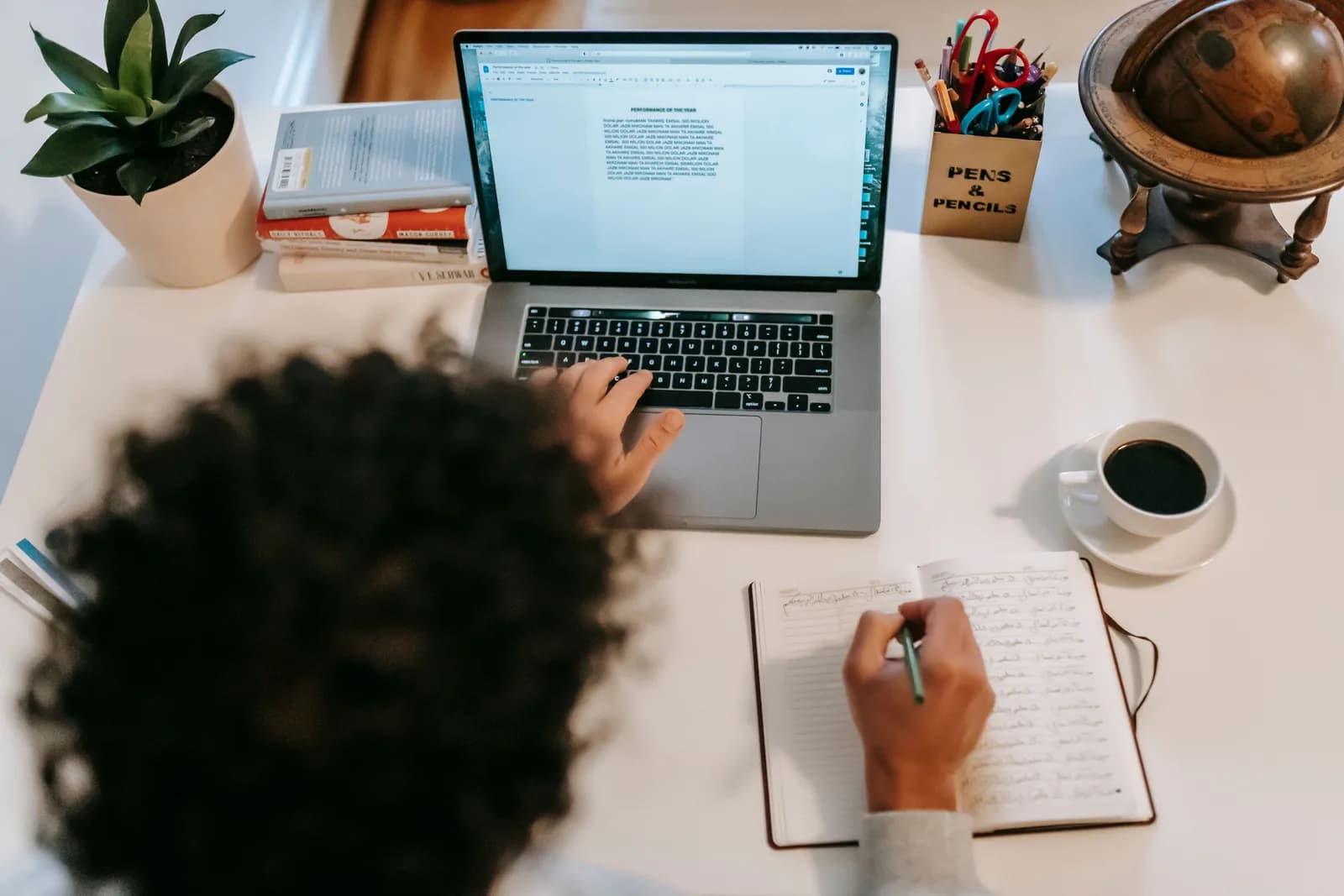
Dictation software for writers turns a spoken first draft into text inside any editor. A system-wide tool like Whisper pastes at the cursor in Scrivener, Word, or Google Docs after a single hotkey, runs free and offline on Windows or Mac, and an optional AI pass cleans the run-on speech into readable prose.
Typing is the slowest part of writing. The words are already in your head, formed into sentences, and then you funnel them through ten fingers at maybe forty words a minute. I talk at around three times that, and so do you. The bottleneck was never the ideas. It was the keyboard.
Writers search for "dictation software" and land on a memory of Dragon NaturallySpeaking, a $699 license, and a forty-five-minute training session. That world is gone. The dictation a novelist or blogger needs in 2026 is a hotkey that drops spoken text into whatever editor they already use, then an AI pass to tidy it. No license. No per-app plugin. It runs on the laptop you own.
Here's the part most pages selling dictation to writers skip. Your editor doesn't need a dictation feature. A Scrivener document, a Word page, a Google Docs window — they're all just text boxes with a cursor. A tool that pastes at the cursor doesn't care which one is open.
So the real question isn't "which writing app has the best voice typing." None of them are built for long-form dictation, and you don't want to be locked to one anyway. The question is "which dictation tool runs on top of all of them," and the honest answer is one offline hotkey that behaves the same in every program. I'll walk the workflow, set it up in two minutes, and tell you when to skip dictation entirely.
Why writers reach for dictation

The first draft is the job dictation is built for. A first draft is supposed to be fast and ugly — get the shape down, fix it later. Typing fights that, because typing is careful by nature; you watch the words appear and you tinker. Talking doesn't let you tinker. You say the sentence, it lands, you keep going. For a novelist pushing through a chapter or a blogger trying to clear a 1,500-word post before the kids wake up, that forward momentum is the whole point.
The speed gap is real and it's not subtle. Sustained typing for most people sits around forty words a minute. Talking runs closer to a hundred and forty-five. You will not write a finished, polished chapter at that rate — nobody does — but you will get the raw clay down in a third of the time, and editing clay is faster than staring at a blank page. The expensive part of writing is starting. Dictation makes starting cheap.
There's a quieter reason too, and I'll keep it honest: dictation rests your hands. If you write for a living, the keyboard adds up, and being able to draft a long section while leaning back from the desk takes load off your wrists. That's a productivity aside, not medical advice — but it's a real reason writers I've heard from picked it up, and it's the same logic behind switching to voice to ease keyboard strain. Fewer keystrokes for the same word count is just a good trade.
Press a hotkey, talk, the draft lands in your editor
The mechanic is boring, which is exactly why it works everywhere. You press a hotkey, you speak your paragraph, you release, and the transcript pastes at your cursor — in whatever text field has focus. Whisper holds a short tail after you let go of the key, so the last word of a sentence doesn't get clipped. Because it pastes at the cursor, your Scrivener editor, a Word page, and a Google Docs window are all just "any text box." Same key, same behaviour, every time.
That's the part the older dictation tools never got right. There's no plugin to bolt into Scrivener, no separate dictation mode to wrestle in Word, no extension to authorise in Docs. Your cursor is in the chapter, you talk, the words appear in the chapter. A small capsule shows up while you speak so you know it's listening:
The hotkey is the one thing worth getting right up front. On Windows it's Ctrl+Space; on Mac it's Command+Option, a modifier-only push-to-talk you hold while speaking. Both are changeable in Settings if they clash with something you already use — a writing app with its own shortcuts, say. (The first version of mine hardcoded the hotkey, which lasted until exactly one user found it collided with their music software at two in the morning. Now everything is customisable.) If you've set up voice to text on Windows or on Mac before, this is the same muscle memory pointed at your manuscript.
Set it up in two minutes (Windows or Mac)
You need a Mac on Apple Silicon or a Windows 10-or-newer PC, a working microphone, and your editor of choice open. The whole local pipeline is free for any signed-in account, with no payment method asked for at sign-up. Here's the sequence.
Step 1 — Install Whisper and sign in.
Download from the download page, install, and create a free account. No card. The whole local transcription pipeline opens right away.
You'll know it worked when the app's tray icon appears and the setup wizard offers to pick a model.
Step 2 — Pick a transcription path.
The app doesn't choose for you. You get three: Cloud (OpenAI, bring your own key), Local Parakeet, or Local Whisper. For manuscripts you'd rather keep off anyone's server, start local — more on that two sections down.
You'll know it worked when a model finishes downloading and shows as ready.
Step 3 — Confirm your hotkey.
Windows defaults to Ctrl+Space, Mac to Command+Option held as push-to-talk. On Mac, grant the Accessibility permission when prompted; without it, the paste-at-cursor can't reach other apps.
You'll know it worked when a test recording pastes into any text field.
Step 4 — Put your cursor in your draft and talk.
Open Scrivener, Word, or your browser document, click into the page, hold the hotkey, say a sentence, release. The transcript appears where the cursor is.
You'll know it worked when your spoken sentence is sitting in the manuscript as text.
The slow part is the model download, not the setup. Everything else is the four steps above. Once it's running, the act of getting a paragraph onto the page stops being a typing task and becomes a talking task — which is the only change you actually wanted.
A drafting workflow that survives a real chapter
Dictating a whole chapter is not the same as dictating an email, and pretending otherwise is how people give up on it in week one. The trick is to separate the two jobs writers usually do at once. Drafting is one job: get the words out, in order, fast, without judging them. Editing is a different job: punctuation, paragraph breaks, the sentence you said twice. Dictation is brilliant at the first and clumsy at the second. So split them. Talk the draft top to bottom, then go back and shape it with the keyboard you never fully retire.
A few habits make it stick. Speak in full sentences rather than fragments — the transcription is sharper when it has a complete thought to work with. Say "new paragraph" out loud as a marker you'll find on the editing pass, even if the tool doesn't act on it, because a wall of spoken text is hard to re-enter cold. Keep a glossary of your own proper nouns nearby; character names, invented places, and technical jargon are where any speech engine guesses, and local Whisper lets you bias toward custom vocabulary so "Aelwyn" stops becoming "Ellen." None of this is exotic. It's just treating the draft as a draft.
The honest expectation: a dictated 2,000-word section comes out as readable, run-on, slightly-too-chatty prose with the bones in place. That's a win. You spent fifteen minutes talking instead of an hour typing, and now you have something to edit instead of a cursor blinking at you. I draft long things this way and then type the precise edits by hand — voice for volume, keys for polish. The two aren't rivals.
Local or cloud: which mode for a manuscript
For your own writing, try local mode first. A manuscript is a private thing until you decide it isn't, and there's no reason to route an unpublished chapter through anyone's server to turn your voice into text. If your Mac is Apple Silicon or your PC is from the last few years, local handles everyday drafting without complaint, and cloud becomes the escape hatch rather than the default.
Here's how the three paths differ, because the app makes you pick and I'd rather you pick well:
- Local Parakeet — NVIDIA's TDT engine, around 600 MB, and the fastest local option — 5 to 10 times faster than Whisper on CPU. Covers English plus 24 other European languages, 25 in total. No translate-to-English, no custom vocabulary. If you draft in English and want speed, this is the quick, fully offline pick.
- Local Whisper — slower than Parakeet on the same machine, but the multilingual builds cover 99 languages and can translate to English, and it supports custom vocabulary — the lever that keeps your character names intact. The English-only builds are English-only, not 99. Pick this for character glossaries, multilingual work, or translation. Default English model is around 480 MB.
- Cloud (OpenAI, BYOK) — best accuracy and web access, using your own OpenAI key billed straight by OpenAI. Transcription runs on gpt-4o-mini-transcribe by default. Needs internet, so it's the one path that leaves your machine. The Cloud surface is part of Whisper Pro.
The boring truth is that for a working draft, local is plenty. Both local engines run fully on your machine with nothing sent to a server, which matters when the file is a book nobody's read yet. Cloud earns its place when you want top-tier accuracy on a tricky recording or you need the model to pull a fact off the web mid-sentence. For day-to-day chapter work, start local and only reach for cloud when local leaves you wanting.
Turning a spoken draft into clean prose
Raw dictation comes out as a run-on, and that's normal. You say "okay so the detective walks in she doesn't say anything yet um she just looks at the body and then the lights cut out," and that's the unpunctuated stream any speech engine hands back. The draft is all there; the commas aren't. Cleaning it up is where the modes diverge.
Windows Voice Typing adds punctuation as you speak, and macOS Dictation handles basic punctuation when you say "comma" or "period." For heavier cleanup — stripping the "ums," fixing the run-ons, breaking a spoken monologue into sentences you'd actually keep — Whisper can run an AI pass. Say the activation phrase "Hey whisper" and the text gets enhanced before it lands. On a local model that runs through Ollama; in cloud mode it's gpt-5-mini by default.
okay so the detective walks in she doesn't say anything yet um she just looks at the body and then the lights cut out
The detective walks in. She doesn't say anything yet — she just looks at the body. Then the lights cut out.
A word of caution writers should hear plainly: the AI pass is for mechanics, not for voice. It fixes punctuation and filler; it should not be rewriting your sentences into something blander than what you said. Use it to make the draft legible, then do the real editing yourself, because the rhythm of a line is the part no model gets to own. The honest division of labour is: voice gets the words down, the AI pass makes them readable, and you make them yours.
That same speak-then-clean flow works far beyond a manuscript — you can also keep a voice journal by dictating into any app so a day's notes become a few spoken sentences instead of a page you type at midnight.
When to skip dictation and reach for something else
Dictation is the right tool for drafting your own words. It is the wrong tool for two jobs writers often confuse with it, and saying so out loud saves you a frustrating afternoon.
If your job is to turn a recorded interview, a podcast, or a meeting file into a transcript, that's transcription, not dictation — a different category. You want a transcription service that ingests an audio file and gives you back a timestamped, speaker-labelled document. A push-to-talk hotkey is built for live speech at your own cursor, not for processing a file you recorded earlier. And if you only need to jot a sentence on your phone — a line of dialogue that arrived in the grocery queue — the keyboard's built-in microphone on your phone already does that, and Whisper is desktop-only on Windows and macOS anyway. Don't install a desktop app to capture one line.
There's also a free tier already on your machine for short bursts. On Windows, press Windows key + H and the built-in Voice Typing bar opens at your cursor; it punctuates on its own and is fine for a sentence or two, though it routes through Microsoft's servers and needs internet, so it isn't an offline option. On Mac, Dictation lets you speak into any text field, set up in System Settings under Keyboard, and on Apple Silicon general text can be processed on-device. Reach for a dedicated, system-wide tool when those start hurting: long drafts, offline privacy on a manuscript, custom vocabulary for your character names, or wanting one hotkey that behaves the same in Scrivener, your email, and your blog editor. Below that bar, use what's free. I'm not going to tell you to install an app to capture one stray line of dialogue.
And if the reason you're looking at voice in the first place is the strain of long days at the keyboard, the trade-off is laid out in moving to dictation to take load off your hands — same productivity logic, fewer keystrokes for the same page count.
I grew up near a relative who owned Dragon NaturallySpeaking on a Windows 98 machine with 64 megabytes of RAM. The training took forty-five minutes — you read a list of words to calibrate it — and then dictation worked at maybe seventy percent accuracy with a four-second delay per sentence. It took fifteen minutes to dictate one paragraph of a holiday letter, and the headset eventually got thrown across the room. Twenty-five years later, a draft chapter lands at the cursor in about a second and a half, offline, for free. The headset survived, by the way. I talked most of this guide into a text box and then edited it with the keyboard, which is exactly the workflow I'm recommending. Try it on the next thing you have to write.
Talk your next chapter onto the page
Hold the hotkey, draft a paragraph out loud, release. The text lands in your editor — and in every other app you write in too.
Free local mode for any signed-in account. No card required to start.



