 By Denys Medvediev
Setup Guide
Voice to Text on Mac: The Setup Guide
Three options, about an hour, and the one I’d pick.
Last Tuesday I dictated a 2,400-word product update to my team — sitting at a kitchen counter, M2 MacBook Air open, Right Option held down, kettle screaming on the stove behind me. The cursor in Notion blinked once. The words landed. I edited two of them.
Five years ago this would have been impossible on Mac. Three years ago it would have required a Python sidecar, a dictation server you ran in the background, and a willingness to debug ffmpeg at 11pm. Today it’s a 30 MB download, two macOS permission prompts, and a hotkey you press while the kettle boils.
This is a guide to setting it up. It’s also an opinion about which setup to pick.
Mac users have wanted accurate, work-anywhere voice dictation for a decade — and Apple’s built-in option has stayed barely-good-enough for short messages and nothing else. In 2026 the gap finally closed: three different transcription paths now run well on a four-year-old MacBook, but the choice between them is non-obvious, and the wrong choice on day one is the most common reason people give up.
This guide walks through the three paths — cloud OpenAI BYOK, local Parakeet, local Whisper — explains what each is good and bad at, and ends with a sequential setup for the path I’d recommend to most readers. By the end, you’ll have voice-to-text running on your Mac, with a working hotkey, the right model for your hardware, and a clear sense of when to revisit the other two paths later. Most of the support email I read at Remskill is from people who picked the wrong path on day one and never re-tested.
Install Whisper. Grant two macOS permissions. Hold Right Option to dictate. About 30 minutes total. Cloud is the path I’d pick — sequential walkthrough below, plus the two alternatives.
Three paths in one minute
Whisper for Mac ships three transcription engines in the same UI. You don’t have to commit on day one — you can switch any time from Settings → Transcription. But the first-run defaults matter, so here’s what each path actually is.
If your Mac is only one of the devices you dictate on, see voice typing apps for every device.
Cloud — OpenAI BYOK
You bring your own OpenAI API key. Audio goes to OpenAI’s gpt-4o-mini-transcribe (or gpt-4o-transcribe for the higher-quality tier). They charge you about $0.003 per minute of audio, billed directly. Best accuracy of the three paths today, plus optional GPT-5 Mini cleanup of your dictation, plus optional web-search-by-voice via OpenAI’s Responses API. Requires internet.
Local — Parakeet
NVIDIA’s Parakeet TDT, ~600 MB, runs on your CPU via pure Rust (no Python sidecar). The fastest local option — 5–10× faster than Whisper-large on CPU on the same audio. English plus 24 European languages, including Polish, Russian, Ukrainian. No translate-to-English. No model-size choice — it’s one model.
Local — Whisper
OpenAI’s open-source Whisper, eight model sizes from tiny.en (39 MB, English-only) to large-v3 (3 GB, multilingual). Slower than Parakeet but supports 99 languages, can translate non-English speech directly to English, and accepts custom vocabulary if you dictate technical jargon. Picks up about 2 GB of disk if you stay multilingual.
Cloud vs. Parakeet vs. local Whisper
| Feature | Cloud (OpenAI BYOK) | Local Parakeet | Local Whisper |
|---|---|---|---|
| Accuracy on clean speech | Best of the three | Very good (EN, EU langs) | Good (small.en); excellent (large-v3) |
| Speed (M2 Air) | ~280ms first token; network-bound | ~1.4× real time on CPU | small.en: ~5×. large-v3: ~0.4× (slower than real time) |
| Languages | ~57 listed by OpenAI; ~98 trained | EN + 24 European | 99 (multilingual variants) |
| Works offline | No | Yes | Yes |
| Marginal cost | ~$0.003/min direct to OpenAI | Free after install | Free after install |
| Extras | AI cleanup, web-search-by-voice | Lowest CPU heat | Translate to English; custom vocab |
If you have $5/month to spare and a working internet connection: Cloud. If you don’t: Parakeet for English-or-EU-language dictation, or Whisper if you need 99 languages or translate-to-English. The setup walkthrough in §4 covers Cloud. Sketch versions of the other two are in §5 and §6.
Apple Dictation: when the free thing is fine
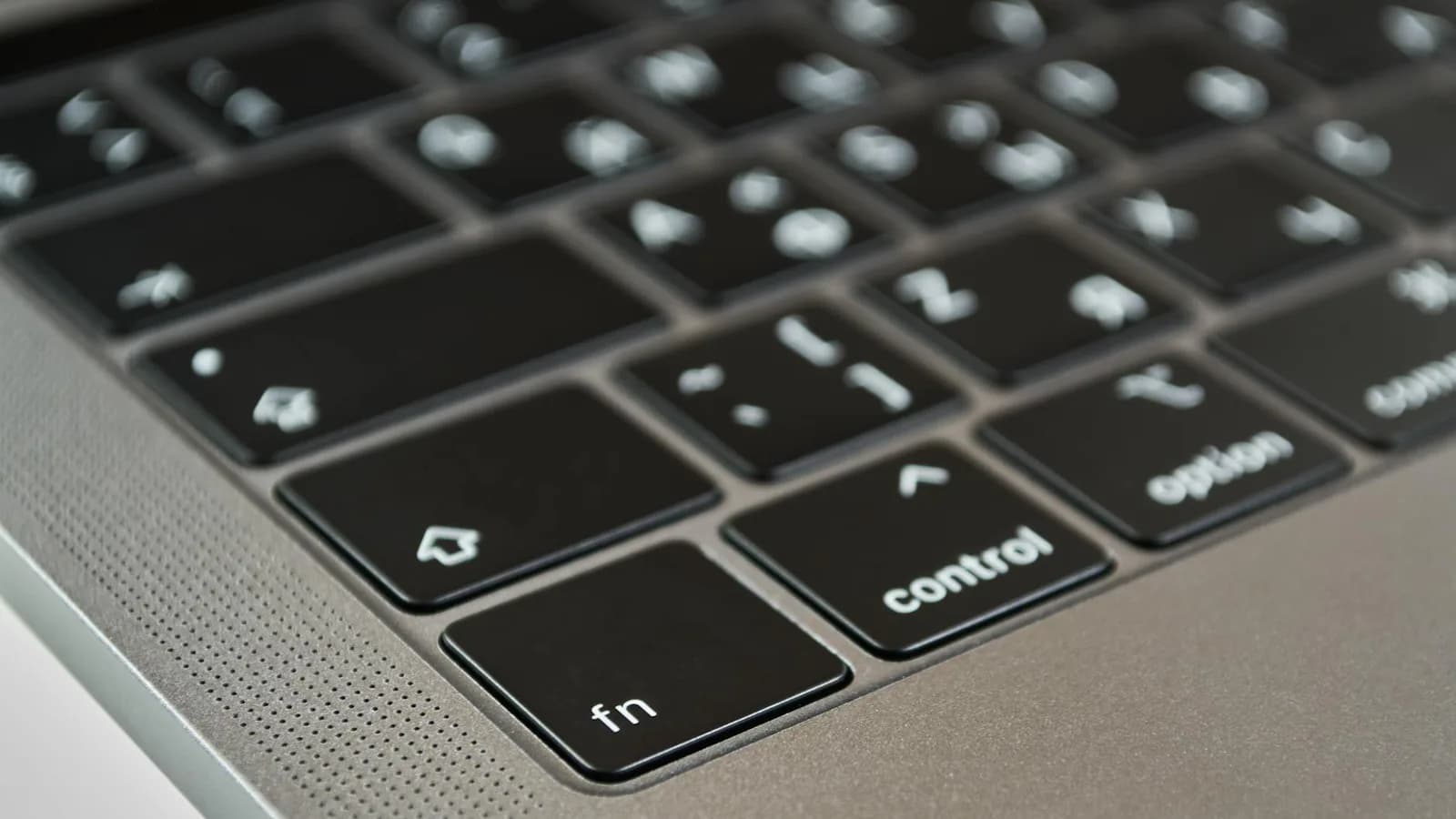
Apple Dictation ships with macOS. Press the configured shortcut (the default varies by macOS version — currently the microphone key on M-series MacBooks, or a customizable keyboard shortcut), speak, click out. Free. On-device processing on Apple Silicon for over 40 languages and regional variants.
It works for short messages — two-line iMessages, Slack replies, calendar notes — anything under 30 seconds. Above that, you’ll hit the historical session cap, punctuation drifts on long sentences, and proper nouns lose. My older daughter is named Mira; Apple Dictation has called her "Maira", "Mirror", and once memorably "Mirror image".
If your dictation needs are short messages and nothing else, stop reading this article and use Apple Dictation. It’s free, it’s already installed, and the accuracy on a quiet 10-second sentence is genuinely good. Apple’s setup docs cover everything in two pages. The rest of this guide is for when you’ve outgrown that.
Going the other direction — Mac to ear instead of mouth to Mac — Spoken Content is the built-in mirror of Apple Dictation, and the free text-to-speech tools we vetted cover what to add when the system voice runs out of road.
Stepping back further — the same picture on every other device — we covered talk-to-text shortcuts on Windows, Android, and iPhone so you can compare what each platform gets for free before deciding where Whisper earns its keep.
The setup walkthrough — Cloud (recommended)
About 30 minutes from a clean Mac to dictating a paragraph in any app. Numbered steps, each with a verifiable outcome — if a step’s check fails, the cause is named in §8. You’ll need: a Mac on macOS 13 or newer, an OpenAI account with a payment method on file, and one full minute of patience for the macOS permission dialogs.
1. Download the installer
Go to whisper.remskill.com/download. The page auto-detects your platform and serves the latest .dmg for Apple Silicon. Intel Macs are deprecated — if that’s your machine, see §6 and use the local Whisper path on your other hardware, or wait for the next Mac.
Check: a file named Whisper-by-Remskill-x.x.x.dmg lands in your Downloads folder. About 30 MB.
2. Drag to Applications
Open the .dmg. You’ll see the Whisper icon and a translucent Applications shortcut. Drag the icon onto Applications, then eject the .dmg from Finder. Open Applications and double-click Whisper to launch.
Check: macOS asks "Whisper is an app downloaded from the Internet. Are you sure you want to open it?" Click Open. The app window appears with the Whisper logo and a Sign In screen.
3. Grant the Microphone permission
On first launch the app asks macOS for microphone access. macOS shows the system dialog "Whisper would like to access the microphone." Click Allow. If you miss it: System Settings → Privacy & Security → Microphone → toggle Whisper on.
Check: System Settings → Privacy & Security → Microphone shows Whisper with the toggle on.
4. Grant the Accessibility permission
Whisper needs Accessibility to paste your transcription at the cursor in any app. macOS shows the dialog "Whisper would like to control this computer using accessibility features." Click Open System Settings, find Whisper in the Accessibility list, toggle it on, then return to the Whisper app. The toggle requires unlocking with Touch ID or your password.
Check: System Settings → Privacy & Security → Accessibility shows Whisper with the toggle on. The Whisper window now shows the main interface (no permission prompts on top).
5. Sign in (free account)
Click Sign In. Use Google, GitHub, or email. The account is free — no payment method required. All local transcription paths (Parakeet, Whisper) work immediately. The Cloud path is locked behind an in-app upgrade card; if you want to try Cloud, the upgrade flow opens a 7-day Pro trial that requires a card.
Check: the sidebar’s bottom-left shows "Sign Out" instead of "Sign In." The version indicator (e.g. "v2.4.2 · Check for updates") is visible at bottom-right.
6. Paste your OpenAI API key
In Settings → Transcription, switch the segment toggle to Cloud. Paste your OpenAI API key (sk-...) into the API Key field, click Save. The key lives in your macOS Keychain — Whisper never sees it again after this paste, and never sends it to Remskill’s servers. If you don’t have a key yet: platform.openai.com → API Keys → Create new secret key, copy, paste here.
Check: the API Key field shows ●●●●●● (masked). The Model dropdown unlocks and shows GPT-4o Mini Transcribe and GPT-4o Transcribe.
7. Pick a transcription model
Stay on GPT-4o Mini Transcribe for now. It costs about $0.003 per minute, which works out to roughly $1 for five hours of speech — most users spend $2–4 per month on transcription. Switch to GPT-4o Transcribe later if you do dense technical dictation; it’s twice the cost and noticeably better on jargon, but Mini is the right default.
Check: Settings → Transcription → Model shows GPT-4o Mini Transcribe.
8. Your first dictation
Open Notes (or Mail, or any app with a text field). Click into a text field so the cursor is blinking. Hold the Right Option key. The Whisper overlay appears at the bottom of the screen with the recording state — red waveform, Cancel pill, red Stop button. Say the sentence: "Testing Whisper for the first time on my Mac." Release Right Option. About a second later the words appear at your cursor.
Check: the sentence is typed into Notes, with reasonable punctuation. The overlay shows a green check and "Text pasted" for half a second, then disappears.
9. Optional — turn on AI cleanup and web search
Settings → AI → toggle On / Off to On. The default cleanup model is GPT-5 Mini, which un-stutters your dictation, fixes the kind of grammar that comes from speaking off-the-cuff, and can run a tone preset. Three instruction presets ship out of the box (Developer, Writer, Doctor) and you can add your own. Toggle Web search on if you want to ask voice questions like "what’s the weather in Brașov today" — answers paste at the cursor via OpenAI’s Responses API.
Check: dictate the same test sentence with AI on. The output should be cleaner — fewer ums, better punctuation, and any tone preset you picked applied.
Alternative path 1 — Local Parakeet
Use this if: privacy-sensitive work (medical notes, legal drafting), no internet on a flight, or English / European-language dictation where Cloud’s marginal cost feels excessive.
Setup: do steps 1–5 from §4 (download, install, two permissions, sign in). Then in Settings → Transcription, switch the segment toggle from Cloud to Local. In the Model row, pick Parakeet — the first time you select it, the app downloads about 600 MB. Test by holding Right Option and dictating one sentence. There’s no API key to paste, no model size to pick — Parakeet is one model. Note: AI cleanup still requires Cloud and your OpenAI key. Dictation is local; cleanup needs network if you want it.
Parakeet works the same way on Windows — the only difference is the hotkey (Ctrl + Space instead of Right Option). For the full Windows walkthrough see voice to text on Windows.
Using Whisper to dictate into Microsoft Word? Speech to text in Word has a few Word-specific quirks worth knowing before you start.
Not sure which transcription tool fits your workflow? the full transcription software breakdown covers AI vs human, cloud vs local, and accuracy realities across every category.
Prefer the product page over the how-to? Whisper's speech to text for Mac lays out the app, the local models, and the download in one place.
Alternative path 2 — Local Whisper
Use this if: 99 languages including Mandarin, Polish, Japanese, Hindi; or you need translate-to-English (speak Polish, get English text); or you do specialized vocabulary that benefits from custom hotwords. Slower than Parakeet but more flexible.
Setup: steps 1–5 from §4. Then Settings → Transcription → Local. In the Model row, pick a Whisper variant. small.en is the right default for English-only on a 16 GB Mac (~460 MB, ~5× real time). The first selection downloads the model — small.en is fast; large-v3 takes a few minutes. Optional: in the Custom words row, paste any technical vocabulary you want recognized (medical terms, brand names, code keywords). See §7 for picking a different model size if small.en isn’t the right fit.
Coming from a Mac transcription app? our honest MacWhisper alternative explains why a dictation-first, free local pipeline beats a file-transcription-first tool for everyday writing.
Picking a Whisper model size (only if you’re on §6’s path)
Skip this section if you went Cloud or Parakeet. If you went local Whisper, the eight model sizes split into English-only (.en) and multilingual. Bigger is more accurate and slower. Five that matter most:
| Model | Disk / RAM | Use when |
|---|---|---|
| tiny.en | 39 MB | First-time test only — accuracy is rough |
| base.en | 142 MB | Quick notes on an 8 GB Mac |
| small.en (recommended) | 461 MB | Daily English dictation on 16 GB+. Best speed/accuracy ratio. |
| medium.en | 1.4 GB | When small.en gets technical jargon wrong |
| large-v3 | 3 GB / ~6 GB RAM | Multilingual, translate-to-English, or top-tier accuracy. Slow. |
Don’t ask medium.en to share 8 GB of RAM with Slack and Chrome. The result is a stutter that’s not in the audio.
Three things that trip people up
Ranked by support-ticket frequency. If your setup isn’t working, this section is faster than restarting the app three times.
1. The hotkey conflict
Symptom: you hold Right Option, the Whisper overlay doesn’t appear, and a special character lands in your text field instead (™, ®, ø, etc.).
Cause: Right Option is also macOS’s modifier for special characters. If another app or a keyboard remapper has claimed it first, Whisper never receives the keypress.
Fix: Settings → Recording → Shortcut → click the field, press a different key combination. Cmd+Option+Space is a safe default for Mac users (no conflict with anything stock). Or use Karabiner Elements to remap Right Option to a key Whisper can claim alone.
Escalate: still broken after a remap? Check System Settings → Privacy & Security → Input Monitoring — Whisper needs to be on. Some users have Accessibility but miss this one.
2. The microphone-permission half-grant
Symptom: the Whisper overlay appears when you hold the hotkey, but the recording bar stays at zero amplitude — no waveform — and after release, no transcription.
Cause: macOS treats microphone access as separate from the dialog you saw on first launch. If you clicked Don’t Allow once, or if you upgraded macOS while Whisper was running, the toggle silently flipped off.
Fix: System Settings → Privacy & Security → Microphone → confirm Whisper is on. Quit and relaunch Whisper if you just toggled it. Test by dictating a single word — you should see the waveform animate.
Escalate: if the toggle is on and the waveform stays flat: System Information → Audio → confirm a microphone is connected. Mac users on external audio interfaces sometimes have the device unplugged without realizing.
3. Trying to dictate in a perfectly silent room
Symptom: recording works, but the transcription is empty — or full of made-up words. Sometimes the AI cleanup kicks in and writes a paragraph from nothing.
Cause: the underlying Whisper models hallucinate on near-silence — no audio in is interpreted as "maybe quiet speech I should guess at." The cleanup model then dresses up the hallucination.
Fix: speak normally and audibly. The model is calibrated for office-volume speech, not whisper-volume. If you must dictate quietly: Settings → Recording → set the silence threshold higher, or move the mic closer.
Escalate: still hallucinating in normal speech? You’re probably on tiny.en or base.en — bump up to small.en (§7). Tiny models hallucinate more frequently because they have less context.
If your symptom doesn’t match any of these three, the longer fix-list lives in verified fixes for Mac Dictation that stopped working.
Further reading
Last Tuesday’s email was 2,400 words. The kettle was still warm when I hit send. The sandwich was made. The dishwasher was running. None of those things involved typing, and that’s the point.
Try it on your Mac
Reviewed: 2026-05-02. Tested on M1 Air (8 GB), M2 Air (16 GB), M4 Air (16 GB).



