 By Denys Medvediev
Troubleshooting
Dictation typing the wrong words? 5 fixes
Dictation types the wrong words when the model mishears one sound and guesses. Five causes, four you can fix in ten minutes.
Last updated: June 2026
Dictation types the wrong words when the speech model mishears one sound and rewrites the sentence around its guess. The usual causes are a weak microphone, background noise, a homophone the model can't disambiguate, the wrong language setting, or a name it has never seen. Fix the audio first, then teach the tool your vocabulary.
You say "deploy to staging." The screen shows "destroy the stadium." You fix it. Next sentence, same thing. By the third correction you're typing faster than you're talking, which defeats the entire point. I have watched this exact loop frustrate a writer, a salesperson, and my own mother, who tried dictation once and then went back to two-finger typing out of spite. The good news is that almost every wrong word traces back to one of five causes, and four of them you can fix in the next ten minutes.
Here is the part nobody tells you. Most dictation tools aren't broken when they do this. They're guessing, in real time, under bad conditions, with no idea what your colleague's name is or that "Kubernetes" is a word. Whisper's local mode has a setting that fixes the last problem outright — a Custom words field where you list the names and jargon you expect it to hear, so it spells them right instead of inventing something that rhymes. It is free, and it works offline. We'll get there. But the boring truth is that the microphone matters more than the software, so we start there.
Your dictation isn't broken. It's guessing.
Speech-to-text doesn't hear letters. It hears sound, and it bets on the most likely words that sound makes — then it adjusts that bet as more sound arrives. This is why dictation sometimes rewrites text you already said. It mishears one word late in the sentence, decides an earlier word must have been something else to make the grammar work, and quietly changes it.
"Some" and "sum." "Their" and "there." "Thing" and "think." These are homophones — words that sound identical — and no amount of speaking clearly fixes them, because clarity was never the problem. The model has to guess from context, and sometimes it guesses wrong.
Then there are words the model has genuinely never encountered. Your manager's surname. A product code. "Remskill." The model can't spell what it doesn't know, so it substitutes the closest real word it does know. That's not a bug. That's a vocabulary gap, and it has a specific fix we'll cover below.
Your microphone is the usual suspect
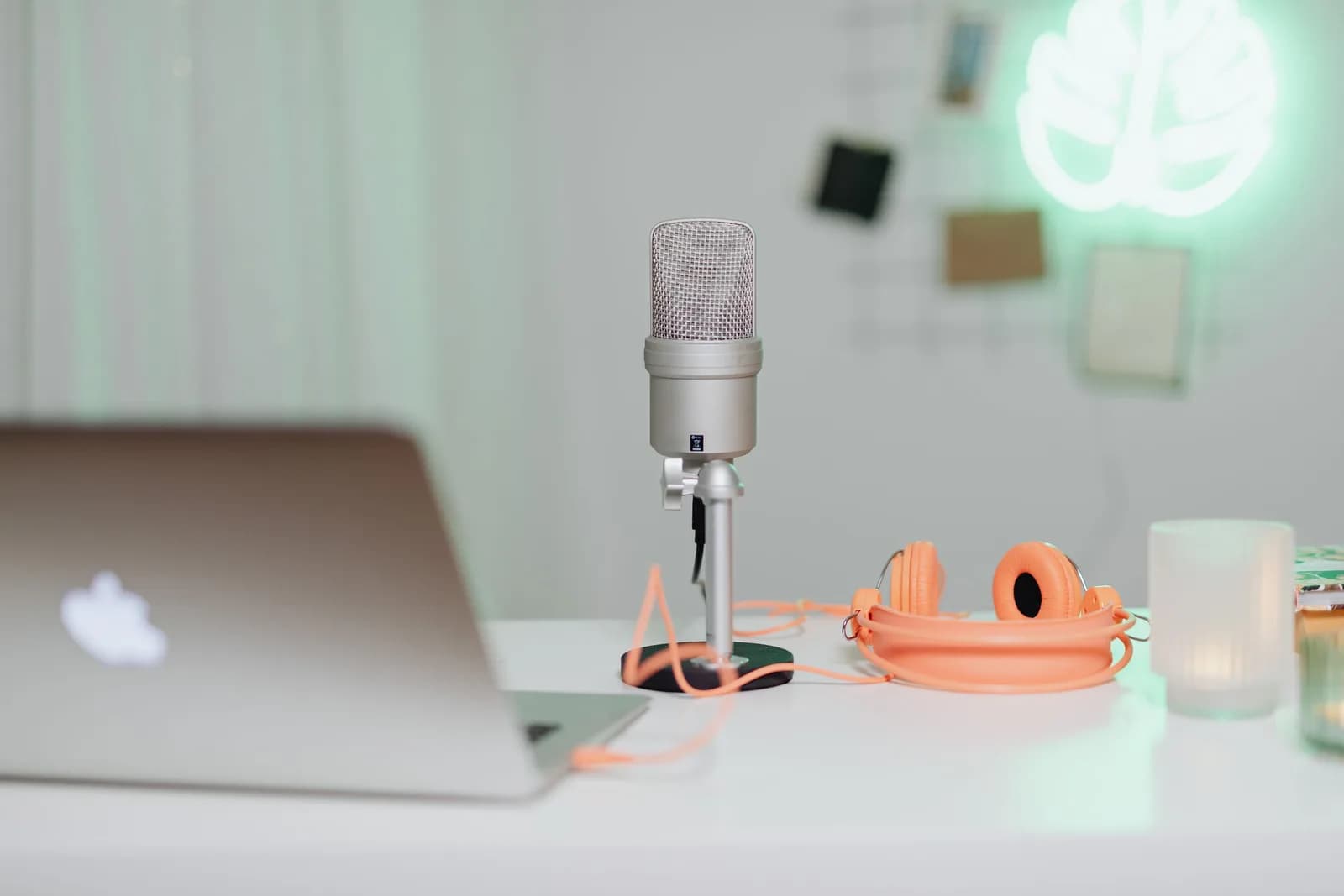
Before you blame the software, look at what's feeding it. A laptop's built-in microphone sits next to the fan, points at the ceiling, and picks up the room as much as your voice. Garbage in, wrong words out.
This is the one opinion I'll stake the whole article on: "AI" does not fix bad audio. A $20 USB microphone does more for accuracy than any model upgrade you can make. I spent a week loading bigger, slower models to fix my own wrong words before I noticed my laptop mic was aimed at the fan. The mic was the problem the whole time. I build this software for a living. Spend the money on hardware first. The model is the cheap part.
The verification test: dictate the same three sentences with your built-in mic, then with a headset or USB mic. If the wrong-word count drops, the microphone was the problem and you're done. Most people stop reading here, and that's fine.
Background noise and room acoustics

A dishwasher two rooms away. A coworker's phone call. The kind of open-plan office where you can hear someone eating crisps from thirty feet. The model can't tell your voice from the noise — it transcribes whatever sound is loudest, and sometimes the crisps win.
Google's AI Overview for this exact problem lists background noise as a primary cause, right alongside accents and homophones. The fix is unglamorous: close the door, kill the fan, move away from the open window. A quiet room does more than a clever algorithm.
Verification: try the same dictation in a quiet space versus your usual one. If the errors thin out in silence, noise was the culprit. If you can't get a quiet room, a directional or noise-cancelling mic that only listens to what's directly in front of it is the next-best move — and we're back to hardware, which is where the money should go anyway.
Wrong language or accent mismatch

If your dictation is set to auto-detect and you switch between languages, the model spends effort identifying the language before it identifies the words — and a wrong guess about the language poisons everything after it. Set the language explicitly when you can.
In Whisper, that's Settings, Transcription, Language. Picking your spoken language outright skips the detection step and helps the model pick up your words more accurately. Leave it on auto-detect only if you genuinely switch languages mid-session. Whisper's multilingual models cover 99 languages with auto-detect; the English-only builds lock to English, which is exactly what you want if English is all you speak.
Accent mismatch is the cousin of this problem. A US-English model trained mostly on US speakers will stumble on a strong regional accent. Setting the closest regional variant your tool offers, and feeding it a clean signal, narrows the gap.
Fix it on Windows, Mac, and iPhone
Each platform's built-in dictation has its own quirks, and its own ceiling. On Windows, Voice Typing opens with the Windows key plus H, but your cursor has to be in a text box and you need an internet connection — the built-in tool sends your audio to the cloud to transcribe it. If it's typing nonsense, check the connection first; the Apple support forums for the same wrong-words problem put "verify internet connection" at the very top of the list. (For a deeper walkthrough, see our guide on voice to text not working on Windows.)
On Mac, turn Dictation on with the Microphone key in the function-key row, the Dictation shortcut, or Edit then Start Dictation. One thing to put to rest: current macOS Dictation lets you dictate text of any length without a timeout — it only stops after about 30 seconds of silence, which people mistake for a hard cap. If the wrong words persist, our Mac voice-to-text troubleshooting guide goes step by step. On iPhone, the Apple forums also point to disabling predictive text, which sometimes second-guesses what dictation got right.
The harder limit: Windows Voice Typing (Win+H) gives you no way to add custom words or train its dictionary. Word's separate dictation surface does let you build a small dictation dictionary, but the tool most people reach for — Win+H — can't be taught your vocabulary at all. Which brings us to the one fix that actually moves the needle on the wrong-name, wrong-jargon problem.
Teach it your words: custom vocabulary
This is the fix the built-in tools can't give you. When you run a Whisper model in Whisper's local mode, you get a Custom words field — a comma-separated list of the names, product terms, and jargon you expect it to hear. You type in "Kubernetes, PostgreSQL, Remskill, John Smith," and the transcription biases toward spelling those correctly when they show up in your speech. It lives at Settings, Transcription, in the free local tier — no card, no cloud.
One caveat worth knowing: Custom words is a Whisper-model feature. Parakeet, the faster local option, doesn't accept custom words or prompt hints — its own description says so plainly. So if teaching the tool your vocabulary matters to you, pick a Whisper model, not Parakeet.
I learned how much this matters from my younger daughter. I showed her dictation once — press, talk, release. She immediately wrote a 90-word email to her grandmother about a tooth she'd lost and the tooth fairy's exchange rate, no questions asked. Then she came back annoyed because it kept mangling her best friend's name. She didn't know what a vocabulary gap was. She just knew it got the name wrong. I added the name to Custom words, and the complaints stopped. The average person doesn't want to understand why dictation misspells a name. They want a box to type the name into. That box is the whole point of this section.
A second lever, if you want it: Whisper exposes a Profile setting — Fast, Balanced, or Accurate — that controls how carefully the model listens. Accurate is slower but catches more. And picking a larger model from the eight Whisper ships, from Base at about 140 MB up to Large v3 at about 3 GB, trades speed for accuracy. None of these is "the right pick" for everyone — they're knobs, and the wrong-words problem decides which one you turn. If you're unsure which to load, our guide to choosing a Whisper model lays out the tradeoffs.
A cleanup pass that fixes the rest
Even after the audio is clean and the vocabulary is loaded, a few residual errors slip through. Whisper can run an optional AI cleanup pass on the raw transcript before it lands at your cursor — it fixes grammar, punctuation, and casing, and strips filler words like "um" and "you know." It runs on your device for free, or in Cloud mode with OpenAI if you've supplied your own key.
This is the safety net, not the first move. Fix the microphone, quiet the room, set the language, teach it your words — then let the cleanup pass tidy what's left. Trying to make AI text-correction compensate for a fan-blasted built-in mic is solving the wrong problem with the expensive tool. I know, because I shipped the cleanup pass first and the language picker second, in exactly the wrong order, and then used my own app for a month wondering why. For the fine-grained control crowd, our Whisper prompting guide goes deeper on shaping output.
The hotkey to record is Ctrl+Space on Windows and Command+Option on Mac, both customizable in Settings if they clash with something you already use.
When the built-in tool can't be fixed
Sometimes the answer isn't a fix — it's a different tool, or no tool at all. If you only fire off the occasional 30-word text, Apple Dictation and Windows Voice Typing are free and built in, and chasing perfect accuracy is overkill. Use what's already there.
But there's a real ceiling. Windows Voice Typing needs the internet and can't learn your vocabulary. If your wrong-words problem is specifically that the tool keeps butchering names, product terms, or technical jargon — and you can't add those words anywhere — the built-in tool genuinely can't be fixed for your use case. That's the line where a teachable, offline tool earns its place. And if you mostly transcribe meetings with several speakers rather than dictate your own writing, that's a different category of tool entirely — meeting transcription, not dictation. Don't bend a dictation app into a job it wasn't built for.
How accurate should you expect dictation to be?
Set expectations honestly. Clean audio, a known language, and a loaded vocabulary will get you to the point where corrections are the exception, not the rule. Public Whisper benchmarks land around a 3% word error rate on clean read speech with the medium English model. Real life — your accent, your room, your jargon — runs higher. That's normal.
The goal isn't zero errors. The goal is fewer errors than typing would have produced in the same time, and that bar is lower than people think. Dictation at 145 words per minute beats typing at 40 even when you stop to fix a word or two. If you're correcting every other word, something on the list above is still broken. If you're correcting every tenth word, you've already won.
If your dictation keeps typing the wrong words, fix the audio, set the language, and teach it your names — then let it do the typing while you do something else. My younger daughter still calls it "the talking computer." She has no idea there's a vocabulary field, a language picker, or eight models behind the press-talk-release. That's the version of this that's actually working — when the wrong words stop, and you stop noticing the tool at all.
Want your names to come out right?
Download Whisper, add your first custom word, and watch the wrong words stop in the first sentence.



