 By Denys Medvediev
Explainer
How to run Whisper locally
There are two honest ways to run Whisper on your own machine: the developer route through Python and the command line, or a desktop app that does it for you with no terminal. Both keep your audio on your computer. This walks through each, and when to pick which.
Last updated: June 2026
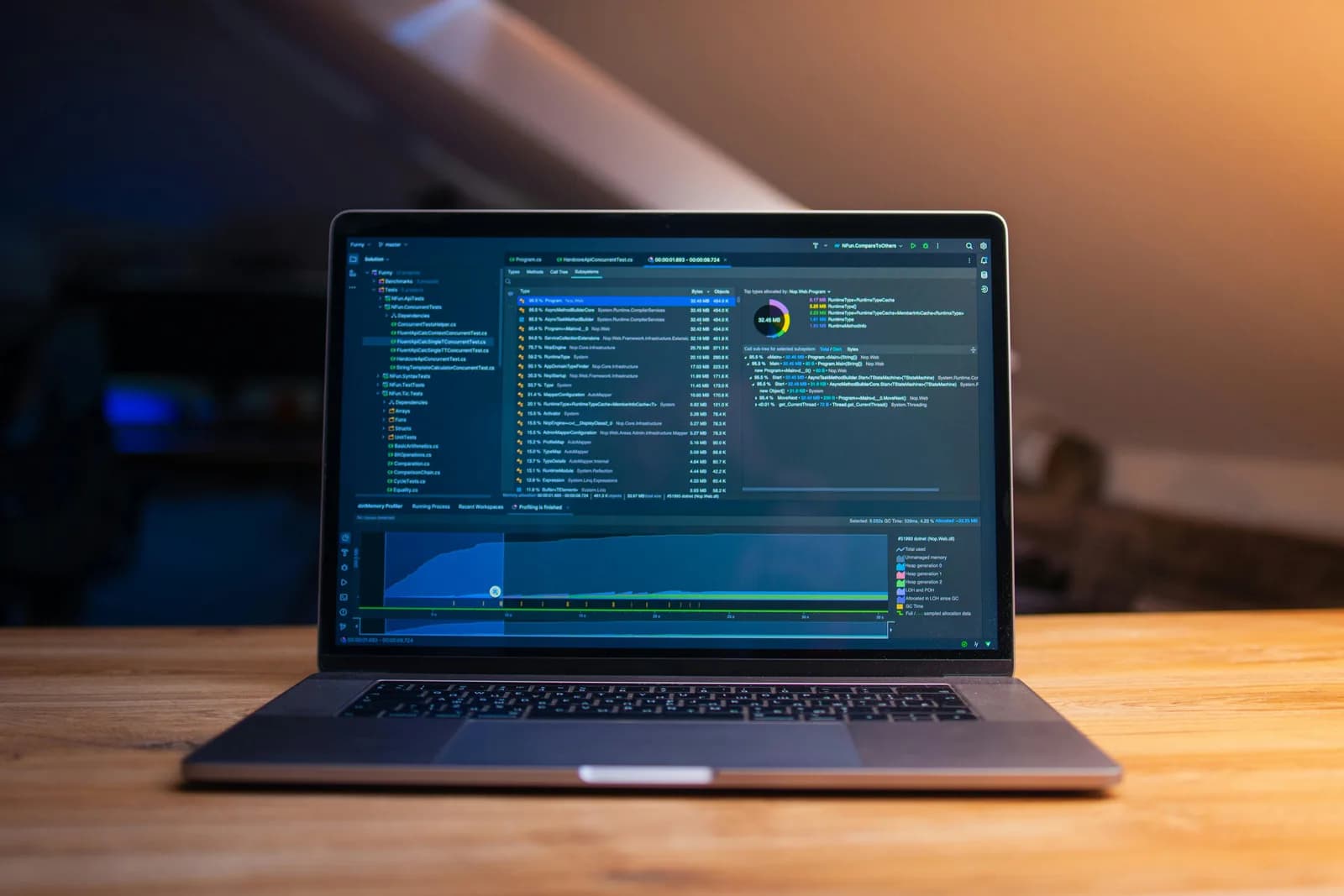
Running Whisper locally means transcribing audio on your own machine instead of a cloud server. There are two routes: install OpenAI's open-source Whisper with Python, pip, and ffmpeg and run it from the command line, or use a desktop app like Whisper by Remskill that bundles the models and dictates at your cursor with no terminal. Both keep audio on-device.
Whisper is OpenAI's open-source speech-to-text model, released under the MIT license, and the reason "how to run Whisper locally" gets searched so much is that it actually runs on your own hardware for free. No API key, no per-minute bill, no audio leaving your laptop. That's a genuinely good deal, and the official project on GitHub will hand you the whole thing.
The catch is what "run it" means. The official route is a command-line tool. You install Python, you `pip install openai-whisper`, you install ffmpeg, you point a terminal at an audio file. That's perfect if you've got a folder of recordings to batch-process. It's less perfect if what you actually wanted was to talk into your email and have the words appear. Those are two different jobs, and I'll cover both honestly.
Here's the fork in the road most pages skate past. "Run Whisper locally" can mean two completely different things depending on who's asking. A developer means: get the model on disk and transcribe files from a script. A writer or a salesperson means: stop typing and have my voice turn into text in whatever app I'm in.
So the real question isn't just "how do I install Whisper." It's "which local Whisper am I after — the CLI for batch jobs and scripting, or a hotkey that dictates at my cursor." The first is the official OpenAI project and it's great at what it does. The second is a desktop app that runs the same family of models with no command line. I'll set up both, show you the hardware math, and tell you plainly when the terminal is the better choice.
What "running Whisper locally" actually means

Running Whisper locally means the transcription happens on your computer's own processor, not on a server somewhere. You feed it audio, the model turns it into text, and nothing leaves the machine. That's the appeal. Your boss's salary spreadsheet read aloud, the email to your kid's school, a recorded client call — none of it touches a vendor's logs because you wanted to type with your voice. Local-first or don't bother, as far as I'm concerned, and I'll tag that opinion with a number further down.
Whisper itself is just the model. OpenAI trained it and released the weights under the MIT license, which is why anyone can download it and run it without paying. There are several model sizes, from a tiny 39-million-parameter one up to a 1.55-billion-parameter large model, and you pick based on how much accuracy you need versus how much your hardware can handle. The model is the same whether you run it from a terminal or inside an app. What changes is the wrapper around it.
And the wrapper is the whole question. Two of them exist, both legitimate. The official OpenAI command-line tool: free, scriptable, Python-based, built for transcribing files. And desktop apps that load the same kind of model behind a normal window, so you press a key and talk instead of typing a command. The boring truth is that most people searching this keyword want one of those two and don't yet know which. The next two sections are exactly those two routes.
The developer route: Python, pip, and ffmpeg
If you're comfortable in a terminal, the official project is the cleanest answer, and it's genuinely free. You need three things on your machine: Python (the project targets 3.8 to 3.11), the Whisper package itself, and ffmpeg, which is the audio tool Whisper leans on to read your files. The install is two commands. `pip install -U openai-whisper` pulls the package and its PyTorch dependency. Then ffmpeg, which depends on your OS — `brew install ffmpeg` on a Mac, `choco install ffmpeg` or `scoop install ffmpeg` on Windows, `sudo apt install ffmpeg` on Ubuntu.
Once it's installed, you run it against a file. `whisper audio.mp3 --model turbo` transcribes the recording and writes the text out. Add `--language Japanese` to skip auto-detection, or `--task translate` to have a non-English recording come out as English. That's the core of it. It's a file-in, text-out tool, and it's good at exactly that. Point it at a folder of voice memos overnight and it'll grind through every one without you watching.
The hardware reality is where expectations meet a wall. The official model sizes are tiny (39M parameters), base (74M), small (244M), medium (769M), large (1.55B), and turbo (809M). The VRAM each one wants tells you the real story: roughly 1 GB for tiny, about 2 GB for small, around 5 GB for medium, and roughly 10 GB for the large model. Those numbers are written for a GPU. You can run the smaller models on a CPU, but a discrete GPU is what makes the bigger ones bearable. I diagrammed a clean "just run large on my laptop" setup once, then watched it crawl on integrated graphics. The diagram is always wrong by the second commit. The CPU eventually finishes; the large model on a thin laptop is not a Tuesday-afternoon plan.
The no-terminal route: run Whisper in a desktop app
If you never want to see a command prompt, this is the other honest path. Whisper by Remskill is a desktop app for Windows 10-or-newer and Apple Silicon Macs that runs Whisper locally for you — the models download inside the app, no pip, no ffmpeg, no Python. It also runs Parakeet, a second local engine I'll get to. The whole local pipeline is free for any signed-in account, with no payment method asked for at sign-up. Here's the sequence.
Step 1 — Install Whisper and sign in.
Download from the download page, install, and create a free account. No card. The local transcription pipeline opens right away.
You'll know it worked when the app's tray icon appears and the setup wizard offers to pick a model.
Step 2 — Pick a transcription path and download a model.
The app doesn't choose for you. You get three: Cloud (OpenAI, bring your own key), Local Parakeet, or Local Whisper. For running things on your own machine, pick one of the two local engines and let the model download in-app.
You'll know it worked when the model finishes downloading and shows as ready.
Step 3 — Confirm your hotkey.
Windows defaults to Ctrl+Space, Mac to Command+Option held as push-to-talk. On Mac, grant the Accessibility permission when prompted; without it, the paste-at-cursor can't reach other apps.
You'll know it worked when a test recording pastes into any text field.
Step 4 — Put your cursor anywhere and talk.
Click into any text field — an email, a doc, a chat box — hold the hotkey, say a sentence, release. The transcript appears where the cursor is.
You'll know it worked when your spoken sentence is sitting in the text field as text.
The slow part is the model download, the same as the CLI route — the weights are the weights. Everything else is the four steps above. The difference is that there's no terminal between you and the model, and instead of file-in-text-out, you get a hotkey that dictates wherever your cursor happens to be. Same Whisper underneath, different job on top.
Which model and what hardware you need
Both routes ask you to pick a model, and the choice comes down to the same trade-off: bigger models are more accurate and slower, smaller ones are faster and lighter. On the official CLI, the large model wants roughly 10 GB of VRAM and the small one about 2 GB, so your graphics card sets the ceiling. In the desktop app, the Whisper models split into English-only and multilingual, with the default English model around 480 MB on disk and the largest multilingual one around 3 GB. The multilingual builds cover 99 languages and can translate to English; the English-only builds are English-only.
The app's other local engine is worth knowing about here, because it sidesteps the hardware problem for a lot of people. Parakeet is NVIDIA's TDT model, around 600 MB, and it runs 5 to 10 times faster than Whisper on a CPU. It covers English plus 24 other European languages, 25 in total, with no translate-to-English. If you mostly speak English and you don't have a beefy GPU, Parakeet is the fast local pick. If you need Chinese, Japanese, Korean, or translation, that's Whisper's multilingual territory and Parakeet can't go there. While you speak, a small capsule shows it's listening:
The single best thing you can do for accuracy isn't a bigger model at all. A $20 USB microphone does more for your transcription than jumping two model sizes — clean audio in beats a heavier model fed laptop-mic mush. Spend the money on the mic first, then worry about the model. That's the one bit of hardware advice I'd put in writing and stand behind.
Local or cloud: which mode for which job
If your machine is Apple Silicon or your PC is from the last few years, try local first. Cloud is the escape hatch, not the default. But the desktop app makes you pick between three paths and I'd rather you pick well, so here's how they differ.
Here's how the three paths differ, because the app makes you choose:
- Local Parakeet — NVIDIA's TDT engine, around 600 MB, and the fastest local option — 5 to 10 times faster than Whisper on CPU. Covers English plus 24 other European languages, 25 in total. No translate-to-English. If you dictate in English or another European language and want speed without a GPU, this is the fully offline pick.
- Local Whisper — slower than Parakeet on the same machine, but the multilingual builds cover 99 languages and can translate to English. The English-only builds are English-only, not 99. Pick this for Chinese, Japanese, Korean, or any translation work, which Parakeet can't do. Default English model is around 480 MB; the largest multilingual one is around 3 GB.
- Cloud (OpenAI, BYOK) — best accuracy and web access, using your own OpenAI key billed straight by OpenAI. Transcription runs on gpt-4o-mini-transcribe by default. It needs internet, so it's the one path that leaves your machine. The Cloud surface is part of Whisper Pro.
The boring truth is that for everyday dictation, local is plenty, and both local engines run fully on your machine with nothing sent to a server. Cloud earns its place when you want top-tier accuracy on a hard recording, or you need the model to pull a fact off the web mid-sentence. Whichever route you took to run Whisper locally — the CLI or the app — the privacy story is the same: the audio stays put. If staying offline is the whole reason you're here, offline speech-to-text goes deeper on that.
Accuracy, punctuation, and cleaning up the raw transcript
Whatever runs Whisper, raw dictation comes out as a run-on. You say "okay so transcribe the standup recording then send the summary to the team before lunch," and that's the unpunctuated wall any speech engine hands you. The official CLI gives you that text and stops there — cleanup is your job, in a script or by hand. That's fine for batch transcription where you'll process the output later anyway.
The desktop app can do the cleanup pass for you before the text lands. Say the activation phrase "Hey whisper" and an AI pass strips the filler, fixes the run-ons, and adds punctuation. On a local model that runs through Ollama on your machine; in cloud mode it's gpt-5-mini by default. The difference between raw and cleaned is the difference between a transcript you have to edit and one you can send:
okay so transcribe the standup recording then send the summary to the team before lunch um and cc the manager
Okay, so transcribe the standup recording, then send the summary to the team before lunch, and CC the manager.
Accuracy itself is mostly a model-and-mic question, and I covered the mic already. On the model side, the bigger multilingual Whisper builds are strong across 99 languages, and cloud mode adds OpenAI's top-tier transcription if a recording is genuinely hard. But for clean audio and normal speech, even the small models are solid, and chasing the largest model on weak hardware buys you slower output for accuracy you probably won't notice. Match the model to the job, not to the spec-sheet bragging rights.
If your main goal is talking instead of typing all day, the same speak-then-clean flow is what lets you turn voice into text on Windows without ever opening a terminal, which is the point of the no-CLI route.
When the command line is the right choice

Sometimes the terminal genuinely is the better tool, and pretending otherwise to sell you an app would be dishonest. The official OpenAI CLI is free, MIT-licensed, and built for a job the desktop app doesn't do: transcribing files, in bulk, from a script. If that's your job, skip the app.
Reach for the command line when you've got a folder of recordings to batch-process overnight, when you want Whisper inside a larger Python pipeline or a server you control, when you need a specific model flag the GUI doesn't expose, or when you simply already live in the terminal and don't want another window open. It's also the right call on Linux, which the desktop app doesn't ship for. The CLI runs anywhere Python and ffmpeg do. None of that is a knock on the app — it's just a different shape of problem.
Reach for the desktop app when the job is dictation, not file processing: you want to talk into your email, your docs, your chat, and have the words appear at the cursor with one key. The CLI can't paste at your cursor in another program; that was never its job. So the honest split is — files and scripting, use the terminal; talking instead of typing, use the app. Most people, once they're clear on which they wanted, know immediately which side they're on.
The same on-device, no-cloud logic carries over if you're setting this up on a Mac — the walkthrough in voice to text on Mac covers the Apple Silicon side, including the Accessibility permission the hotkey needs.
Whisper running on your own machine is one of the better deals in software right now — a model OpenAI gave away, the same one big cloud tools quietly call, sitting on your disk for nothing. The only real decision is which wrapper fits your day. I run the CLI when I've got files to chew through, and the app the other 95% of the time, because I switch programs roughly forty times an hour and don't want to type a command for each one. I dictated most of this guide with a hotkey, into a text box that wasn't a terminal, with the model running on the same laptop the whole time.
Run Whisper locally without the terminal
Hold the hotkey, talk, release. The model runs on your machine and the transcript lands wherever your cursor is — no Python, no pip, no ffmpeg.
Free local mode for any signed-in account. No card required to start.



