 By Denys Medvediev
Troubleshooting
Win+H grayed out? Four fixes that actually work
Win+H is grayed out, or shows "voice typing isn't available," for one of four fixable reasons — and each has its own fix, walked through in order below.
Last updated: June 2026

Win+H is grayed out, or shows "voice typing isn't available," for one of four fixable reasons: the speech feature for your language isn't installed (common after the Windows 11 24H2 update), your input language isn't on Microsoft's supported list, the dictation shortcut is switched off, or microphone access is blocked. Each has a separate fix, walked through below.
Here is the part nobody tells you: Win+H is not really a button you own. It leans on online speech recognition powered by Azure Speech services, a microphone, a supported language, and an installed speech pack. Take away any one and the feature dims to gray. Three of the four causes take under five minutes to fix; the fourth is a one-time download.
Before you change a setting, work out which kind of "broken" you have. A grayed feature, a policy-locked toggle, and a hotkey that does nothing are three different problems. This article handles the grayed feature. The other two route out below.
First, work out which "broken" you actually have
If the Online speech recognition toggle in Settings is grayed and shows "Speech services are managed by your organization," that is a group-policy lock, not a malfunction. Whisper's sibling guide on the online speech recognition toggle being greyed out walks through that case end to end. Don't fix it here.
If pressing Win+H does literally nothing — no panel, no microphone, no error — your hotkey is being swallowed by another app or key handler, a separate problem. The Win+H not working guide covers it.
If the voice-typing panel opens but the button is grayed, or you see "voice typing isn't available," you are in the right place.
The fixes below are ranked by how often each cause is the real one. Try them top to bottom. After each, press Win+H with your cursor in a text box — voice typing needs a focused text field to wake up.
The speech feature for your language isn't installed

This one surged after the Windows 11 24H2 update. The microphone panel opens, but dictation never starts and the feature reads as unavailable. The widely reported cause is a missing Enhanced speech recognition resource for your language. Microsoft hasn't published a KB confirming the update strips it, so treat the cause as community-reported — but the fix is documented and supported.
Open Settings, go to Time & language > Language & region, click the three dots next to your display language, and choose Language options. Under language features you should see Text-to-speech, Basic speech recognition, and Enhanced speech recognition. If a speech feature is missing, download it, reboot, and test Win+H.
One honest caveat: not all languages have speech features at all. If Enhanced speech recognition isn't offered for yours, that is the next section's problem.
Your input language isn't on Microsoft's supported list

Win+H only speaks the languages Microsoft has built voice typing for. Windows 11 supports roughly 40-plus voice-typing languages — English (United States), French, German, Spanish, several Chinese variants, and more. If your display or input language isn't on that list, the feature is unavailable for it, and no toggle will turn it on.
The fix is to add and select a supported input language. In Time & language > Language & region, add a language Microsoft supports for voice typing, install its speech features, then switch your input to it before pressing Win+H. Keep your old keyboard layout if you like — you are only changing what the speech engine listens for.
This is also where the "wrong edition or region" rumor comes from. Some people report Win+H missing on certain editions or regions, but Microsoft documents a supported-language requirement, not an edition gate. Start with the language — it is the part actually written down.
The dictation shortcut is switched off

Some Windows setups expose a keyboard or dictation shortcut toggle under Settings > Accessibility > Keyboard. If yours does and it is off, Win+H won't fire even when everything else is correct. This one is community-reported rather than spelled out in Microsoft's voice-typing page, so the label moves between builds — look for anything mentioning dictation or the voice-typing shortcut and make sure it is on.
While you are here, confirm Online speech recognition is on at Privacy & security > Speech. Win+H relies on that cloud service; off, it has nothing to talk to. If the toggle is on but grayed and won't move, you are back to the policy case — that lives in the online speech recognition guide.
Microphone access is off, so the button can't light up
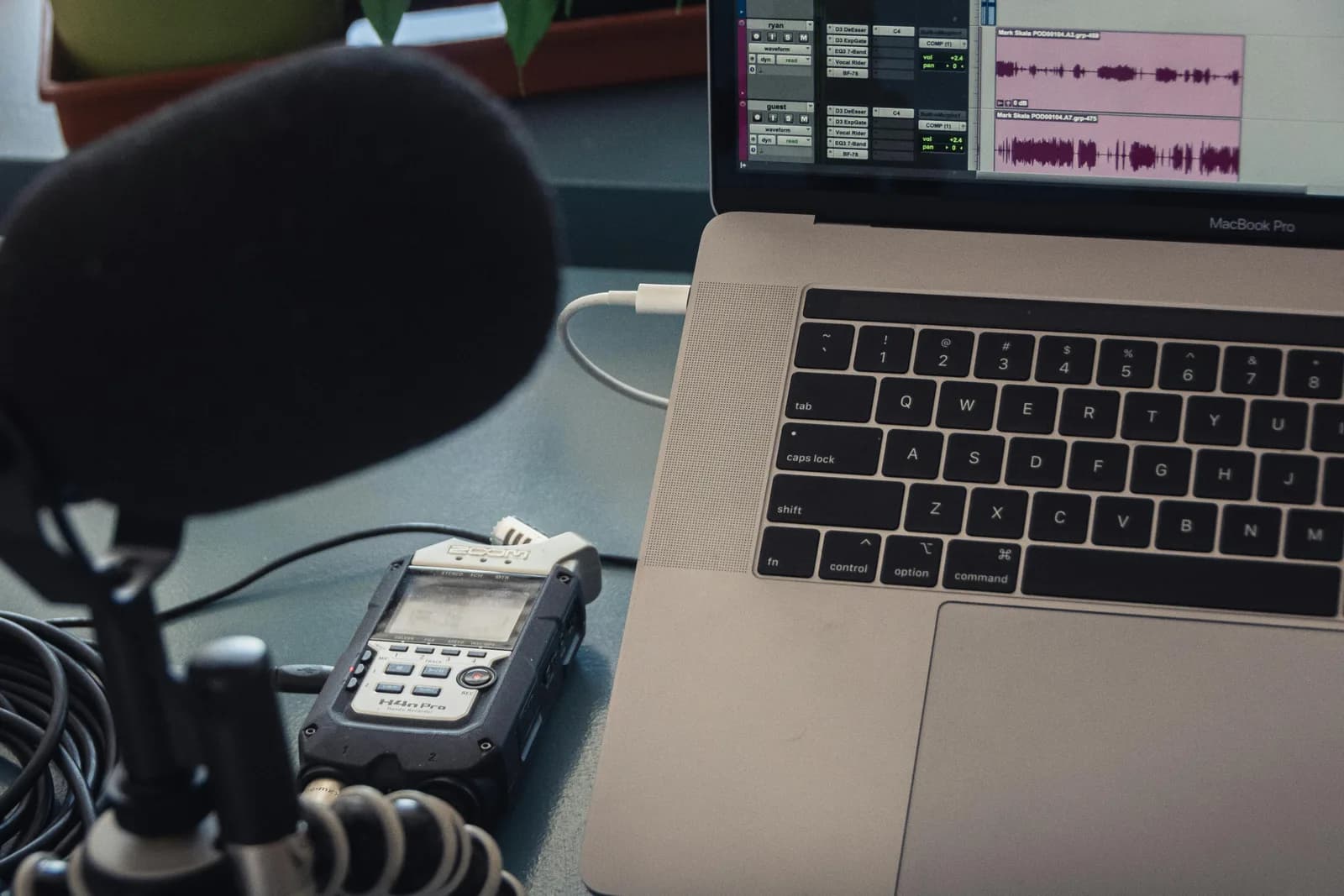
No microphone, no voice typing. Win+H needs a working, permitted microphone to do anything, and Windows will gray the feature if access is blocked at the system or per-app level.
Open Settings > Privacy & security > Microphone. Make sure microphone access is on for the system and that apps are allowed to use it. Then check the right microphone is set as your default input — a laptop with a built-in mic and a disconnected headset will sometimes default to the one that isn't there. Plug in the mic you actually use, set it as default, and test.
My younger daughter, who is seven, found the human version of this. I showed her Whisper once and she fired off a ninety-word email to her grandmother about a lost tooth without a single question. Two days later: "it doesn't work in my drawing app." She didn't know what a permission or a conflict was. She just knew the thing that worked yesterday didn't today. It took me, a 15-year architect, longer than I'd admit to find the muted microphone. Most Win+H "grayed out" reports are that exact feeling, wearing a settings menu.
When Win+H still isn't worth the fight
You can do everything above and still lose: the speech pack won't reinstall, the language isn't supported, the policy is locked by an IT department you don't control. At that point Microsoft's in-place repair that reinstalls the current version of Windows is the last resort — it keeps your apps, files, and settings while repairing system components. It also takes an afternoon.
Here is the opinion I will stand behind: if a dictation tool needs Microsoft's permission to run, that is a dependency, not a feature. Win+H is a thin layer over Azure Speech services. It needs a live connection, a provisioned speech pack, a blessed language, and a policy nobody has flipped. Four single points of failure for talking to your keyboard.
If you bounce between systems, here is a reference for the dictation shortcut on every system.
That is the gap Whisper by Remskill was built to fill. It has its own global hotkey — Ctrl+Space on Windows — the app's own shortcut, so your organization can't gray it out. Local mode runs on your machine and works offline after a one-time model download. No online speech toggle, no Azure dependency, no language-pack roulette. It carries 90-plus languages with auto-detect, independent of Microsoft's list, so a language Windows voice typing won't touch may still work here. Because the model is a file you downloaded, not a Windows component, a feature update or corrupted speech pack can't strand it.
Local transcription is free for everyone at signup, no card required — the hotkey, all 90-plus languages, history, and AI enhancement included. Pro adds OpenAI cloud transcription, cloud AI enhancement, and web search; the numbers live on the pricing page. And here is when to skip it: if all you need is the occasional thirty-second voice memo, you do not need any of this — Microsoft's built-in voice typing, once un-grayed, covers short bursts fine. Whisper earns its place when you dictate often. Its wider Windows troubleshooting guide covers the rest if you are still debugging.
Voice typing on Windows is four dependencies stacked on top of one keyboard shortcut, and any one of them can dim the button. Fix the speech pack, the language, the shortcut, and the microphone in that order and you will usually get it back. And if you would rather not negotiate with Microsoft's speech stack every feature update, there is a hotkey that just records when you press it. My seven-year-old never had to reboot to send the tooth-fairy email.
Tired of negotiating with Microsoft's speech stack?
Download Whisper, hold its own hotkey, and watch the transcript land at your cursor — no speech pack, no policy toggle, no language-pack roulette.



