 By Denys Medvediev
Tutorial
Voice to text in Evernote: live vs recorded
Evernote has no live dictation engine of its own. On desktop the typing is done by macOS Dictation or Windows Voice Typing; on a phone it's the keyboard's mic. Evernote's own AI Transcribe handles recorded audio after the fact. This guide splits those two paths apart.
Last updated: June 2026

Voice to text in Evernote works two different ways, and most guides blur them. Evernote has no live dictation engine of its own — on desktop the typing is done by macOS Dictation or Windows Voice Typing, and on a phone it's the keyboard's mic. Evernote's own AI Transcribe handles recorded audio after the fact.
I spent twenty minutes once trying to find the "Evernote dictation button" before I accepted it doesn't exist. There isn't a hidden setting. The microphone you tap on desktop belongs to your operating system, and Evernote is just the text box it's pointing at. That's not a knock on Evernote. It's a notes app, not a speech engine. But it means the live-dictation experience you actually want — talk, watch words appear, keep going — depends entirely on what your OS gives you, and on the desktop that's a stop-start affair.
So this guide splits the question in two. If you want to dictate live into a note as you think, that's one path: the OS, or a system-wide tool like Whisper that holds a hotkey and pastes at your cursor. If you already have a recorded meeting or voice memo and want it written out, that's Evernote's own AI Transcribe, and it's genuinely good at that job. Most of the confusion online comes from treating those as the same feature. They're not.
Evernote's voice situation, honestly
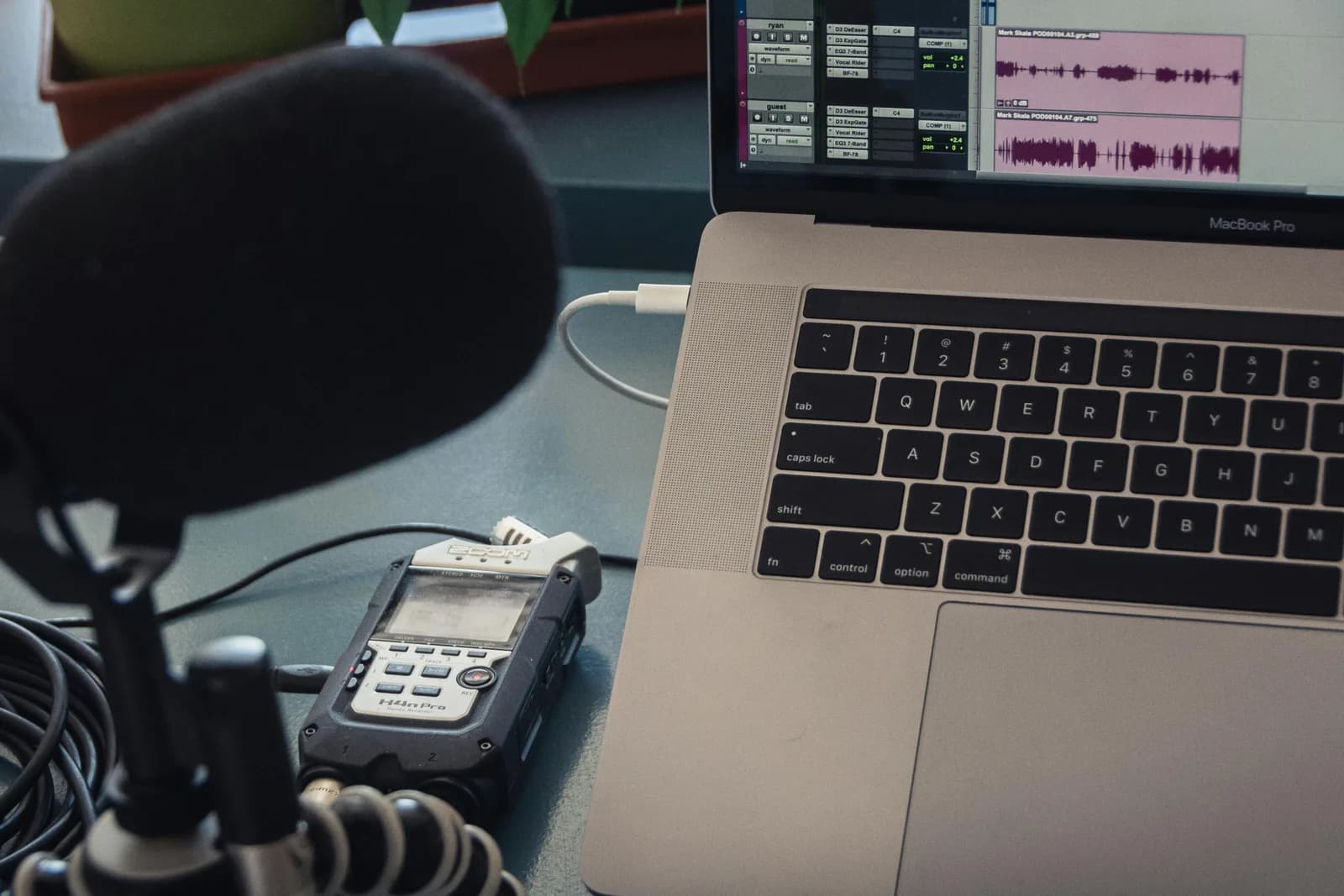
Here's the boring truth. Evernote ships no proprietary, always-on, live dictation engine. Even Evernote's own help wording points you at your device: enable your system's speech recognition, then use the microphone. That's the OS doing the work.
On desktop, "voice to text in Evernote" means one of two operating-system tools. On a Mac it's macOS Dictation, which transcribes in short bursts — it stops after a stretch of silence and you retrigger it, so long-form dictation is a sequence of starts and stops. On Windows it's Voice Typing (Win+H) or Voice Access, free and built in, typing straight into the focused Evernote field.
On mobile, it's even simpler than people think. The "Evernote speech-to-text" you see on an iPhone or Android is your keyboard's dictation mic — the iOS keyboard mic or Gboard mic. Evernote is the text field; the keyboard does the transcribing.
And then there's the part that's actually Evernote's own: audio recording plus AI Transcribe. That one deserves its own section, because it's the piece people most often confuse with live dictation.
What Evernote actually gives you: record, then transcribe
Evernote does have a real audio feature. From a note's editor you can hit Insert (+) > Audio recording, use the sidebar "..." menu, or type the /audio slash command. You can type and record at the same time; pause, resume, and stop saves the clip into the note as an attachment.
After the clip is saved, a Transcribe button appears, and Evernote AI Transcribe drops a written transcript into the note. It also converts uploaded audio, video, and image files to text. The cap is 100 MB or 60 minutes per recording.
Read that sequence again, because it's the whole point. You record an attachment, then you transcribe it. That's record-then-transcribe. It is not the same as words appearing at your cursor while you speak. Both are useful. They solve different problems. A recorded interview wants AI Transcribe. A note you're composing right now wants live dictation.
The gap, then, is live cursor dictation on the desktop — the thing the OS does in a stop-start way and Evernote doesn't do at all. That's the gap a system-wide hotkey fills.
Dictate into any Evernote note with a hotkey
This is where Whisper comes in. Whisper is a desktop app for Windows and macOS that puts dictation behind a single global hotkey. Hold the key, talk, release, and the text lands at your cursor in whatever field you've clicked into.
The default hotkey is Ctrl+Space on Windows and Command+Option on macOS — hold it as push-to-talk, let go to stop. Because it works at the operating-system level, it pastes into the Evernote desktop app the same way it pastes into Slack, Gmail, or your editor: one hotkey, every app, no per-app setup. Whisper is a native desktop app, not a browser extension, so it dictates into the Evernote desktop app, not just Evernote in a tab.
One honest caveat. Whisper pastes into the single focused field, one field at a time — the note title or the note body, wherever your cursor sits. It doesn't fill an entire note layout in one shot. You click where the words go, then you talk. That's it.
The lunchbox test is the one that sold me on my own tool, which is an awkward sentence to type. A Tuesday evening, making lunchboxes for two kids, and the school sent a permission slip that needed a reply by eight. I grabbed the laptop one-handed, hit the hotkey between cucumber slices, and dictated the note straight in — the part where I stopped to ask how to spell the teacher's name, the part where the younger one asked why the moon was sometimes not there. The note got written. The lunchboxes got made. That exact thing used to take fifteen minutes of one-handed typing.
You don't have to take my word for the flow. The embed below is the real desktop app. Pick a language, watch the settings, see exactly what you'd get after installing — no signup, no screenshot of a thing that may or may not match the shipping product.
It supports over 90 languages in both local and cloud mode, with the multilingual model line reaching 99-plus including auto-detect (the English-only model variants do exactly one language — English — and nothing else). For most people dictating notes into Evernote, the language count is not the deciding factor. Evernote's OS dictation and AI Transcribe handle plenty of languages too. The difference that matters is live, system-wide, and on-device.
Clean up the dictation automatically
Raw speech has filler. "Um," restarts, the bit where you said "comma" out loud by accident. Whisper can run an optional AI cleanup pass on top of the raw transcript, so what lands in your note reads like written text instead of a transcript of you thinking.
In the free local setup, that cleanup runs on your own machine. In Pro, it runs through your own cloud API key, which also adds web answers. Either way it's optional — turn it off and you get the verbatim transcript. I leave it on for email and off for quotes I need word-for-word.
Offline and private: your notes stay on your laptop
Here's the one opinion I'll plant a flag on: cloud-only dictation is a privacy disaster waiting to be transcribed. Your salary spreadsheet, the email to your kid's school, the client note you're drafting — none of that should pass through a vendor's logs because you wanted to type with your voice.
Whisper's local mode runs completely offline. No internet is needed during transcription; the audio never leaves the machine. The only thing that needs a connection is the one-time model download, somewhere between 140 MB and 3 GB depending on which model you pick. After that, every word you dictate into an Evernote note is processed on your own CPU, with zero network activity.
That's the structural contrast with Evernote AI Transcribe and the cloud transcription tools on this topic — they send your audio to a server to get it back as text. For a podcast you're publishing anyway, fine. For your meeting notes, I'd keep it local. If you want the broader case for fast on-device dictation, I made it in how to type faster with your voice.
The local pipeline is free for signed-in users, with no card required at signup. The Cloud features sit behind Whisper Pro — you can compare the options on the pricing page rather than take a number from me here.
When to skip Whisper and use Evernote's AI Transcribe

I'd skip Whisper for one common job. If what you actually have is a recording — a meeting you taped, a voice memo, a lecture you captured on your phone — and you want it written out, use Evernote's own AI Transcribe. You record the clip into the note (or upload a file), hit Transcribe, and Evernote drops the text in. It handles audio up to 100 MB or 60 minutes per recording. That's the right tool for record-then-transcribe, and it lives inside the app you're already using.
The split is clean. Recorded audio you want written out, after the fact, inside Evernote → AI Transcribe. Live words appearing as you compose a note, offline, free, with one hotkey across every app → Whisper. If your need is genuinely the first one, don't install a second tool. Evernote already has you covered.
Evernote isn't hiding a dictation engine from you. On desktop your OS does the live part in stop-start bursts, on mobile your keyboard does it, and AI Transcribe handles the recordings you already made. The piece nothing native fills cleanly is live, offline, one-hotkey dictation into the note you're writing right now. That's the gap. I built a tool for it, I dictate permission slips with it between cucumber slices, and it works in every other app too. See how Whisper works, or download it and dictate your next note instead of typing it. For neighboring apps, the same approach covers voice to text in OneNote, Obsidian dictation, and voice typing on a Mac.
Dictate your next Evernote note
Click into the note, hold the key, talk, release. The transcript lands where your cursor is — in Evernote and in every other app too.
Free local mode for any signed-in account. No card required to start.



