 By Denys Medvediev
Tutorial
Voice to text in Figma without a plugin
Figma has no native dictation, and its only audio feature is live voice chat between collaborators, not transcription. To get your words onto the canvas, you install a community plugin or run a system-wide hotkey that types into any focused field — Figma included.
Last updated: June 2026
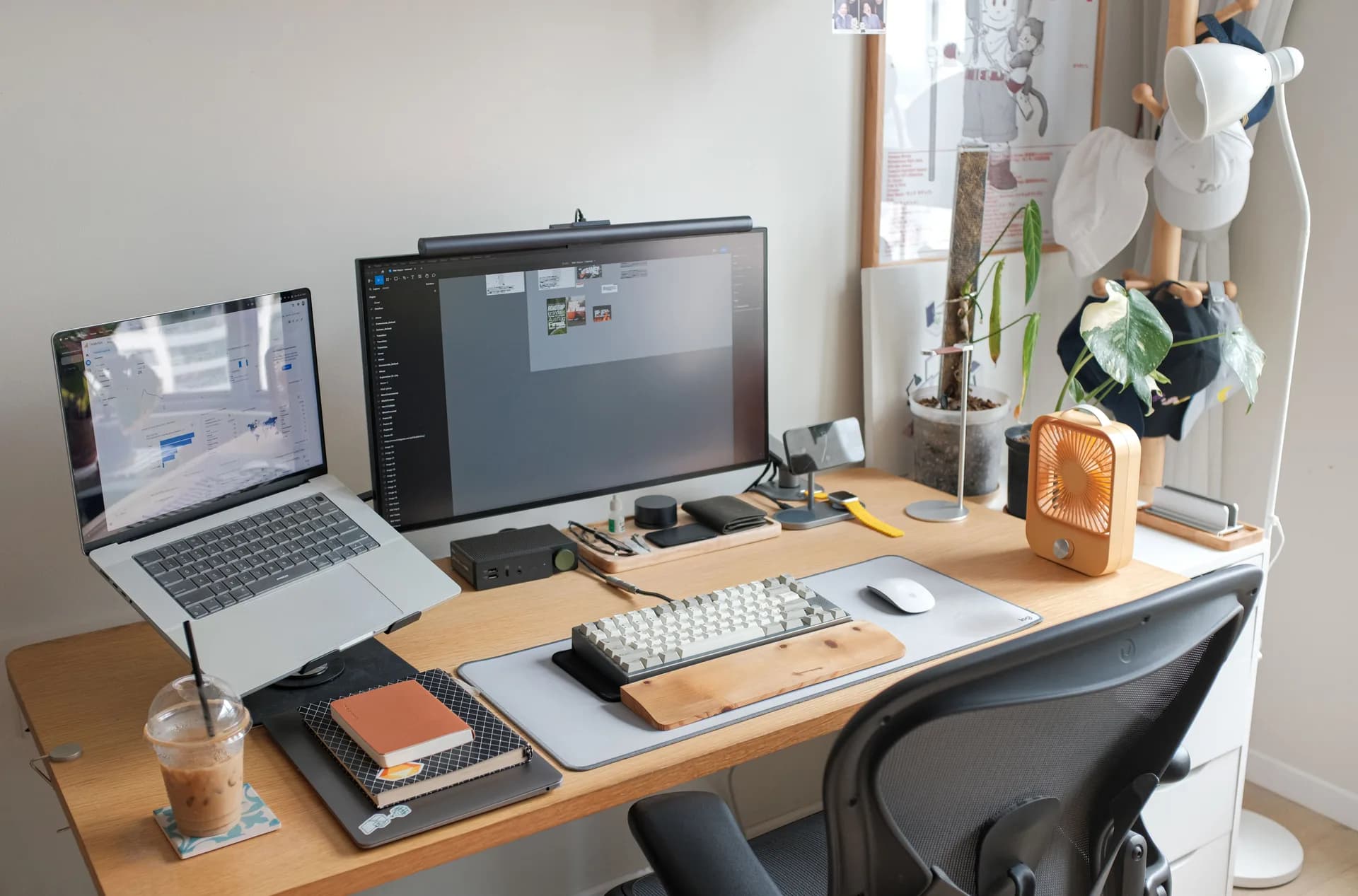
Voice to text in Figma is not a built-in feature. Figma has no native dictation, and its only audio feature is live voice chat between collaborators, which is not transcription. To dictate into a Figma comment, annotation, or text layer, designers either install a community plugin or run a system-wide dictation hotkey that types into any focused field.
I watched a designer spend four minutes typing the same two sentences into a Figma comment, twice, because autocorrect turned "padding" into "pudding." She does this dozens of times a day. Comments, redline annotations, handoff notes — none of it is design work, all of it is typing. The fastest people I know in Figma have quietly stopped doing it with their hands.
Here is the part that confuses everyone first: Figma does have an "audio" feature, and it has nothing to do with this. Figma's audio is live voice chat — you and your teammates talking in real time while you both poke at the same frame. It is a phone call inside a design file. It does not turn your words into text. So when someone says "doesn't Figma already do voice?" — yes, the wrong kind. The boring truth is that dictation, the kind that puts words on the canvas, is not in the product at all.
Figma can't do voice to text. Here's what it actually can do.
Figma has no native voice-to-text. People keep asking for it — the Figma Forum has open feature requests like "Voice input to comment" and "Add voice to text prompting to Figma Make," which is the polite internet way of confirming a feature does not exist.
What Figma does have is audio chat, and it is genuinely useful — just for a different job. It lets collaborators talk out loud inside a file or a FigJam board, on desktop and in the browser, instead of jumping to a separate call. That is voice chat. It is not speech-to-text. Nothing you say into Figma audio ever lands in a comment box or a text layer.
So you have two honest routes to actual dictation in Figma. Route one: a community plugin that lives inside Figma. Route two: a system-level dictation tool that types into any focused field on your computer, Figma included. The rest of this is about both, including when each one is the right call.
The plugin route: "Voice to Text for Figma" and friends
There are real plugins for this. "Voice to Text for Figma" is a community plugin where you open a voice tool, speak, and the transcript drops into your selected text layer. "Hey Figma Speech Recognition" does the same kind of thing. They work. I want to be fair about that before I tell you why they feel clunky.
Here is the catch, and it is structural, not a bug. Figma plugins can't access your microphone. So to hear you, these plugins open a separate browser window, recognize your speech using the browser's built-in Web Speech API, then send the text back into Figma over a WebSocket connection. To dictate one comment, you bounce between a Figma window, a browser pop-up doing the listening, and back. It needs a modern browser, and it needs you in the browser at all.
For a five-word comment, fine. For a day of handoff notes, the window-juggling gets old fast. There is also no FigJam-specific dictation plugin at all.
The faster route: a system-wide hotkey that types into Figma
Whisper takes the other route. It is a desktop app for Windows and macOS, not a plugin and not a browser extension. It uses one system-wide hotkey: hold Ctrl+Space on Windows, or Command+Option on macOS, speak, and let go. The text appears wherever your cursor already is.
That "wherever your cursor is" part is the whole trick. Because Whisper types at the operating-system level, it doesn't care that the field belongs to Figma. Put your cursor in a Figma comment box and dictate the comment. Click into a selected text layer and dictate the copy. Drop into a redline annotation or a developer-handoff note and dictate the spec. No plugin to install, no browser window popping open, no WebSocket. It works in the Figma desktop app and in Figma running in a browser tab, because at the OS level both are just "an app with a text field that has focus."
And the same hotkey works everywhere else. You dictate a Figma comment, then Cmd-Tab to Slack and dictate a message to the dev, then to your email — same key, same muscle memory, every app.
That is the actual Whisper app above, not a screenshot — click around it. You pick where transcription runs, set your hotkey, and that is most of the setup. There is no Figma-shaped surprise: it is one app, one key, and Figma is just one of the apps it happens to type into.
What you can dictate in Figma (and what you can't)
You can dictate anywhere Figma gives you a text cursor. Design comments and feedback. Redline annotations. Developer-handoff notes. The actual copy inside a text layer — body text, button labels, that microcopy you rewrite eleven times. FigJam sticky notes too: FigJam has no native dictation and no dedicated voice plugin, but a sticky note is just an ordinary focused text field, so a system-wide hotkey types into it like any other. Running a workshop and capturing ideas faster than people can say them is the one time I have seen designers genuinely race the room. If you live in whiteboards more than design files, the same idea carries over to dictating into Miro boards.
Now the honest part, in bold because tools in this space love to imply otherwise. Whisper dictates into the field that has focus. It does not operate Figma. It will not draw a frame, move a layer, rename a component, resize anything, or create objects by voice. It types words where your cursor sits — one field at a time — and that is the entire job. Whisper replaces the typing, not the designing. (If you want a tool that nudges a layer 2px left when you say "nudge it 2px left," that is a different and much braver product than mine.) Same single-field scope, by the way, that the plugins and your operating system's own dictation have — nobody in this category drives the whole editor.
Local, offline, and cleaned up
Raw dictation has filler. "Um," "the, uh, the spacing," the moment you correct yourself mid-sentence. Whisper can run an optional AI cleanup pass after transcription that trims the filler and fixes the obvious slips, leaving you something you would actually paste into a handoff note. The cleanup runs locally on your machine in free mode, or through the cloud if you turn on the Pro features and bring your own key. It is genuinely handy on design-system vocabulary — component names, token names, the words ordinary autocorrect mangles into something embarrassing. Whisper also handles over 90 languages across local and cloud mode, so a team writing UI copy in German and reviewing it in English isn't switching tools.

Local mode runs completely offline. No internet during transcription, and your audio never leaves the machine — the only time you need a connection is the one-time model download, somewhere between about 140 MB and 3 GB depending on which model you pick. After that, the network can be off and dictation still works on the train, on a plane, in an office that blocks half the internet.
Between you and me, this is the part I would not compromise on. Cloud-only dictation is a privacy disaster waiting to be transcribed. The annotation you are dictating might describe an unreleased product, a pricing screen, a security flow — that is exactly the kind of thing that should not pass through a vendor's logs because you wanted to skip typing. The plugin route depends on the browser's speech engine and a separate window; local dictation keeps the audio on the one device that already has a microphone and a perfectly good processor. If you handle anything sensitive, that distinction stops being a nice-to-have.
When a Figma plugin or OS dictation makes more sense

I would not install Whisper for everyone. If you only ever dictate the occasional five-word comment, and you live entirely inside Figma in a browser tab, a free community plugin like "Voice to Text for Figma" does the job — open the voice tool, talk, done. No download.
And you may not need any of this. Windows has free dictation built in — press Win+H and talk into most focused fields, Figma included. macOS has Dictation in its keyboard settings. Both are free, neither needs an install, and for short bursts they are completely fine. Reach for a desktop dictation app like Whisper when you want three things the free options don't quite give you: it working offline with the audio staying on your machine, one hotkey across every app instead of just Figma, and AI cleanup on technical design-system vocabulary. If none of those matter to you, save your disk space — your trackpad will survive another year.
Willow is another system-level dictation tool aimed at the same Figma workflow — hotkey in any text field, no plugin — so the category is not just us. The honest landscape is: plugins for browser-bound quick dictation, your OS for short free bursts, and a desktop dictation app when you want it everywhere and offline.
Setup: three steps, no Figma plugin
You do not touch Figma's plugin menu for this. The whole point is that the dictation tool lives outside Figma.
- Download and install Whisper on Windows or macOS, then sign in. The local pipeline is free with no card at signup; the Cloud features are the paid Pro surface.
- Confirm your hotkey. Default is Ctrl+Space on Windows, Command+Option on macOS — change it in settings if it clashes with something you already use.
- Open Figma, click into any text field — a comment, a layer, a sticky note — hold the hotkey, speak, release. The words appear at the cursor.
That is it. No plugin approval, no browser pop-up, no per-app configuration. The first time I demoed this I still instinctively reached for Figma's plugin menu out of habit, then remembered there is nothing to install. If you have ever wanted to type faster with your voice across all your apps, the Figma case is just one stop on that. The same setup is what people use to dictate inside ClickUp and most other tools.
My seven-year-old figured out the hotkey before she figured out which app was Figma. She held the key, narrated a sticky note about a dragon, and let go, and the words were just there — no menu, no plugin, no idea that any of it was supposed to be hard. That is the bar. If a kid can dictate a dragon into a sticky note without reading a manual, a designer can dictate a handoff note between sips of coffee. The hands were never the point of the work anyway. The same approach works for voice to text on Mac across your other apps too.
Ready to stop typing your comments?
Download Whisper, click into any Figma field, hold the hotkey, and watch the transcript appear — no plugin, no browser pop-up.
Free local mode for any signed-in account. No card required to start.



