 By Denys Medvediev
Guide
Real-time dictation app for writers
A real-time dictation app for writers lets you speak a sentence and have it land at your cursor a beat later. With Whisper you hold a hotkey, talk, release, and the transcript pastes into whatever you're writing in — on local models that's about a second and a half.
Last updated: June 2026
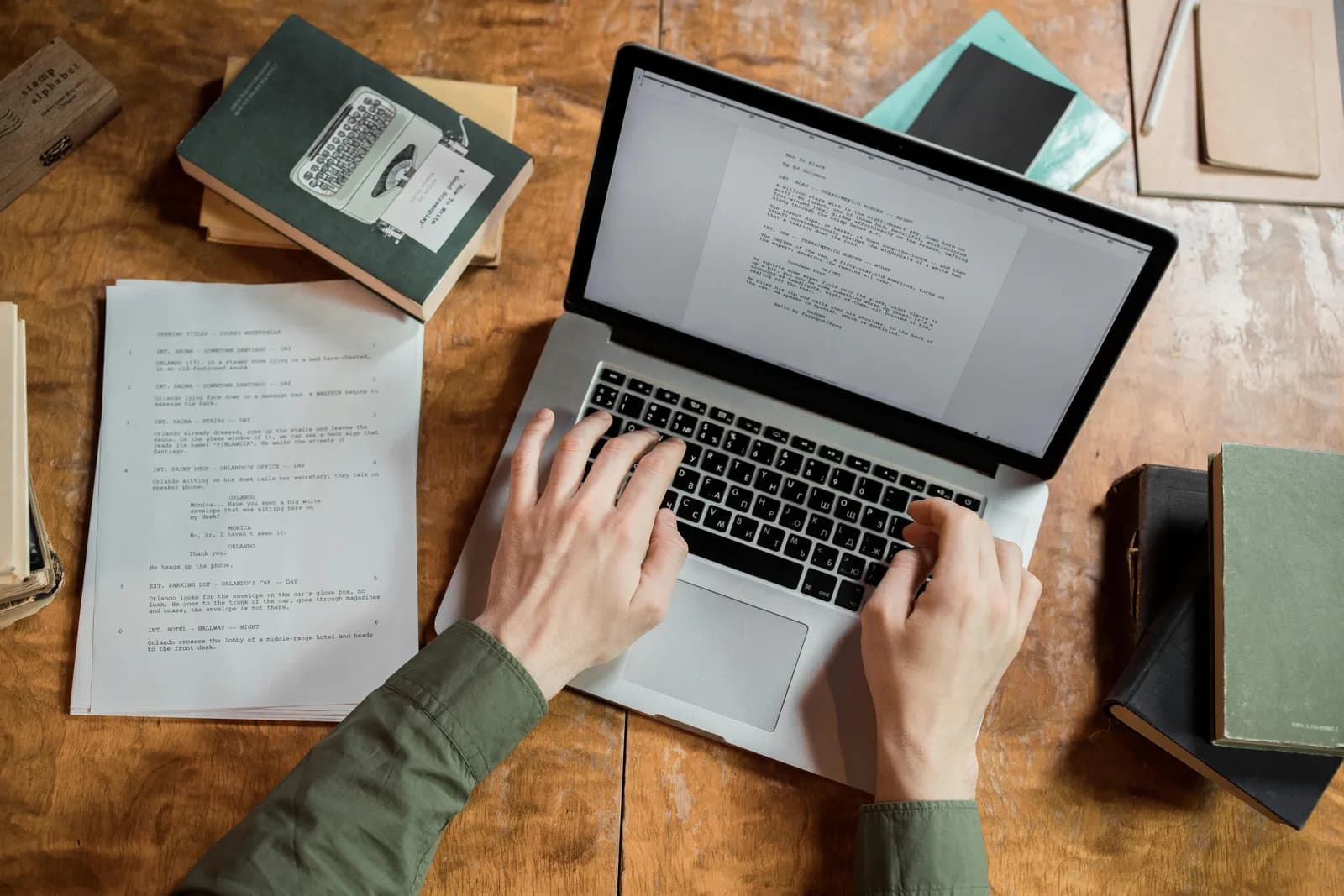
A real-time dictation app for writers turns speech into text at the cursor with little delay. Whisper works push-to-talk: hold a hotkey, speak a sentence, release, and the transcript pastes into the editor on screen. On local models the gap from key release to text is about 1.4 seconds. It runs offline, free, in any desktop app.
I built Whisper because typing was the slowest part of writing. Not the thinking, not the editing — the literal act of moving fingers fast enough to keep up with a sentence I'd already finished in my head. Voice fixes that. You talk at roughly 145 words a minute; you type at maybe 40. The gap is the whole pitch.
But "real-time" is a loaded word, and most pages selling dictation to writers let you imagine the wrong thing. So before you download anything, I want to be plain about what real-time actually means here, what the delay feels like, and where this fits in a real drafting session — long-form prose, blog posts, fiction, the email you've been putting off.
Here's the honest version most marketing pages skip. Whisper is push-to-talk. You hold a hotkey, speak a full sentence or three, then release. The transcript pastes at your cursor on release — not word-by-word as you talk, like a courtroom stenographer's screen. The unit is the utterance, not the syllable.
That distinction matters because it sets the right expectation. If you're picturing words crawling across the page in lockstep with your mouth, that's live captioning — a different tool for a different job. What Whisper gives a writer is faster than that in practice: you say a thought, it appears, you say the next one. On a local model the round trip is about 1.4 seconds. Fast enough that you stop noticing it and start just writing.
What "real-time" actually means for a writer

Writers reach for dictation for the same reason I did: the draft is in your head and the keyboard is in the way. A first draft is supposed to be fast and ugly. The keyboard makes it slow and tidy, which is exactly backwards. Talking lets you get the messy version down at the speed you think it, and editing — the part that actually wants your fingers — comes after.
So when a writer searches "real-time dictation," what they usually want is this: speak a sentence, see it land before they've lost the next one. That's the real bar. Not literal letter-by-letter streaming — a sub-two-second gap, so the words are there before the thought evaporates. Whisper hits that. From the moment you release the hotkey to text appearing in your document is about 1.4 seconds on a local model on an M1 Air, a touch over two seconds on a mid-range Windows machine with a bigger model. (I've watched the flow break when latency creeps past two seconds — your brain re-engages with the screen and you lose the thread. So that number is the one I obsess over.)
The other thing writers want is to never leave the document. A long draft is a flow state, and flow does not survive opening a separate transcription window, hitting record, waiting, copying, and pasting back. Whisper pastes at the cursor in the app you're already in — Scrivener, Word, Google Docs in a browser, a plain text editor, your CMS. You don't switch windows. You hold a key and keep writing. That's the part that makes it feel real-time even though, strictly, it pastes on release.
Hold a hotkey, speak, release — the text pastes itself
The mechanic is boring, which is the highest compliment I can pay software. You hold a hotkey, you speak, you release, and the transcript pastes at your cursor in whatever has focus. Whisper holds a short tail — 250 milliseconds — after you let go, so your last word doesn't get clipped. Because it pastes at the operating-system cursor, your manuscript is just "a text box." Scrivener, Final Draft, Word, a Substack draft in the browser — same behaviour, no per-app setup.
A small capsule appears while you speak so you know it's listening, then it shows the brief transcribe step before the words land. That's the whole loop. There's no separate app window to alt-tab to, no record button to find, no file to export. Your cursor is in the paragraph, you talk, the sentence shows up in the paragraph:
The hotkey is the one thing worth getting right early. On Windows it's Ctrl+Space; on Mac it's Command+Option, a modifier-only push-to-talk you hold while you speak. Both are changeable in Settings, which matters for writers because a lot of writing apps grab keys for their own shortcuts. (My younger daughter once told me a hotkey "didn't work" in her drawing app. It was a conflict, not a bug — which is how I learned the average person has no idea what a hotkey conflict even is. So now every hotkey is customisable.) If you've set up dictation on Windows or on Mac before, this is the same muscle memory pointed at your writing app.
Set it up in two minutes (Windows or Mac)
You need a Mac on Apple Silicon or a Windows 10-or-newer PC, a working microphone, and the editor you write in open. The whole local pipeline is free for any signed-in account, with no payment method asked for at sign-up. Here's the sequence.
Step 1 — Install Whisper and sign in.
Download from the download page, install, and create a free account. No card. The whole local transcription pipeline opens right away.
You'll know it worked when the app's tray icon appears and the setup wizard offers to pick a model.
Step 2 — Pick a transcription path.
The app doesn't choose for you. You get three: Cloud (OpenAI, bring your own key), Local Parakeet, or Local Whisper. For drafting prose privately, start local — more on which one two sections down.
You'll know it worked when a model finishes downloading and shows as ready.
Step 3 — Confirm your hotkey.
Windows defaults to Ctrl+Space, Mac to Command+Option held as push-to-talk. On Mac, grant the Accessibility permission when prompted; without it, the paste-at-cursor can't reach your writing app.
You'll know it worked when a test recording pastes into any text field.
Step 4 — Put your cursor in your draft and talk.
Open the document, click where you want the next sentence, hold the hotkey, say it, release. The transcript appears at the cursor, mid-paragraph and all.
You'll know it worked when your spoken sentence is sitting in the draft as text.
The slow part is the model download, not the setup. Everything else is the four steps above. Once it's running, getting a sentence onto the page stops being a typing task and becomes a talking task, which for a long draft is the difference between an afternoon and an evening.
What dictating a draft actually feels like
The trick to dictating prose is to stop dictating word-perfect prose. New writers try to speak with commas and paragraph breaks and end up slower than typing. The fast way is to talk in whole thoughts — say the sentence the way you'd say it to a friend, release, say the next one. Let the first pass be rough. You're capturing the draft, not setting type. A 1,500-word blog post that takes me ninety minutes to type takes about half that to talk through, and most of the saving is just not stopping to fix things mid-sentence.
The push-to-talk rhythm suits how writers actually think. You hold the key for one idea, let go, look at what landed, decide the next sentence, hold again. The pauses between presses are thinking time, not dead time — the tool isn't recording your "ums" while you stare at the wall deciding where the scene goes. For fiction especially this is closer to how dialogue sounds in your head than typing ever is; you perform the line, then you have it on the page to cut.
Two practical notes for long sessions. First, dictate in chunks of a sentence or three, not whole paragraphs in one breath — shorter bursts paste faster and are easier to fix if a word comes out wrong. Second, your microphone matters more than you'd guess. A $20 USB mic does more for accuracy than any model upgrade, because clean audio is what the model is actually working from. That's the boring truth nobody selling you "AI accuracy" wants to lead with. Once the words flow this fast, you can type whole drafts by voice and treat the keyboard as an editing tool, which is what it was always better at.
Local or cloud: which mode for a working writer
For drafting, try local mode first. A manuscript-in-progress, a pitch you haven't sent, a journal entry — none of that needs to leave your laptop to become text. If your Mac is Apple Silicon or your PC is from the last few years, local handles everyday dictation without complaint, and cloud becomes the escape hatch rather than the default. Here's how the three paths differ, because the app makes you pick and I'd rather you pick well:
- Local Parakeet — NVIDIA's TDT engine, around 600 MB, and the fastest local option — 5 to 10 times faster than Whisper on CPU. Covers English plus 24 other European languages, 25 in total. No translate-to-English. If you write in English or another European language, this is the quick, fully offline pick, and the one that keeps that latency low.
- Local Whisper — slower than Parakeet on the same machine, but the multilingual builds cover 99 languages and can translate to English. The English-only builds are English-only, not 99. Pick this if you write in Chinese, Japanese, or Korean (which Parakeet can't do), need translation, or want hotword biasing for character names and invented words. Default English model is around 480 MB.
- Cloud (OpenAI, BYOK) — best accuracy and web access, using your own OpenAI key billed straight by OpenAI. Transcription runs on gpt-4o-mini-transcribe by default. Needs internet, so it's the one path that leaves your machine, and it's part of Whisper Pro.
The boring truth is that for most prose, local is plenty — both local engines run fully on your machine with nothing sent to a server. Cloud earns its place when you want top-tier accuracy on a tricky recording or you need a fact pulled off the web mid-sentence. Cloud is also the lowest-latency path on a good connection at around 1.1 seconds, because the network round-trip beats local compute on a slower laptop. Start local; reach for cloud only when local leaves you wanting.
One opinion I'll stand behind: cloud-only dictation is a privacy disaster waiting to be transcribed. I once watched an internal team rack up a five-figure cloud bill in a quarter, mostly from a "smart retry" loop re-transcribing the same recordings four times. The CFO opened the dashboard during the quarterly review and the room got very quiet. Your first draft does not need to live in a vendor's logs to become text. Your laptop already has a microphone and a CPU.
Turning a spoken draft into clean prose
Raw dictation comes out as a run-on. You say "okay so the chapter opens at the train station she's late she missed the connection um and the whole thing kicks off from there," and that's the unpunctuated wall any speech engine hands you. For a draft that's fine — you're going to edit anyway. But there's a faster path to readable.
Windows Voice Typing adds punctuation as you speak, and macOS Dictation handles basics when you say "comma" or "period." For heavier cleanup — stripping the "ums," fixing run-ons, turning a spoken paragraph into something you'd keep — Whisper can run an AI pass. Say the activation phrase "Hey whisper" and the text gets enhanced before it lands. On a local model that runs through Ollama; in cloud mode it's gpt-5-mini by default.
okay so the chapter opens at the train station she's late she missed the connection um and the whole thing kicks off from there
Okay, so the chapter opens at the train station. She's late — she missed the connection — and the whole thing kicks off from there.
A word of caution writers in particular should hear: the AI cleanup is a punctuation-and-filler pass, not a co-writer. It fixes the mechanics; it does not rewrite your voice, and you shouldn't let it. For fiction or anything with a distinct style, I run the lighter local enhancement or skip it entirely on the first draft and edit by hand later, because the whole point of dictating fast is that the rough draft is yours. Use the cleanup to make notes legible. Do the actual writing yourself.
This same speak-then-clean flow works anywhere you keep text — it's exactly how I dictate notes and capture ideas between drafting sessions, so a research thought or a plot beat goes from spoken aside to a tidy line without breaking stride.
When a real-time dictation app is the wrong tool

Sometimes the honest answer is that you want something else, and I'd rather say so than sell you the wrong thing. Whisper is push-to-talk dictation into the app you're writing in. It is not live captioning, it is not interview transcription, and it is not a phone tool.
If you genuinely need words streaming on screen as you speak — captioning a live talk, subtitles rolling during a stream, an accessibility caption track — that's true live captioning, a separate category built for continuous streaming, not press-and-release dictation. Reach for a captioning tool. If you've got a recorded interview or a two-hour meeting to turn into a transcript, that's file transcription with speaker labels — a service like Otter or Rev fits better than a dictation hotkey; different category, don't make a writing tool do a transcription job. And if you only ever dictate a 30-word note on the go, your phone keyboard's microphone is free and already in your pocket; Whisper is a desktop tool for Windows and macOS, so there's no app to install for that.
Reach for a real-time dictation app when the job is drafting: long-form prose, a blog post, a chapter, an email you keep avoiding — written at the desk, in the app you already use, where speaking beats typing and you want the words at your cursor a second later. Below that, use what's free. I'm not going to tell you to launch a desktop app to send a one-line text.
Most of the writers I hear from are on one platform or the other, so if you want the platform-specific walkthrough, the setup in dictation software built for writers covers the workflow end to end, from picking a model to keeping your hands off the keyboard for a whole session.
"Real-time" for a writer doesn't mean letters crawling across the page in lockstep with your mouth. It means you say a sentence and it's there before you've lost the next one — about a second and a half, in the app you're already in, nothing sent anywhere. That's the trick, and it's a quiet one. I dictated most of this guide a sentence at a time, releasing the key between thoughts, watching the words show up while I figured out the next line. The keyboard sat there the whole time, useful only for the edits. Which is exactly where I want it.
Talk your next draft onto the page
Hold the hotkey, say a sentence, release. The words land at your cursor in whatever you're writing in — about a second and a half later, nothing sent anywhere.
Free local mode for any signed-in account. No card required to start.



