 By Denys Medvediev
Setup guide
Talk to text on every device
Updated May 2026

Talk to text turns spoken words into typed text using a built-in tool on Windows, Mac, Android, and iPhone, or a third-party app like Whisper. Activate it with a hotkey or microphone button, speak normally, and the words appear in any text field. Setup takes under a minute on every modern platform.
I dictate roughly half my workday now. Average typing speed is about 40 words per minute. Average dictation sits around 145, close to 3.6× faster, and the gap widens when one hand is holding a sandwich. Every modern operating system has voice typing built in. You just have to know which key to press.
Windows: press Windows key + H. Mac: press the Microphone key in the function row, or set a shortcut in System Settings. Android: tap the microphone on the Gboard keyboard. iPhone: enable Dictation in Settings, then tap the microphone next to the space bar. Built-in tools cover most needs for free.
Hold one key. Talk. Get text. That's it.
Every voice typing flow on every modern device fits the same pattern: hold a key, talk, release, paste. The interface is whatever recording indicator the system gives you. The model behind the curtain decides accuracy and latency.
The cursor needs to be in a real text field — chat box, search bar, document, code editor. Voice typing does not work on a Netflix poster. (I have tried. Specifically my younger daughter has tried, then asked me to fix it.)
The built-in tools are free, fast enough, and almost always already on. Start there. The rest of this guide tells you which key to press on which platform, then where the built-in path runs out of road.
Windows: Win+H, talk, done.
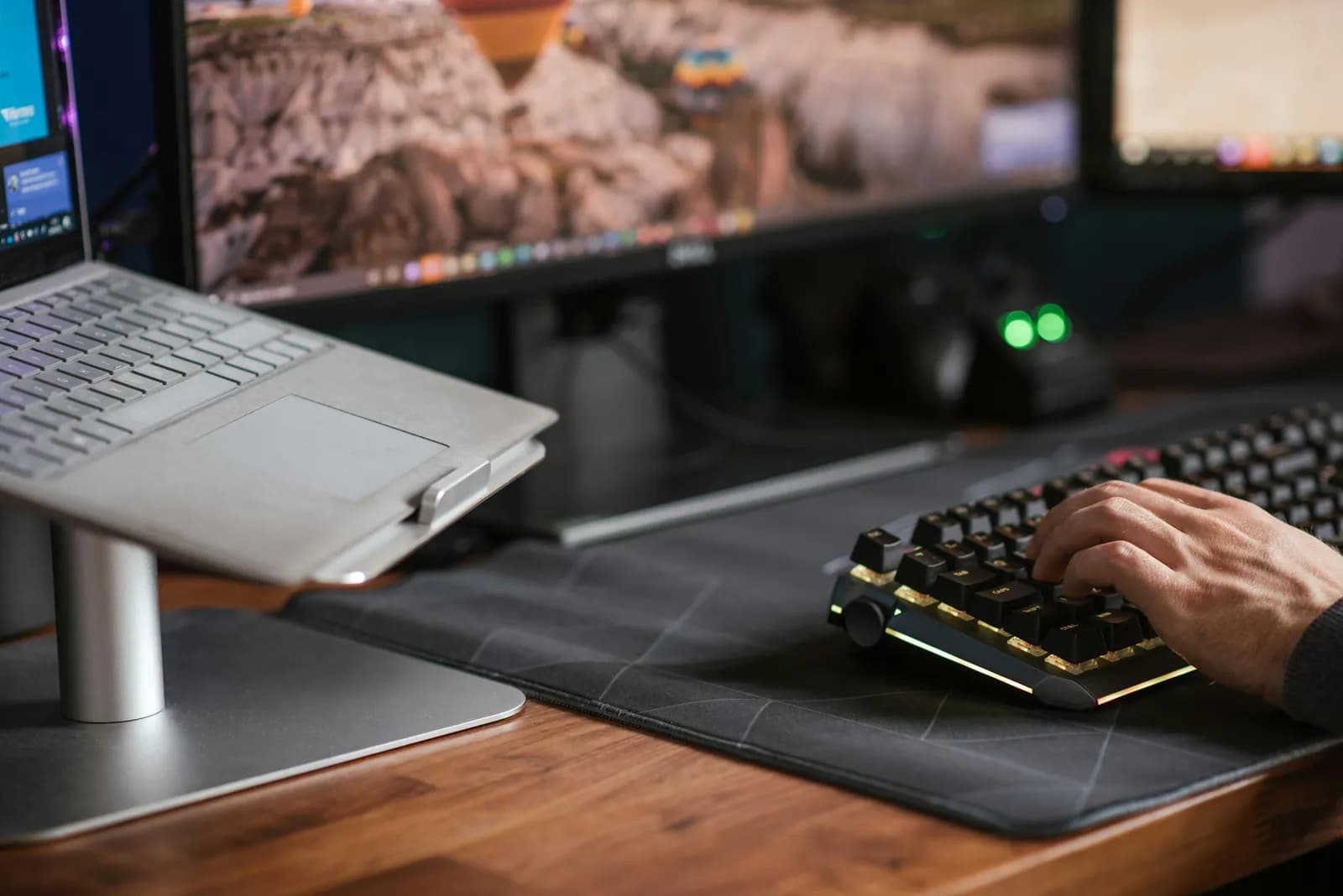
On Windows 11 (and Windows 10, mostly), put the cursor in any text field (Notepad, the address bar, a Word doc, a Slack message) and press Windows key + H. A small voice typing bar appears at the top of the screen. Talk. The text lands where the cursor is.
Two things to know. First, Voice Typing needs an internet connection, a working microphone, and the cursor in a text box. No internet, no transcription. Second, automatic punctuation is a toggle, on by default in recent builds. It inserts commas, periods, and question marks based on how you phrase things, which works better the more you trust it and stop saying the word "comma" out loud.
Windows Voice Typing supports 43 languages, including most English variants, Spanish, French, German, and Chinese. Switch languages from the gear icon on the voice typing bar. If the bar does not appear, your cursor is probably not in a real text field. Clicking the browser address bar is a quick sanity check.
Mac: press the Microphone key, talk, done.

The activation story on Mac has changed more than once. The current path: press the Microphone key in the function-key row, use the Dictation keyboard shortcut set in System Settings, or choose Edit > Start Dictation in any app. Apple's older "press Fn twice" default is gone; the shortcut is now user-configurable under System Settings > Keyboard.
The interface is a small floating microphone next to the cursor. Talk, and text appears. On Apple Silicon Macs, you can keep typing on the keyboard while dictation runs.
Mac Dictation covers more than 60 language and regional variants, including Ukrainian, Cantonese, Hindi, Romanian, and 15 English variants from Singapore to South Africa. Pick a language under System Settings > Keyboard > Dictation. Accuracy is fine for short bursts (texts, search queries, single-paragraph emails). For long-form, it shows its age.
Android: tap the microphone on Gboard.
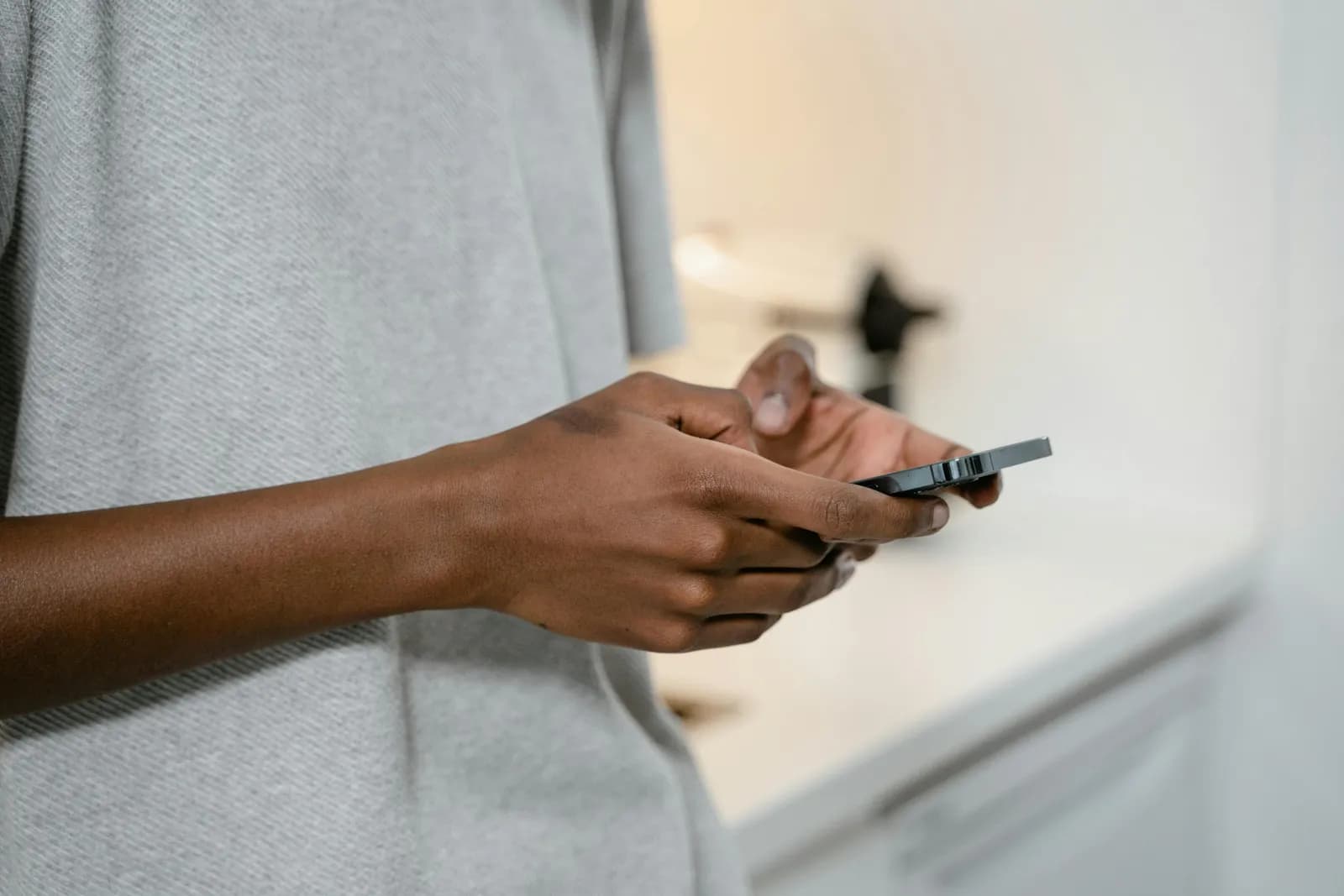
On Android, voice typing lives in the keyboard. If you use Gboard (the default on Pixel, optional on most Samsung, OnePlus, and Xiaomi devices), open any app that lets you type, then tap the microphone icon at the top of the keyboard. A "Speak now" prompt appears. Talk. Tap the microphone again when you are done.
Punctuation works by voice. Say "comma", "period", or "question mark" and the symbol appears. Same trick for new lines.
Two gotchas. Gboard voice typing does not work in every language — Google does not publish an enumerated list, but the major ones are covered. The other gotcha is Samsung-specific: many Galaxy devices ship with Samsung Keyboard as the default. The microphone button is there too, slightly different in look. Switch keyboards by long-pressing the comma key, or under Settings > General Management > Samsung Keyboard.
iPhone: tap the microphone on the keyboard.
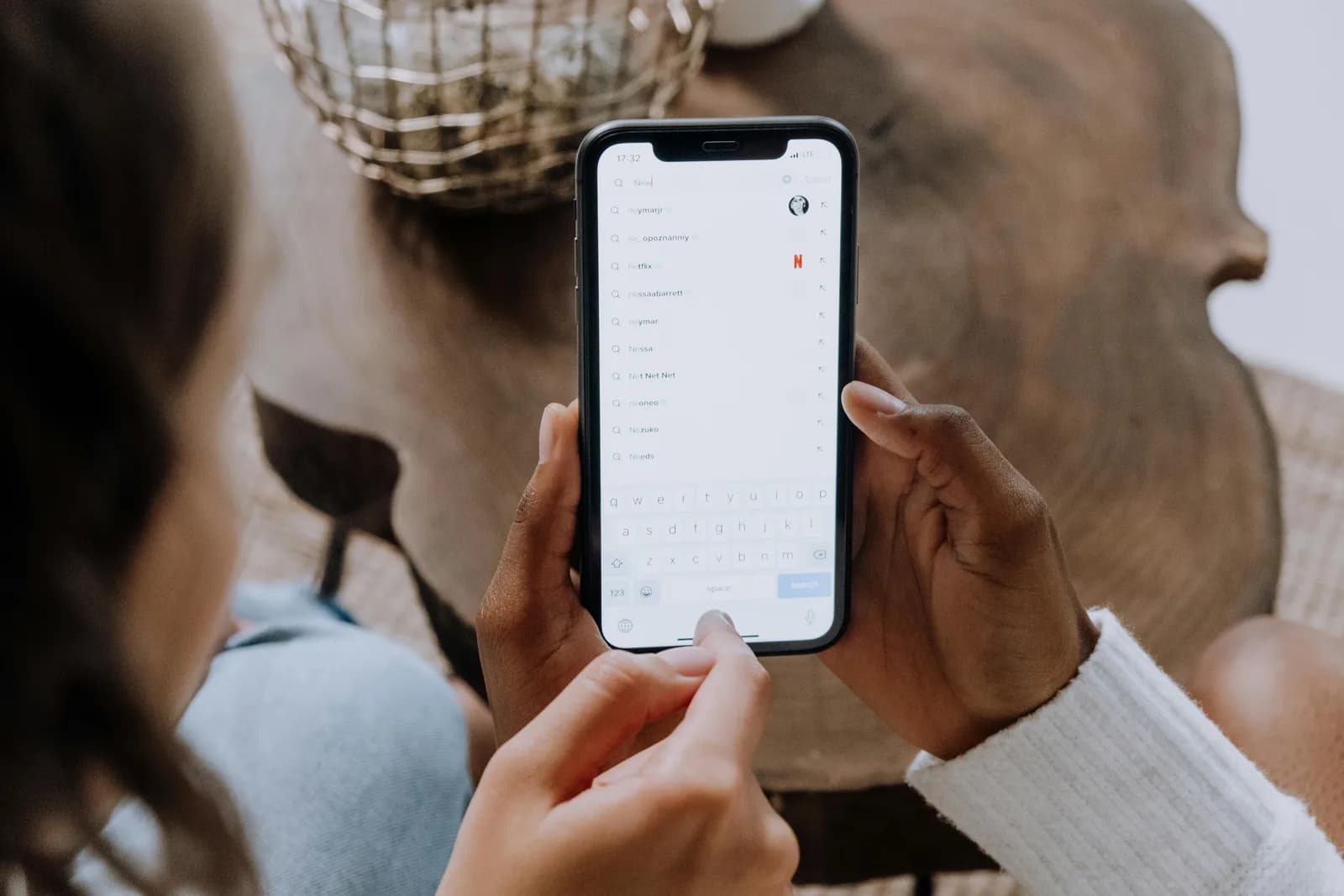
iPhone keyboard dictation is off by default on a fresh setup, and turning it on takes about ten seconds. Open Settings > General > Keyboard > Enable Dictation. A microphone icon appears on the keyboard, to the left of the space bar on newer iPhones, or next to the 123 key on older models. Tap it, talk, tap again to stop.
On supported iPhones, dictation runs on the device, which means it works offline once enabled and your speech does not get sent to a server. That matters for anything you would not want on someone else's logs, like a reply to your kid's teacher.
The same voice-punctuation trick from Android works here: "comma", "period", "new line". For everyday texting and short emails the experience is genuinely good. The 30-second cap older iOS dictation used to have is gone; you can hold a sentence for as long as you want to think.
When the built-in tools stop being enough
The free, built-in tools cover roughly 80% of casual voice typing. The 20% they do not cover is also the part where most professionals live.
A few real signs you have hit the ceiling. You dictated a 300-word paragraph and accuracy dropped halfway through. You need translate-to-English from a language the OS does not support well. You have technical vocabulary the system keeps mishearing (kubernetes becomes "couper nettes"). You work offline and the built-in tool needs the internet. Or you want voice typing inside an app the OS does not hook into, like a custom editor, a remote VM, a terminal, or a workspace where you dictate straight into Notion.
Whisper by Remskill is the tool I build. It runs on Windows and Mac, with three transcription paths the user picks. Cloud mode uses OpenAI's latest models. Local Parakeet is NVIDIA's fastest-on-CPU engine, covering 25 European languages. Local Whisper handles 99 languages and translate-to-English. The local pipeline is free for any signed-in user, no card at signup. All local transcription is pure-Rust, no Python sidecar. The Windows default hotkey is Ctrl+Space; the Mac default is command+option held together.
The free tools worth knowing (Speechnotes, SpeechTexter, dictation.io)

Three browser-based dictation tools worth knowing if you do not want to install anything.
Speechnotes
A browser-based notepad with built-in dictation. Free tier runs in the browser and as a Chrome extension. Genuinely usable for note-taking. Speechnotes self-reports 95% accuracy on English; treat that as their number, not a benchmark.
SpeechTexter
Free, no signup, browser-based. Runs in Chrome on desktop and some Android browsers. Supports more than 70 languages. Does not work on iPhone or iPad — Safari does not expose the speech recognition API. Their own accuracy claim is "higher than 90%".
Dictation.io
Another browser-based voice notepad, also Chrome-only. The simplest UI of the three.
None of these need an account. All of them work because Chrome has a built-in speech recognition API that talks to Google's transcription service. Which also means: when Chrome's API goes down, all three break at the same time. The boring truth is they share a fate.
If you want the full shortlist of tools that cost nothing, we ranked the best free dictation software separately, including the desktop options that work offline and outside the browser.
What I'd pick for actual work
Here is what I would set up if I were starting from zero today.
Casual use, short notes, search queries
Whatever your OS gives you for free. Win+H on Windows. The Microphone key on Mac. Gboard or the iOS keyboard mic on phone. Done. Do not pay for what you do not need.
That advice holds for the browser, too — Google Docs has voice to text in Google Docs built in, but only inside a Chrome tab.
Long-form writing on a desktop
Switch to a dedicated tool when you write more than 500 words a day, switch languages mid-document, or keep saying the same proper noun and the OS keeps misspelling it. A custom-vocabulary tool starts to earn its keep there.
If your desktop writing is mostly email, the voice-to-text-in-Gmail walkthrough covers the Chrome-extension vs. system-app tradeoff specifically.
Multilingual
If you switch between English and any non-English language inside one paragraph, the built-in tools struggle. The Whisper-large-v3 multilingual model handles 99 languages with auto-detect, useful for an early user translating Kyiv news into English in real time and switching languages every few words. The user never wrote back to confirm the new mode worked, which I assume is a good sign.
Privacy-sensitive work
Anything with patient names, salary numbers, or legal language stays off cloud APIs. iPhone on-device dictation works for short notes. For long-form, a local desktop tool gets you the same privacy with a bigger model.
If privacy is the whole reason you are here, see how to run dictation fully offline so your voice never leaves your laptop.
The unhealthy version of voice typing is the one where you talk into a free tool for ten minutes and ship a paragraph nobody can read. The healthy version is the one where you press a key, say what you mean, and move on. Every modern OS has the second version already installed. Try it once before assuming you need anything else.
Want one hotkey that works on every desktop?
Download Whisper, hold the hotkey, watch the transcript appear at your cursor in any app.
Free local pipeline for any signed-in user. No card at signup.



