 By Denys Medvediev
Guide
How to type with your voice
Voice typing means you speak and the words appear where your cursor is. Your operating system has a built-in way — Windows key + H, or macOS Dictation. A dedicated hotkey tool like Whisper does the same thing in every app, offline, with an AI cleanup pass.
Last updated: June 2026
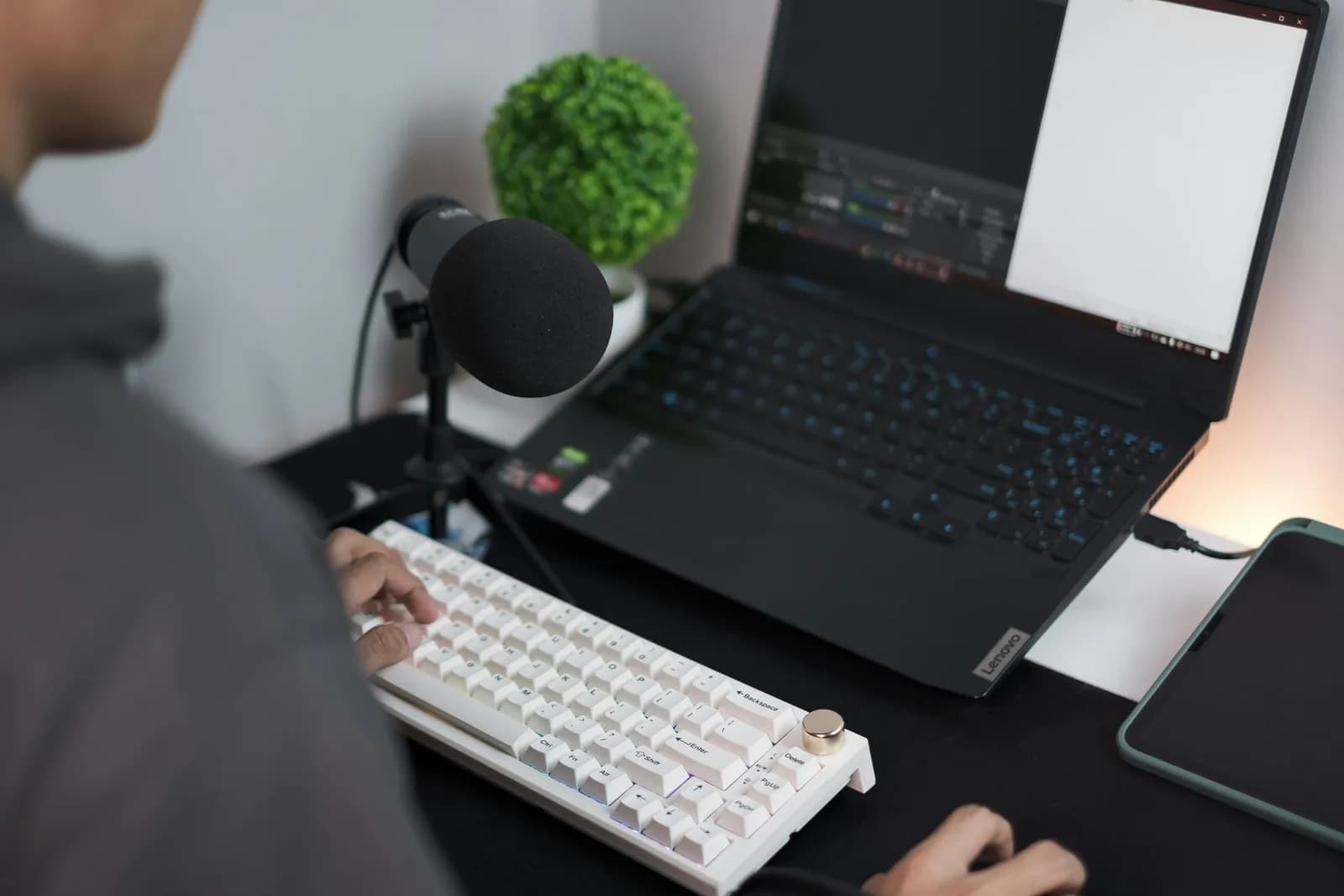
To type with your voice, open a built-in dictation tool — Windows key + H on Windows, or macOS Dictation under System Settings — put the cursor in any text field, and speak. For dictation that works the same in every app, offline, with an AI cleanup pass, a dedicated hotkey tool like Whisper pastes the transcript at the cursor.
Most people type at around 40 words a minute. Most people talk at three or four times that. So the math on voice typing was never really in question — the question was always whether the software could keep up with your mouth. For about thirty years it couldn't. Now it can, and the strange part is how many people still don't know their own computer already does this.
You don't need to buy anything to start. Windows and macOS both ship a voice-typing feature that types into whatever text box your cursor is in. It's free, it's already installed, and for short stuff it's genuinely fine. I'll show you that first, honestly, because it's the right answer for a lot of people. Then I'll show you the version I actually use all day, and where it pulls ahead.
Here's the thing to understand before you touch a single setting. Voice typing pastes text at your cursor. It doesn't care which app the cursor is in — an email, a search bar, a document, a chat box are all just text fields to it. Once that clicks, the whole topic gets simpler.
So there are really two routes, not a hundred. Route one is the built-in tool your OS already has. Route two is a dedicated push-to-talk app you press, speak into, and release, that behaves identically everywhere and runs offline. The built-in is enough for short bursts. The dedicated route earns its place when you do this all day. I'll set up both, cover the universal basics that make either one work, and tell you when to skip the app entirely.
What voice typing actually is
Voice typing — dictation, speech-to-text, whatever you want to call it — is one simple idea. You speak, software turns the audio into text, and the text appears where you'd otherwise be typing. That's the entire concept. The reason it feels new is that for most of computing history it didn't work well enough to bother with.
I remember a relative with Dragon NaturallySpeaking on a Windows 98 desktop with 64MB of RAM. Setting it up meant a 45-minute training session reading a word list aloud so it could "calibrate." After all that, accuracy hovered around 70%, every sentence arrived with a four-second delay, and dictating one paragraph of a holiday letter took fifteen minutes. The headset got thrown across the room. It survived; the dictation experiment did not. Twenty-five years later my younger daughter dictated a complete email to her grandmother in about ninety seconds, no training, no calibration, first try.
That gap is the whole story. Modern voice typing works out of the box on most accents and most languages, with no training step, and the words show up fast enough that you don't lose your train of thought. The two routes below are both built on that. The only real decisions left are which tool you reach for and how you talk into it.
The quick built-in way on Windows and Mac
Both major operating systems ship voice typing for free, and it's the right place to start. On Windows, put your cursor in any text box and press the Windows key and H together. A small dictation toolbar opens and starts listening. Speak, and the words land in the field. You add punctuation by saying it — "comma," "period," "question mark" — or you can turn on auto-punctuation in the toolbar's settings and let it guess. One catch worth knowing up front: Windows voice typing needs an internet connection. Your audio goes to Microsoft's servers and comes back as text, so there's no offline mode here.
On a Mac, you turn it on once. Open the Apple menu, choose System Settings, click Keyboard in the sidebar, scroll to Dictation, and switch it on (click Enable when it asks). After that you start dictation from the microphone key in the function row, a shortcut you pick, or Edit then Start Dictation in the menu bar. Speak into any text field and the words appear. On Apple Silicon Macs, general text dictation is processed on your device rather than sent to Apple's servers, and it inserts punctuation automatically in supported languages. You can also keep typing while you speak, which is a nicer touch than it sounds.
For a quick text, a search, a one-line note — that's all you need, and you can stop reading here with a clear conscience. The built-ins start to chafe in three specific ways: Windows can't do it offline, both can wobble on longer stretches, and neither one follows the same muscle memory across every app you open. If none of those bug you, the free tool already on your machine is the answer. If they do, keep going.
The better way: one hotkey for every app
The version I actually use is a dedicated push-to-talk tool that sits on top of everything. You hold one key, speak, release, and the transcript pastes at your cursor — in your email, your editor, a chat box, a commit message, all the same. It runs offline, the local pipeline is free for any signed-in account with no card at sign-up, and it can run an AI pass to clean up what you said. You need a Mac on Apple Silicon or a Windows 10-or-newer PC and a working microphone. Here's the setup.
Step 1 — Install Whisper and sign in.
Download from the download page, install, and create a free account. No payment method is asked for. The whole local transcription pipeline opens right away.
You'll know it worked when the app's tray icon appears and the setup wizard offers to pick a model.
Step 2 — Pick a transcription path.
The app doesn't choose for you. You get three: Cloud (OpenAI, bring your own key), Local Parakeet, or Local Whisper. For private notes start local — there's a full breakdown two sections down.
You'll know it worked when a model finishes downloading and shows as ready.
Step 3 — Confirm your hotkey.
Windows defaults to Ctrl+Space; Mac to Command+Option, a modifier-only push-to-talk you hold while speaking. On Mac, grant the Accessibility permission when prompted — without it, the paste-at-cursor can't reach other apps.
You'll know it worked when a test recording pastes into any text field.
Step 4 — Put your cursor anywhere and talk.
Click into any text field in any app, hold the hotkey, say a sentence, release. The transcript appears where the cursor is. A short tail keeps recording for a moment after you let go so your last word isn't clipped.
You'll know it worked when your spoken sentence is sitting in the field as text.
The slow part is the one-time model download, not the setup. Everything else is the four steps above. Once it's running, writing stops being a typing task and becomes a talking task, and the hotkey is the same key whether you're in your inbox or a code editor.
Five things that make either tool work
Whichever route you pick, the same handful of basics decide whether voice typing feels like magic or like a fight. None of them are complicated, and most of them are about you, not the software. Get these right and a cheap built-in tool beats an expensive one used badly.
Pick a quiet spot. Speech engines transcribe what they hear, and what they hear includes the dishwasher, the open window, and your kid asking why the moon is sometimes not there. A quiet room does more than any setting toggle. Then think about the microphone, because this is the one I'll plant a flag on: a $20 USB mic does more for accuracy than any model upgrade. The Whisper team's own numbers show that going from a built-in laptop mic to a podcast-grade USB mic cuts the error rate by 30 to 40% on the same model — a bigger jump than you'd get from a smarter, slower engine. Spend the money on hardware first.
Then it's about how you talk. Speak in full phrases, not word-by-word — dictation engines use the surrounding words to guess the right one, so "I'll meet you there" transcribes cleaner than four words said one at a time. Talk at a normal, even pace; rushing and over-enunciating both hurt. And don't fuss over commas and capitals while you speak. Either say the punctuation if your tool wants it, or let an AI cleanup pass add it afterward, which is the next section. Trying to dictate and punctuate and edit all at once is how the run-on sentence wins.
Local or cloud: which mode to speak through
With a dedicated tool, the one real choice is where the transcription happens. Local means everything runs on your machine with nothing sent to a server. Cloud means it goes to OpenAI for top-tier accuracy and web access. For most people, most of the time, I'd start local — your laptop already has a microphone and a CPU, and a single paragraph doesn't need a server in the loop. If your Mac is Apple Silicon or your PC is from the last few years, local handles everyday dictation without complaint. Here's how the three paths differ, because the app makes you pick.
- Local Parakeet — NVIDIA's TDT engine, around 600 MB, and the fastest local option — 5 to 10 times faster than Whisper on CPU. Covers English plus 24 other European languages, 25 in total. No translate-to-English. If you speak English or another European language, this is the quick, fully offline pick.
- Local Whisper — slower than Parakeet on the same machine, but the multilingual builds cover 99 languages and can translate to English. The English-only builds are English-only, not 99. Pick this for Chinese, Japanese, Korean, or any translation work, which Parakeet can't do. The default English model is around 480 MB.
- Cloud (OpenAI, BYOK) — best accuracy and web access, using your own OpenAI key billed straight by OpenAI. Transcription runs on gpt-4o-mini-transcribe by default. It needs internet, so it's the one path that leaves your machine. The Cloud surface is part of Whisper Pro.
The boring truth is that for the kind of text most people type all day — emails, notes, messages, drafts — local is plenty. Both local engines run entirely on your machine, which matters when the text is your boss's salary spreadsheet or an email to your kid's school. Cloud earns its place when you want top-tier accuracy on a hard recording or you need the model to pull a fact off the web mid-sentence. Start local, and reach for cloud only when local leaves you wanting.
Let AI clean up what you said
Raw dictation comes out as a run-on. You say "okay so reply to the teacher email confirm the trip and remind me to send the form Thursday," and that unpunctuated wall is what any speech engine hands you. Cleaning it up is where the routes diverge, and it's the single biggest reason a dedicated tool pulls ahead.
The built-ins do light cleanup. Windows voice typing adds punctuation when you say it, or guesses if you turn auto-punctuation on. macOS Dictation inserts punctuation automatically in supported languages. That's fine for a sentence or two. For heavier cleanup — stripping the "ums," fixing the run-ons, turning a spoken ramble into something you'd actually send — Whisper can run an AI pass. Say the activation phrase "Hey whisper" and the text gets enhanced before it lands. On a local model that runs through Ollama with nothing leaving your machine; in cloud mode it's gpt-5-mini by default.
okay so reply to the teacher email confirm the trip and remind me to send the form thursday um before the morning bell
Okay, so reply to the teacher email, confirm the trip, and remind me to send the form Thursday before the morning bell.
This is the part that changes how dictation feels. Without a cleanup pass you're trading typing for editing — you speak fast, then spend the time you saved fixing capitalization and chopping run-ons. With it, you speak in whatever messy way you actually talk and get back something close to finished. I dictate the way I think, which is in fragments with the occasional false start, and let the pass sort it out. It won't write the email for you, but it will make the email you spoke sound like you meant to write it.
That same speak-then-clean flow is the whole reason voice can beat typing for everyday writing — a long paragraph becomes a few spoken sentences instead of five minutes at the keyboard.
When the built-in is enough

Sometimes the right tool is the free one already on your machine, and pretending otherwise would be dishonest. If you only dictate in short bursts — a text, a search, a quick note — the built-in covers it for nothing, and installing an app would be overkill. I'm not going to tell you to set up software for a one-line reminder.
On Windows, the Windows key + H toolbar is genuinely good for short dictation; it punctuates and it's already there. On a Mac, especially Apple Silicon, Dictation runs on-device, auto-punctuates, and lets you keep typing while you talk, which is more than enough for everyday snippets. If you mostly send short messages and you're on a Mac, you may never need anything else. There's a deeper walk-through for each in the guides on voice to text on Windows and voice to text on Mac if you want to lean on the built-in.
Reach for a dedicated tool when the built-in starts hurting in a way you feel daily: long writing sessions, offline dictation on Windows, multilingual work, a heavier AI cleanup pass, or wanting one hotkey that behaves the same in every app instead of relearning the flow each time you switch windows. Below that bar, use what's free. The honest answer is that the built-in is the right starting point for most people, and the dedicated route is the right upgrade once you're doing this enough to notice the friction.
If most of your dictation is capturing ideas rather than firing off messages, the trade-off plays out the same way in voice-to-text note-taking — short captures suit the built-in, while a long session is where the dedicated hotkey starts paying for itself.
Typing with your voice isn't a new trick — it's a thirty-year-old idea that finally works. The built-in tool on your machine will get you most of the way, and for a lot of people that's the whole answer. The dedicated route is what you reach for when "most of the way" stops being enough. I wrote nearly all of this by talking at my laptop and letting the cleanup pass fix my false starts, then read it back to make sure it still sounded like a person. It did, which is the only test that matters.
Talk your next sentence instead of typing it
Hold the hotkey, speak, release. The transcript lands wherever your cursor is — in every app, the same way every time.
Free local mode for any signed-in account. No card required to start.



