 By Denys Medvediev
Guide
Dictation software for students
The best dictation software for students is the one that runs free on your own laptop and types into any app. Press a hotkey, talk, and the words land in Google Docs, Word, or your notes. No subscription to start, works offline, on Windows and Mac.
Last updated: June 2026
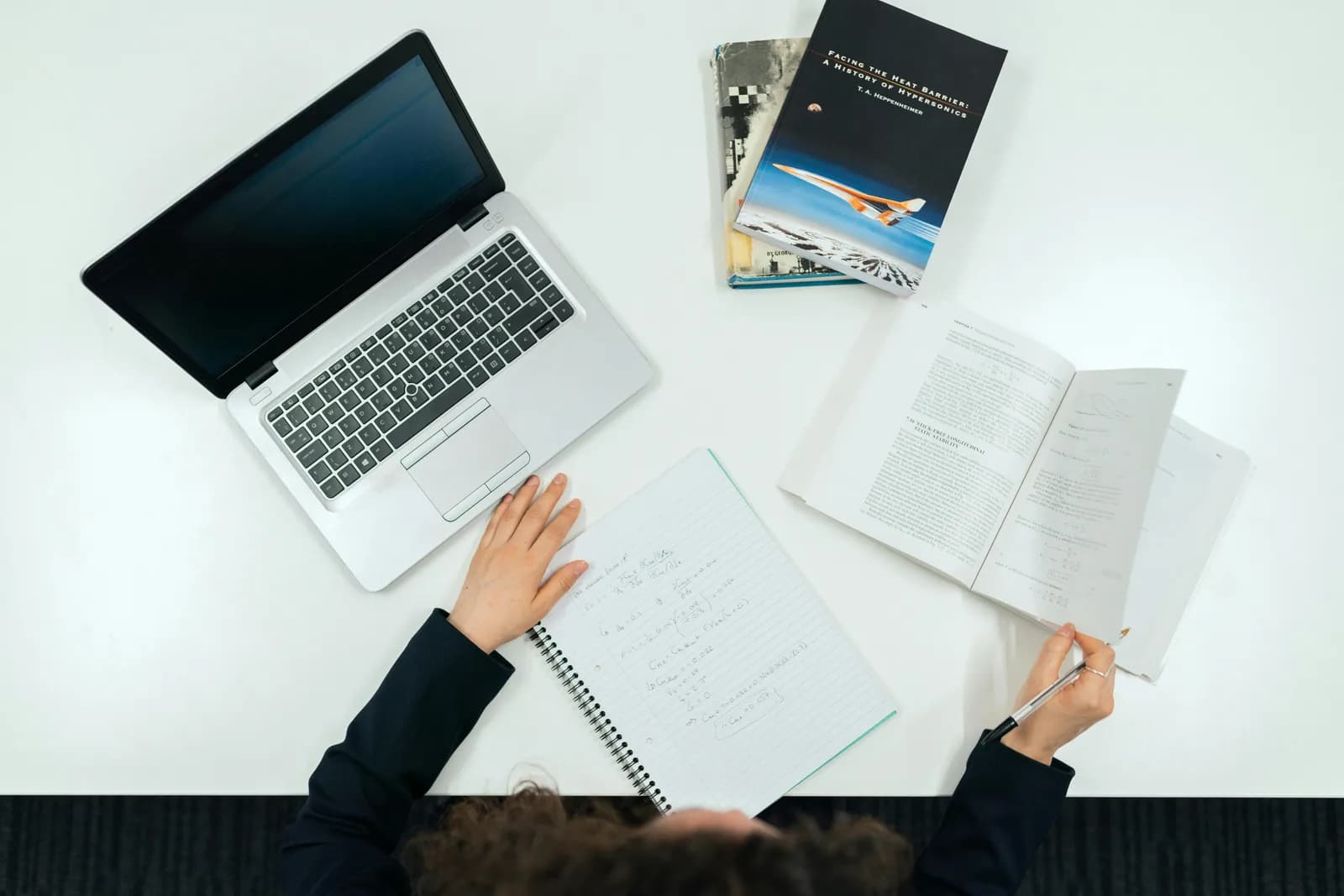
The best dictation software for students works system-wide: press a hotkey, speak, and the transcript pastes at the cursor in Google Docs, Word, Notion, or any app. A local tool like Whisper runs free on the student's own laptop with no card at sign-up, works offline, and covers essays, lecture notes, and study cards by voice.
Students search for dictation software and land on a wall of $30-a-month apps, free trials that want a card before you've typed a word, and one tool that only runs on a phone. The thing most of those pages won't say plainly is that the cursor is the integration. A Google Docs document is a text box. So is a Word file, a Notion page, and the flashcard app you cram with. Dictation that pastes at your cursor doesn't care which one you're in.
I built Whisper because typing was eating evenings I didn't have. The part that turned out to matter for students isn't clever AI — it's that the local version is free for any signed-in account, with no payment method asked for at sign-up, and it runs fully offline. For someone on a student budget who writes essays in the library Wi-Fi dead zone, that combination is the whole pitch. The fix takes about two minutes and works in every app you open.
Here's the boring truth about dictation for coursework. You don't need a special "student" app, and you don't need to feed a card to a free trial. You need a tool that pastes at your cursor and costs nothing to start, because the cursor is already sitting in whatever you're writing — an essay draft, a lecture-notes doc, a discussion-board reply at 11pm.
So the real question isn't "which student dictation app do I buy." It's "which tool runs on top of the apps I already use, for free, without internet." I'll cover why students reach for voice in the first place, the hotkey mechanic, a two-minute setup, how it handles essays versus quick notes, which mode to pick, the cleanup pass that fixes the run-ons, and — the honest part — when a different tool is the right call.
Why students reach for dictation in the first place

The honest job-to-be-done is rarely "I'm too lazy to type." It's that talking is faster than typing when you already know what you want to say. The average person types around 40 words a minute and speaks closer to 145. For a 1,500-word essay draft, that's the difference between an afternoon and a coffee break. You still edit afterward — dictation gets the raw clay onto the page, it doesn't sculpt it for you. But getting past the blank page is the part most students stall on, and voice is very good at killing the blank page.
There's a second reason that has nothing to do with speed. Some students dictate because typing for hours actually hurts — wrist strain from a semester of essays and lab reports is real, and resting your hands while you keep working is a productivity win, not a medical one. Others read and write more comfortably by voice than by keyboard; if that's you, voice input is a genuine assistive aid, and I've written more about that in speech to text for dyslexia — framed as a tool that removes the keyboard, not as anything medical. Either way, the win is the same: keep working without the keyboard being the bottleneck.
And then there's the messy-context reason, which is the most underrated. You think of the perfect topic sentence while walking back from a lecture, you're holding a coffee, your bag's on the other shoulder. You're not going to type that. Hold a hotkey, say it, and it's in your draft before you've forgotten it. That's the use case that turned me from "this is a neat demo" into "I use this every day."
Press a hotkey, talk, the words land in your essay
The mechanic is boring in the best way. You press a hotkey, you speak, you release, and the transcript pastes at your cursor, in whatever text field has focus. Whisper holds a short tail after you let go of the key, so your last word doesn't get clipped. Because it pastes at the OS cursor, a Google Docs paragraph is just "any text box" — same as a Word document, a Notion page, a Quizlet card, or the email to your professor you've been putting off.
That's the part the $30-a-month landing pages overcomplicate. There's no browser extension to wire into Google Docs, no add-on to install in Word, no API token to paste. Your cursor is in the essay, you talk, the words appear in the essay. A small capsule shows up while you speak so you know it's listening:
The hotkey is the one thing worth getting right up front. On Windows it's Ctrl+Space; on Mac it's Command+Option, a modifier-only push-to-talk you hold while speaking. Both are changeable in Settings if they clash with something you already use — and on a student laptop loaded with a screen recorder, a music app, and three browser extensions, something usually does. (An early user emailed at 2am because the default hotkey crashed his music software. I shipped a customizable hotkey, then went back to bed. Now every hotkey is yours to change.) If you've set up dictation on Windows or on Mac before, this is the same muscle memory pointed at your coursework.
Set it up in two minutes (Windows or Mac)
You need a Mac on Apple Silicon or a Windows 10-or-newer PC, a working microphone, and whatever you write in open — Google Docs in the browser, Word, Notion, anything. The whole local pipeline is free for any signed-in account, with no payment method asked for at sign-up, which matters more on a student budget than any feature. Here's the sequence.
Step 1 — Install Whisper and sign in.
Download from the download page, install, and create a free account. No card. The whole local transcription pipeline opens right away.
You'll know it worked when the app's tray icon appears and the setup wizard offers to pick a model.
Step 2 — Pick a transcription path.
The app doesn't choose for you. You get three: Cloud (OpenAI, bring your own key), Local Parakeet, or Local Whisper. For coursework on a budget, start local — more on which one two sections down.
You'll know it worked when a model finishes downloading and shows as ready.
Step 3 — Confirm your hotkey.
Windows defaults to Ctrl+Space, Mac to Command+Option held as push-to-talk. On Mac, grant the Accessibility permission when prompted; without it, the paste-at-cursor can't reach other apps.
You'll know it worked when a test recording pastes into any text field.
Step 4 — Put your cursor in your essay and talk.
Open your Google Doc or Word file, click where you want to write, hold the hotkey, say a sentence, release. The transcript appears where the cursor is.
You'll know it worked when your spoken sentence is sitting in your document as text.
The slow part is the model download, not the setup. Everything else is the four steps above. On an M1 Air with the small English model running locally, the gap from releasing the key to text appearing in your doc is about 1.4 seconds. Once it's running, writing a paragraph stops being a typing task and becomes a talking task.
Essays, lecture notes, and study cards by voice
The three things students actually write split cleanly by how you should use voice for each. Essays are the obvious win. Dictate a messy first draft fast — say the argument out loud the way you'd explain it to a classmate, get all 1,500 words down, then go back and edit with the keyboard. Voice is for the draft, the keyboard is for the polish. Trying to dictate a perfectly-formatted final paragraph on the first pass is how you end up frustrated; nobody talks in clean prose, and that's fine.
Lecture notes are different. The honest version: dictating your own notes from memory right after a lecture works beautifully — you summarize while it's fresh, hands-free, walking to the next building. But recording the lecture itself to transcribe later is a different job entirely, and a dictation tool is the wrong tool for it. I cover that in the "when to skip" section, because pretending otherwise would waste your afternoon. For the notes you write yourself, voice is faster than scribbling and the text is searchable the moment it lands.
Study material — flashcards, summary sheets, exam-prep outlines — is where the paste-at-cursor trick quietly shines. Your cursor goes in the flashcard app's answer box, you say the definition, it lands, you move to the next card. If you study technical subjects with terms a speech model might not know, the Local Whisper path supports custom vocabulary and hotword biasing, so "mitochondria" or "Heisenberg" comes out spelled right instead of phonetically. Dictate the content, format the cards with the keys you already use — voice gets the words, your keyboard gets the structure.
Local or cloud: which mode for a student budget
For coursework, start with local mode, and not just for the privacy of it. Local is free for any signed-in account, runs fully offline, and asks for no card — which is exactly the shape a student budget wants. The library Wi-Fi being down doesn't stop you drafting an essay. Here's how the three paths differ, because the app makes you pick and I'd rather you pick well.
The app doesn't pick for you. Three honest options:
- Local Parakeet — NVIDIA's TDT engine, around 600 MB, and the fastest local option — 5 to 10 times faster than Whisper on CPU. Covers English plus 24 other European languages, 25 in total. No translate-to-English. If you write your essays in English or another European language, this is the quick, fully offline, free pick — and the one I'd start a student on.
- Local Whisper — slower than Parakeet on the same laptop, but the multilingual builds cover 99 languages and can translate to English. The English-only builds are English-only, not 99. Pick this for Chinese, Japanese, Korean, any translation work, or when you need custom vocabulary for subject jargon. Default English model is around 480 MB.
- Cloud (OpenAI, BYOK) — best accuracy and live web access, using your own OpenAI key billed straight by OpenAI in fractions of a cent per minute. Needs internet, so it's the one path that leaves your machine. The Cloud surface is part of Whisper Pro — the local tier above stays free.
The boring truth is that for essays and notes, local is plenty. Both local engines run fully on your machine with nothing sent to a server, which on a shared dorm network is a feature, not a footnote. Cloud earns its place when you want top-tier accuracy on a difficult recording or you need the model to pull a fact off the web mid-sentence. For everyday coursework, start local and only reach for cloud when local leaves you wanting.
Turning a spoken draft into clean text
Raw dictation comes out as a run-on, and that trips up first-time users. You say "okay so the main argument is that the policy failed because um it ignored the local context and then the second point is funding," and that's the unpunctuated wall any speech engine hands you. Cleaning it up is where the modes diverge.
Windows Voice Typing adds punctuation as you speak, and macOS Dictation handles basics when you say "comma" or "period." For heavier cleanup — stripping the "ums," fixing the run-ons, turning a spoken paragraph into something you'd actually hand in — Whisper can run an AI pass. Say the activation phrase "Hey whisper" and the text gets enhanced before it lands. On a local model that runs through Ollama, free and offline; in cloud mode it's gpt-5-mini by default.
okay so the main argument is that the policy failed because um it ignored the local context and then the second point is about funding being cut
The main argument is that the policy failed because it ignored the local context. The second point is about funding being cut.
One honest caveat, because it's an academic context: the AI cleanup tidies punctuation and filler — it does not write your essay or invent citations. It's the difference between a spell-checker and a ghostwriter, and it stays firmly on the spell-checker side of that line. The argument, the evidence, the thinking — those are yours. The tool just stops you from handing in a 200-word sentence with no commas in it. Use it to get your own words down cleanly, fast.
That same speak-then-clean flow pays off well beyond your essays — you can also type faster with voice across every app so a long forum post or group-project doc becomes a few spoken sentences instead of a paragraph you type out.
When to skip a dictation tool

Sometimes a dictation tool is the wrong answer, and pretending otherwise would be dishonest. The biggest one for students: recording a full 90-minute lecture to transcribe later is a different job. A live dictation tool types what you say as you say it — it is not built to ingest an hour-long audio file and spit out a transcript afterward. For that, you want a recording-and-transcription service built for the task. Don't try to make a paste-at-cursor tool do it; you'll fight it the whole way.
The other skip is the quick phone capture. Whisper runs on Windows and macOS only — there's no mobile app, by design. If you're standing at the bus stop and want to jot a one-line idea into your notes, your phone keyboard already has a microphone button that dictates into any field. Use it. It's free, it's already there, and installing a desktop app for a one-line reminder you'll type on a phone is silly. For very short bursts at your laptop, the built-ins also cover you: Windows key + H opens Voice Typing wherever your cursor is (it needs internet, so it isn't offline), and macOS Dictation lets you speak text anywhere you can type, processed on-device on Apple Silicon.
Reach for a dedicated, free, offline tool when the built-ins start hurting: long essay drafts, multilingual coursework, dictating on the train with no signal, or wanting one hotkey that behaves the same in Google Docs, Word, and your email. Below that bar, use what's free and already on your machine. I'm not going to tell you to install an app for a one-line reminder you'd type on your phone.
If most of your writing happens in Google's editor, the mechanic is the same but worth its own walkthrough — dictating into Google Docs covers the cursor-is-the-integration trick in the one app most students live in.
There's no special student dictation app, and I'm fairly sure there never needs to be one. The cursor is the integration. Talk into the essay, get text, edit it with the keys you already know — and don't pay a monthly fee to start. My younger daughter dictated a 90-word email to her grandmother the first time she tried it, no questions asked after the demo. If a seven-year-old can draft by voice between losing teeth, a sleep-deprived student at 1am can draft an essay. I dictated most of this guide into a text box that wasn't a word processor, then pasted the lot where it needed to go. That's the whole trick.
Try it on your next essay draft
Hold the hotkey, talk, release. The transcript lands in whatever document your cursor is in — Google Docs, Word, or your notes — and in every other app too.
Free local mode for any signed-in account. No card required to start.



