 By Denys Medvediev
Tutorial
Voice to text in PowerPoint, the honest way
PowerPoint can hear you through Dictate, a built-in button on the Home tab. The catch is where the listening happens. Here's how Dictate works, plus an offline hotkey that dictates into every app and skips the Microsoft 365 subscription.
Last updated: June 2026
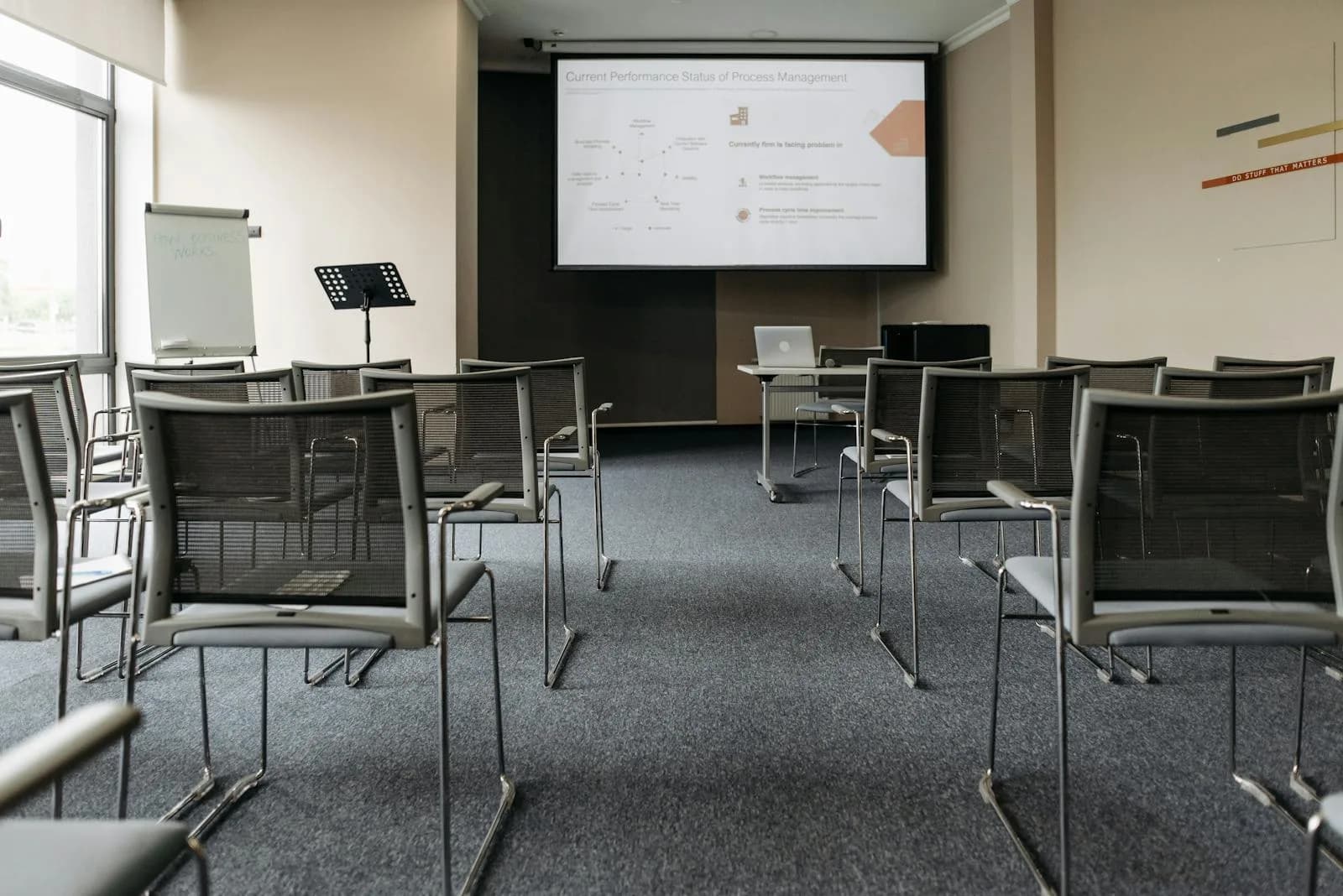
Voice to text in PowerPoint works through Dictate, a built-in Microsoft feature on the Home tab marked by a microphone icon. It types spoken words into slide text boxes, speaker notes, and comments. Dictate runs in the cloud, so it needs a microphone and a steady internet connection, and the desktop button only appears with a Microsoft 365 subscription.
So yes, PowerPoint can hear you. The catch is where the listening happens. Every word you speak travels to Microsoft's servers and comes back as text, which is fine for a public conference agenda and less fine for the Q3 numbers you haven't announced yet. There is a system-wide hotkey alternative that runs offline and skips the subscription entirely. We will get there. First, let me show you the button that already lives in your ribbon.
One quick note before we start. A few people searching this phrase actually want the reverse: a voice reading their slides aloud. That is Read Aloud, not Dictate, and this is not that article. This is about your speech becoming typed slide content.
Does PowerPoint have voice to text? Yes, with a catch
PowerPoint genuinely has dictation. Go to Home, find the Dictate button that looks like a microphone, sign into your Microsoft account on a device with a mic, and start talking. The recognized text drops into whatever field your cursor is sitting in, and you can fix a typo with the keyboard without switching the mic off.
Here is the catch, in three parts. Dictate is cloud-based, so it needs a microphone and a reliable internet connection every single time, because your speech is sent to Microsoft to produce the text. It is gated by subscription on the desktop, where the button shows up only for Microsoft 365 subscribers on Windows. And it lives inside PowerPoint, so the moment you switch to Word or your browser, you start over with whatever that app offers.
Where you can actually use it: PowerPoint for the web, free with a Microsoft account, and the Windows desktop app that comes with a Microsoft 365 subscription. On a standalone Office 2016, 2019, or 2021 license with no 365, the Dictate button is not there. That is not a bug. That is the deal Microsoft offers. The internet requirement is the one people forget, and on hotel Wi-Fi the size of a postage stamp, that cloud round trip is exactly as fun as it sounds.
One more clarification before the how-to. Dictate types your words into the field your cursor is in. It does not design the slide, pick a layout, or build a deck for you. Those are different PowerPoint features with different names, Designer, Presenter Coach, Copilot, and none of them is voice to text. Voice to text means your speech becomes text in one focused field. That is the whole job. Half the confusion on the web comes from one feature wearing another's coat: Read Aloud speaks your slides at you, Dictate listens, Designer rearranges boxes. It is the office printer problem, where everyone assumes it does more than it does until they actually press the button.
Dictate into slides and speaker notes with a system-wide hotkey
Here is the other way to get voice into PowerPoint. Whisper is a desktop app for Windows and macOS that puts dictation on a global hotkey. Hold the key, talk, release, and the transcript pastes at your cursor in whatever app is in front of you.
The default hotkey is Ctrl+Space on Windows and Command+Option on macOS. That same key works inside the PowerPoint desktop app, a slide text box, the speaker notes pane, a comment, and then keeps working when you tab over to Word, Slack, your browser, or your email. One hotkey, every app, instead of one button locked inside one program.
The scope is identical to Dictate, and I want to be straight about that. Whisper pastes into the single focused field, one field at a time, wherever the cursor is. It does not arrange your slides or build a deck by voice any more than Dictate does. If a tool promised to design your presentation while you talked, I would check whether it also promised to do your taxes. This is the same one-hotkey-everywhere idea behind typing faster with your voice in any app you open.
The whole app, live
This is the actual app, not a screenshot of one. Click around. Pick a model, open settings, see what the recording flow looks like before you install anything. I spent two evenings making this embed work and my eleven-year-old clicked it twice and asked why it wasn't a video. Fair.
Notice that nothing here is bolted to PowerPoint. Whisper is a native desktop app, not a PowerPoint add-in or a browser extension. It sits at the operating-system level, which is why the same hotkey reaches a slide text box, a speaker note, and the email you write thirty seconds later. And because it does not depend on Microsoft's plumbing, it runs without a Microsoft 365 subscription.
Clean up the dictation automatically
Raw dictation is raw. You stammer, you restart a sentence, you say "um" more than you think. Whisper can run an optional AI cleanup pass over the transcript, tidying the filler and fixing the obvious stumbles before it lands on your slide. In free local mode that cleanup runs through Ollama on your own machine; in Pro it runs through OpenAI, which also adds web answers.
PowerPoint's Dictate has no equivalent pass. It inserts the recognized text plus the punctuation you spoke, and that is what you get. Punctuation in Dictate is not automatic, by the way: you say it out loud, "comma," "period," "new line," with Microsoft providing tables for symbols and currency. Good enough for a quick caption, less good for a notes section you want to read like prose.
Offline and private, no Microsoft 365

This is the part I care about most, so I will state the opinion plainly. Cloud-only dictation is a privacy disaster waiting to be transcribed. Your unannounced revenue, the acquisition target on slide nine, the salary band you are presenting to the board, none of it should leave your laptop because you wanted to type with your voice. PowerPoint Dictate sends every utterance to Microsoft to get the text back. For a public agenda, fine. For a confidential deck, think twice.
Whisper local mode runs completely offline. No internet is needed at any point during transcription, and the audio never leaves the machine. The only time you need a connection is the one-time model download, somewhere between about 140 MB and 3 GB depending on which model you pick. After that, you can dictate a board deck on a plane with the Wi-Fi off and nothing touches a server. The same offline argument applies whether you are dictating slides or doing voice to text on Windows more broadly, and it is one reason people reach for it over the built-in Windows 11 speech-to-text tools.
Two more honest differences. Whisper needs no Microsoft 365 subscription to function, because it does not run on Microsoft's stack. If your Office is a standalone perpetual license with no Dictate button, Whisper gives you voice into PowerPoint anyway. On languages, Whisper supports over 90 in both local and cloud mode, reaching 99 on its multilingual model line (the English-only .en builds are English only). PowerPoint Dictate, by Microsoft's own count, lists 15 fully supported spoken languages plus 25 more in preview, where preview means lower accuracy or limited punctuation. So Whisper covers more ground, but honestly the count is the smaller story. Where the dictation runs, and what it costs to run, matters more than the size of the language menu. If you dictate in another office app too, the same logic carries to voice to text in Google Docs.
When PowerPoint's own Dictate is enough

Let me talk you out of installing anything. If you are working in a web deck on solid Wi-Fi, you already pay for Microsoft 365, you only need a quick line of text, and you do not mind that the speech goes through Microsoft's cloud, then just press Home, then Dictate. You do not need us for that. It is built in, it works, and the round trip is invisible on a good connection.
Reach for Whisper when one of those conditions breaks. You want the audio to stay on your device, offline. You do not have, or do not want to pay for, a Microsoft 365 subscription. Or you are tired of one button that only works in one app and you want a single hotkey that dictates into PowerPoint and Word and Slack and your browser without learning a new gesture for each. The local pipeline is free, with no card at signup, so the cost of trying the offline route is a download and ten minutes. Pricing for the Cloud features lives on the pricing page if you want the full picture.
Further reading
PowerPoint's Dictate is real, it is built in, and on a good connection it does the job for a quick line of slide text. The trade is that it lives in the cloud, hides behind a Microsoft 365 subscription on desktop, and stays put inside one app. If that fits your day, you already have what you need. If you would rather your slides stayed on your laptop, or you want one key that talks to every app you open, that is the gap Whisper fills. My younger daughter learned the hotkey in one demo and now dictates her grandmother's emails faster than I can find the right ribbon tab. The bar was not high.
One ribbon, one hotkey
Download Whisper and dictate into PowerPoint, offline, on your own hardware. Hold the hotkey, talk, release, and the transcript lands at your cursor.
Free local mode for any signed-in account. No card required to start.



