 By Denys Medvediev
Guide
Dragon dictation not working
Dragon usually stops working for one of a few fixable reasons: the wrong microphone is selected, the user profile is corrupt or unloaded, or a Windows update broke audio or activation. Here's the fix list, in the order most likely to work.
Last updated: June 2026.
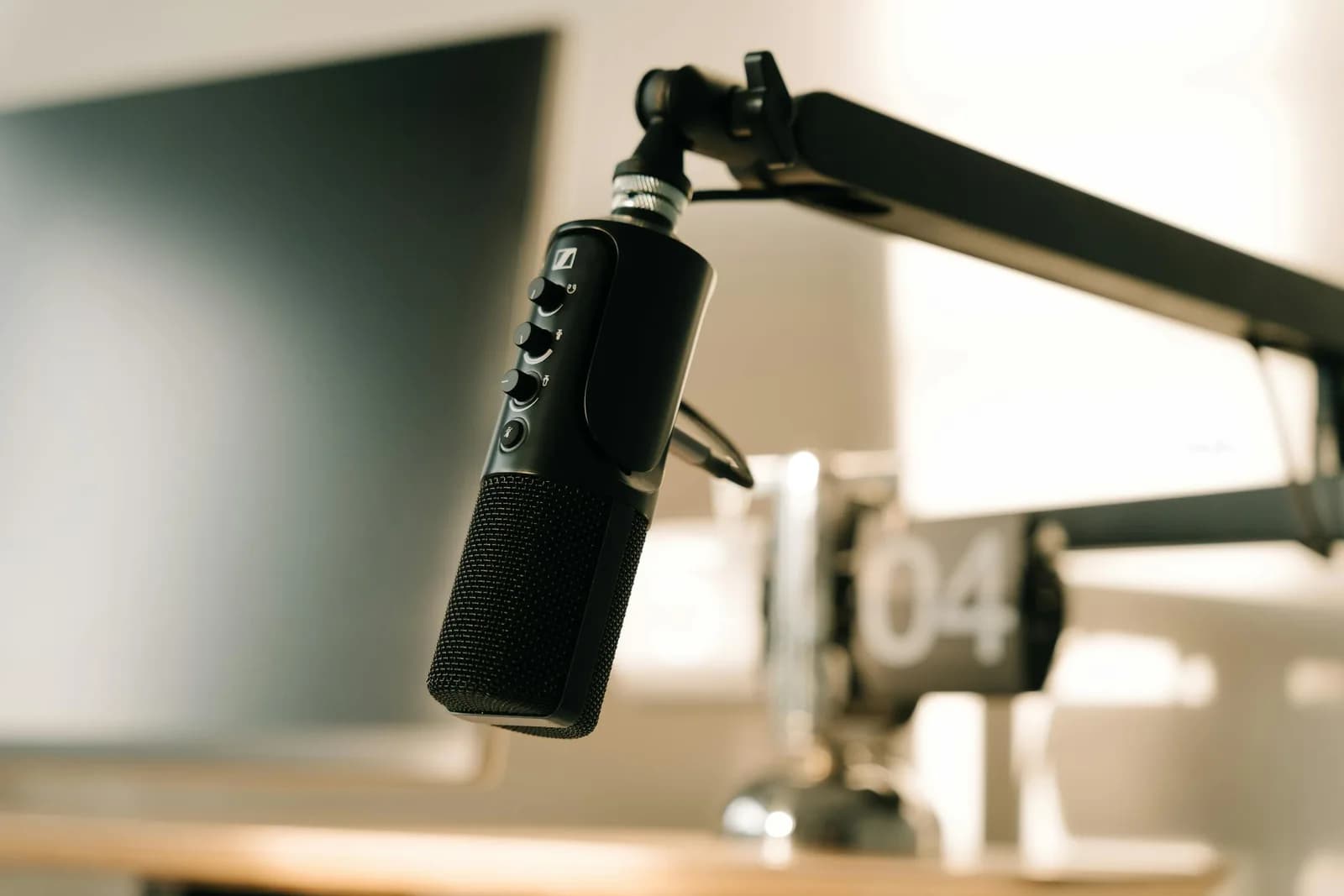
Dragon dictation usually stops working for one of a few fixable reasons: the wrong microphone is selected, the user profile is corrupt or unloaded, or a Windows update broke audio or activation. Recreating the profile and re-picking the mic resolves most cases. If the install is a discontinued consumer Dragon, activation may keep failing, and a maintained alternative becomes the better long-term fix.
Dragon was, for years, the best dictation software you could buy. I had a relative who ran Dragon NaturallySpeaking on a Windows 98 desktop with 64MB of RAM. Training took 45 minutes of reading words aloud to calibrate it, and a paragraph still arrived with a four-second delay per sentence. The headset got thrown across the room more than once. The headset survived. But Dragon got genuinely good after that — and if yours just stopped working, this is mostly a solvable list, not a death sentence.
So let me walk through the actual causes, in the order most likely to fix it, and be honest with you at the end about when it's time to stop fighting an old install.
Why Dragon stops working
Dragon dictation breaks for a handful of reasons, and they cluster. The most common is the microphone: Windows quietly switched your input device, a headset got unplugged, or a driver update changed which mic Dragon listens to. The second is your user profile — the per-person voice model Dragon builds — which can get corrupted by an unclean shutdown or a half-finished update.
The third bucket is Windows itself. A feature update can break audio routing or invalidate Dragon's activation, especially on older versions. And the fourth is the elephant in the room: Nuance discontinued the consumer Dragon line, so some "not working" problems are activation servers and compatibility issues on software that no longer gets patched.
Work through the fixes below in order. Most people are back to dictating after the first two.
Fix 1: check the microphone and audio device
Start here, because it's the most common cause and the cheapest to rule out. Dragon listens to one specific input device, and Windows loves to change which device that is — after a reboot, a Bluetooth headset reconnect, or a driver update.
Confirm Windows hears the mic. Open Settings, System, Sound, Input. Pick your device, then speak. The input-level bar should bounce. A flat bar means a dead or muted device — pick another, or check the physical mute switch on the headset.
Check Dragon's own audio setup. In Dragon, open the Audio menu and re-run the microphone check or audio setup wizard. Dragon stores its own mic selection separately from Windows, and the two drift apart.
Re-seat the hardware. Unplug a USB mic and plug it back in. For Bluetooth, forget and re-pair. Dragon binds to a device at a low level, and a stale binding silently produces zero input.
The boring truth is a cheap USB mic does more for dictation accuracy than any software setting. If your accuracy is fine on a good day and terrible on others, the mic — not Dragon — is usually the variable.
Fix 2: repair or recreate your user profile
If the mic checks out but Dragon still mis-hears everything or won't start, suspect the user profile. This is the voice model Dragon builds for you, and it's the single most fragile part of the app. A corrupt profile is the classic cause of "Dragon was perfect yesterday and useless today."
Could not load user profile
The voice profile “Default” may be in use or damaged. Restore a backup, or create a new profile.
Try the built-in profile repair first. Newer Dragon versions have a profile backup and restore option in the management screens. Restore the most recent good backup before you do anything destructive.
If repair fails, create a new profile. Make a fresh user profile rather than fighting the old one. Run through the short audio setup, and dictate for a few minutes. A clean profile usually clears accuracy collapse and launch crashes that nothing else touches.
Don't delete the old profile yet. Keep it until the new one proves itself for a day. Profiles hold your custom vocabulary and corrections; you don't want to lose that on a hunch.
A corrupt profile is also why "retraining" gets recommended so often. If your dictation tool needs constant retraining to stay usable, that's a 1999 problem — modern speech models work out of the box. But while you're on Dragon, a fresh profile is the right move.
Fix 3: accuracy suddenly dropped
Sometimes Dragon launches fine, the mic works, but accuracy fell off a cliff. This is almost always one of three things, and they're all checkable. First, the microphone — again. A loose connector, a new noisy room, or Windows quietly raising the input gain will wreck accuracy without any other symptom. Re-run Dragon's audio check and watch the input level while you talk normally. Too hot or too quiet both hurt.
Second, the profile drifted. Heavy use plus a few bad corrections can degrade the model. Recreating the profile (Fix 2) resets it.
Third, something changed in the room or your setup — a new fan, an open window, a different chair distance from the mic. Speech recognition is sensitive to signal-to-noise ratio. Move closer to the mic, kill background noise, and re-test before blaming the software.
Fix 4: Dragon won't launch after a Windows update
A Windows feature update is the usual culprit when Dragon stops launching, hangs on startup, or suddenly says it can't activate. Updates change audio drivers, security policies, and sometimes invalidate older licensing checks.
Reboot once more. Sounds trivial; feature updates often finish provisioning on the second restart, and a half-applied update breaks audio routing until then.
Run Dragon as administrator. Right-click the Dragon shortcut, Run as administrator. Post-update permission resets are a common reason it won't start.
Repair the installation. Settings, Apps, find Dragon, Modify or Repair if the option exists. This rebuilds registry entries an update may have scrambled.
Check activation. If Dragon reports an activation or licensing error, this is where the discontinued-product problem bites. Nuance has wound down the consumer Dragon line for new buyers, and activation infrastructure for older consumer versions is not guaranteed forever. Dragon Professional and Dragon Medical still exist as supported products, largely for businesses; the consumer editions many people bought years ago are the ones most likely to fail activation after a reinstall.
If you've repaired, rebooted, and run as admin and it still won't activate, you're not doing anything wrong. The software underneath you may simply have aged out.
When it's time to move on
Let me be straight, because I have nothing to gloat about here: Dragon earned its reputation. For a long stretch it was the only serious option, and the engineering that went into those voice profiles was real.
But the consumer line is winding down. Nuance, now part of Microsoft, has focused on healthcare and enterprise (Dragon Professional and Medical), and discontinued the consumer Dragon editions for new purchase. If your "not working" problem is activation on a discontinued version, or a fresh incompatibility with every new Windows release, you're maintaining software that nobody else is maintaining. There's a point where recreating a profile for the fifth time costs more of your time than switching.
That's the honest signal: if the fixes above keep needing to be redone, the problem isn't your setup. It's that you're on a tool that stopped moving forward.
A maintained alternative that runs offline
If you've decided to move on, here's what I'd reach for, and I'm biased because I build it: Whisper, a desktop dictation app that runs offline, types into any app with a hotkey, and gets updated. The model that powers it didn't exist when Dragon was at its peak. There's no 45-minute training step — modern speech models work out of the box on most accents and most languages. You press a key, talk, and the text appears at your cursor. On Windows the hotkey is Ctrl+Space; on a Mac you hold Command and Option together as push-to-talk and release either key to stop. Transcription happens on your own machine, with no internet required and nothing sent to a vendor's logs.
That's the whole interaction. Hold the key, speak, release. No profile to corrupt, no training script to read.
What the full Whisper app looks like
There are three transcription paths, and the app doesn't pick one for you. You choose based on what you need. The first is local Whisper — eight models covering 99 languages, with translate-to-English and custom vocabulary. The second is Parakeet, a faster local engine for English plus 24 European languages, around 5 to 10 times faster than Whisper on a CPU. The third is Cloud mode, which uses your own OpenAI key for the latest models and web access. All three run from the same hotkey and the same settings.
Local transcription and AI cleanup both run on-device — the cleanup uses Ollama, which is free and needs no key. So the privacy posture is the opposite of cloud-only dictation, which I'd skip for anything sensitive: your boss's salary spreadsheet or a legal draft shouldn't end up in a vendor's logs because you wanted to type with your voice.
What Whisper costs
The whole local pipeline — both local engines, AI cleanup, history, presets, custom hotkey, device registration — is free for any signed-in user, with no card required at signup. Whisper Pro adds the Cloud surface for people who want OpenAI's latest models and web search. You can see the current plans on the pricing page; I keep the numbers there so they're always right.
If you only remember one thing: most Dragon problems are a mic or a profile, and both are fixable in ten minutes. But if you've fixed the same thing three times and it keeps coming back, that's the software telling you it's tired. Twenty-five years after that headset hit the wall, dictation finally just works — and it doesn't ask you to read it a word list first.
Tired of fixing the same Dragon problem?
Download Whisper, set a hotkey, and dictate into any app — offline, with no profile to corrupt and no training step. The local pipeline is free, no card at signup.
Free local dictation for every signed-in user. Pro adds the Cloud features on a separate trial.



