 By Denys Medvediev
Comparison
Voice to text on Windows: free vs paid
Win+H is free and fine for two lines. Here is what to reach for when two lines stop being enough.

Press Windows + H in any text field on Windows 10 or Windows 11. That is Microsoft Voice Typing — free, Azure-routed, fine for short notes. For anything past a paragraph (emails, drafts, long-form writing, multilingual work) you will want a real dictation app. Whisper does that: hold Ctrl + Space, talk, let go; the text lands at your cursor in whatever app you are in. It runs locally on your PC (no audio leaves your laptop) or via the OpenAI Cloud path if you want top-end accuracy and web access in one tool.
I dictate around 145 words a minute. I type about 40. The first time I noticed the gap, I was on a 2-hour evening flight to Bucharest, scaffolding a Tauri prototype on the tray table because typing meeting notes had been eating my evenings. By landing, I had a working version that recorded from the mic, transcribed locally, and pasted into the active text field. That prototype is what shipped, and it is the only reason I now get the kids fed before 7 PM.
Voice to text on Windows is not a magic productivity hack. It is the boring fix for the most expensive thing on your computer, which is your wrists. Microsoft ships a free dictation tool built into Windows 10 and Windows 11. It is good, until it isn't. This guide walks you through what your PC already does, where Microsoft drew the line, and what to reach for when you cross it.
This topic has a category trap. People search "voice to text on Windows" and land on three kinds of pages: Microsoft's support doc (correct but thin), tutorial videos (long, slow, mostly the same five steps), and product pages from companies that want to sell you a $30-a-month subscription before you have even tried the free thing. I am going to do this differently. I will show you Microsoft Voice Typing first, in 30 seconds. Then I will tell you exactly when it stops being enough, and what to reach for when it does.
The honest answer is most Windows users only need three sentences of guidance, not 3,000 words. But the people who need the 3,000 words really need them. So I wrote both.
Three paths in one minute
The app does not pick a transcription model for you. You pick from three paths. This is on purpose.
Cloud (OpenAI, BYOK) — the highest-quality path
You bring your own OpenAI API key. Transcription runs on gpt-4o-mini-transcribe (default) or gpt-4o-transcribe. AI text enhancement runs on gpt-5-mini by default; gpt-5-nano and gpt-5 are also available. Web search routes through gpt-4o-mini via the Responses API. You pay OpenAI directly for usage; we take no cut. Pick this if you want the best quality and web access in one tool, and you are fine paying per-minute to OpenAI directly.
Parakeet (NVIDIA TDT, ~600 MB) — the fastest local path
Parakeet v3 is 5 to 10× faster than Whisper on CPU. English plus 24 European languages. No translate-to-English. No code-switching with Asian scripts. Quality is good, not Whisper-large-v3 quality, but more than enough for everyday email and document work. Pick this if you want speed and you mostly speak English.
Local Whisper (8 models) — the most controllable local path
Slower than Parakeet on the same hardware. In return you get 99 languages on the multilingual builds, translate-to-English, custom vocabulary, beam-size control, and hotword biasing. Pick this if you need translation, multilingual transcription (especially Chinese, Japanese, Korean, which Parakeet cannot do), or finer per-recording control.
| Path | Cloud (BYOK) | Parakeet v3 | Local Whisper |
|---|---|---|---|
| Best for | Best accuracy, web search, any laptop | Fastest local English + EU | Multilingual, translation, control |
| Hardware floor | Anything | 8 GB RAM | 8 GB RAM (small), 16 GB+ (medium / large-v3) |
| Internet | Required | Not needed | Not needed |
| Quality | Top-tier | Good | Good to top-tier |
All three paths use the same hotkey, the same overlay, the same settings. The toggle is one switch.
What Windows already gives you (Win+H)

Open any text field: Word, Outlook, a browser address bar, Notepad, the Slack input. Press Windows + H. A small dictation toolbar appears, and your PC is listening. Speak. Click out, or press the toolbar's stop button, and the text stays. That is the whole baseline.
Microsoft calls this Voice Typing. It is built into Windows 10 and Windows 11. There is no app to install. There is no "training" the way the relative I am thinking of had to do on Dragon NaturallySpeaking on a Windows 98 desktop in 1999, which took 45 minutes of reading a calibration list before the software could decide whether you said "writing" or "riding". Voice tech got quietly better while nobody was watching, and Microsoft shipped the result in a system update without a press release.
A few things to know up front. Voice Typing uses Microsoft's online speech recognition, powered by Azure Speech services. That means audio leaves your laptop on its way to a Microsoft data center. If you are dictating a salary spreadsheet, an HR memo, or anything bound by HIPAA or GDPR, this matters. Verify your IT policy or use a tool whose privacy story is simpler. The feature supports more than 50 languages with regional variants. On a Copilot+ PC (the new Snapdragon X / Surface generation), there is also a Voice Typing feature called Fluid dictation that uses an on-device small language model to fix grammar, punctuation, and filler words as you speak, currently available in all English locales.
Voice Typing vs Voice Access — pick the right surface
Two different Microsoft features, frequently confused. Voice Typing is what you get with Windows + H. Voice Access is a separate feature for controlling the whole PC by voice: opening apps, clicking buttons, scrolling, plus authoring text. Voice Access requires Windows 11 22H2 or later, uses on-device speech recognition that works without an internet connection, and replaced the old Windows Speech Recognition in September 2024. Voice Access languages cover English (six regional variants), Spanish, German, French, Simplified and Traditional Chinese, Japanese, and Italian.
If your goal is "I want to dictate text into apps", you want Voice Typing. If your goal is "I cannot use a mouse and keyboard, I need to drive the whole PC", you want Voice Access. The two work on different premises and the documentation lives in different places. Most readers searching "voice to text on Windows" want Voice Typing.
When Microsoft Voice Typing is enough
Between you and me, most people do not need a paid dictation app. If you are sending a 30-word reply, dictating into a Slack thread, or jotting a calendar note, Windows + H is free and works. Whisper starts being worth it around the 200-word threshold, where Voice Typing's accuracy and the lack of an enhancement step start hurting. Long sentences become run-ons. Punctuation drifts. Proper nouns wobble; my older daughter's name has been transcribed as "Maira", "Mirror", and once, memorably, "Mirror image".
The split is roughly: short, casual, English-only, no compliance worries → Voice Typing. Long, intentional, multilingual, sensitive, or you want enhancement → reach for a real tool. If your day is mostly two-line Teams chats, you are done reading this article. If your day involves drafting emails, briefs, code comments, lecture summaries, or marketing copy variants, keep going. dictating into Word specifically has a few extra considerations worth reading.
And if you want the inverse — Windows reading text back to you for proofreading long drafts — the honest free text-to-speech roundup covers Edge's built-in Read Aloud and the five tools worth the install.
Prefer the product page over the how-to? Whisper's speech to text for Windows lays out the app, the local models, and the download in one place.
Walkthrough: Cloud mode (the OpenAI BYOK path)
Cloud is the highest-quality path and the one I would set up first on a new machine. Time budget: about 3 minutes if you already have an OpenAI key.
Step 1 — Install Whisper
Download the installer from /download. Run it. The first launch prompts you for microphone permission; click "Allow". If you click "Don't Allow" by reflex (I have done this myself, more than once), open Windows Settings → Privacy → Microphone and toggle Whisper on.
Verify it works. The app's tray icon appears next to the clock. Right-click and the menu opens. If it does not appear, restart Windows once and try again; installers occasionally race the system tray.
Step 2 — Pick the Cloud path
Open Whisper Settings → Transcription. Switch the mode to Cloud (OpenAI). Paste your OpenAI API key. The default model is gpt-4o-mini-transcribe; for slightly higher accuracy at twice the per-minute cost, switch to gpt-4o-transcribe.
Verify it works. The Settings page shows a green "Connected" indicator next to the API key field. If it shows red, double-check the key has Whisper API access enabled in your OpenAI dashboard.
Step 3 — Confirm the hotkey is Ctrl + Space
Settings → Hotkeys. The default hotkey on Windows is Ctrl + Space (push-to-talk while held). If Ctrl + Space collides with something you already use (VS Code IntelliSense, an Asian-language IME, Jupyter autocomplete) pick another combination here before you change anything else. Avoid plain Win + H (that is Voice Typing's), Cmd-anything (Mac territory), and the Windows key itself (system search). I run Ctrl + Right-Shift on machines where Ctrl + Space conflicts.
Verify it works. Press your chosen hotkey on the desktop. The Whisper overlay should briefly show the "idle" state, even if there is no text field underneath.
Step 4 — Set the AI enhancement model
Settings → Enhancement. The default is gpt-5-mini. For lighter, cheaper rewrites pick gpt-5-nano; for heavier rewrites and longer prompts pick gpt-5. The default is the right pick for 95% of writing.
Verify it works. Toggle "Test enhancement" with a sample utterance (the Settings page provides one). The cleaned version returns in roughly 1-2 seconds.
Step 5 — Open the app you want to dictate into
Outlook, Word, Slack, the browser, VS Code: anywhere you can type. Click into a text field.
Verify it works. The cursor is blinking inside an editable field, not on a static page.
Step 6 — Hold Ctrl + Space and speak
The overlay slides in at the bottom of the screen and shows the recording state. You will see a waveform pulse in time with your voice. The default is push-to-talk: keep holding the hotkey while you speak. This is the same gesture you would use for Discord push-to-talk, except instead of broadcasting your voice it quietly types for you. You can stop mid-sentence by simply letting go of the key.
Step 7 — Release the key
Whisper sends the audio, gets the transcript back, runs the enhancement step, and pastes the result at your cursor.
Verify it works. Your text appears in the field. End-to-end latency on cloud mode with a decent connection is around 1.1 seconds. Network round-trip dominates.
Step 8 — Optional: trigger AI mode with "Hey whisper"
Start the dictation with the words "Hey whisper" and Whisper runs the AI enhancement pipeline on top of raw transcription: clean grammar, fixed punctuation, removed filler. Without the keyword you get the raw transcript. Useful when you want one of the two and not the other.
Verify it works. Say "Hey whisper, summarize the last meeting in three bullets" with notes pulled up. The AI mode will detect the trigger word and run the enhancement.
Step 9 — That's it. Use it.
No Step 10. You hold the key, you talk, you let go, you write. Most people forget the hotkey for a day, then forget typing for a year.
Alt path: Parakeet (the local-first lane)
If you prefer your audio not to leave the laptop, Parakeet is the fastest local engine.
Install
Same Whisper installer. Settings → Transcription → switch the mode to Local — Parakeet. The app downloads the Parakeet v3 model file (~600 MB) and unpacks it on first run.
Use
Same hotkey: hold Ctrl + Space, talk, release. The transcript appears at your cursor, just like cloud mode. No internet required after the model is downloaded. All transcription is pure-Rust via transcribe-rs (no Python sidecar).
When to pick it
English speaker. Mostly English work. EU language code-switching is fine; Parakeet covers 25 languages including French, German, Spanish, Italian, Polish, Ukrainian, Russian, and 17 more. You want speed and you do not need translate-to-English or Asian languages. Parakeet runs 5-10× faster than Whisper on CPU, which on a typical Intel i5/i7 laptop means you finish dictation by the time your finger leaves the key.
When to skip it
You speak Chinese, Japanese, Korean, Arabic, or another non-EU language; you need translate-to-English; or you need beam-size and hotword control. Use the local Whisper path or Cloud instead.
Alt path: local Whisper (when you need control)
Local Whisper is the broadest local engine. 99 languages on the multilingual builds. Translate-to-English. Custom vocabulary. Beam-size control. Hotword biasing.
Install
Same Whisper installer. Settings → Transcription → switch the mode to Local — Whisper. Pick a model.
Use
Same hotkey: hold Ctrl + Space, talk, release. AI enhancement in local mode is via Ollama if you have it installed; otherwise raw transcription.
Performance presets
Settings → Transcription → Performance. Three options: Fast (beam 3), Balanced (beam 6), Accurate (beam 9). Fast and Balanced are right for most users; Accurate is for high-stakes transcription where you can wait an extra second.
When to pick it
You translate Ukrainian-to-English mid-sentence, you dictate Japanese, you switch between five languages in one paragraph, or you want hotword biasing for industry-specific vocabulary (medical, legal, technical).
When to skip it
You are an English-only speaker who wants the fastest local option; pick Parakeet instead. You want top-end accuracy and have an OpenAI key; pick Cloud.
The honest comparison: Microsoft Voice Typing, Wispr Flow, and Whisper
| Feature | Microsoft Voice Typing | Wispr Flow | Whisper by Remskill |
|---|---|---|---|
| Price | Free | ~$15/mo | $9.99/mo or $69 once |
| Local mode | No (Azure-routed) | No (cloud only) | Yes (local + cloud, both included) |
| Long-form dictation | Limited | Yes | Yes |
| Languages | 50+ | English-focused on Windows | 99 on large-v3; 25 on Parakeet |
| Default activation | Win + H (toolbar) | Hold a custom hotkey | Hold Ctrl + Space (push-to-talk) |
| Trial | n/a | Limited | Forever (Local) |
Wispr Flow is a polished cloud-only product at roughly $15 a month on Windows. The actual transcription happens via the same family of Whisper models running on someone else's GPU. We make the same engine run on your laptop instead, charge $9.99 a month, and include cloud (BYOK to OpenAI) as a fallback when you want it. The lifetime price ($69) breaks even against the monthly subscription at seven months: at $9.99 × 7 you'd have spent $69.93 on monthly. Most users keep dictating for a lot longer than seven months. Lifetime is the honest price for a tool you actually use.
I want to be clear: Wispr Flow is a real product made by smart people. If their UI is what convinces you to dictate at all, that is worth more than $20 a month in saved typing. We just think dictation shouldn't cost a monthly subscription forever in 2026.
If your dictation lives mostly in the browser, the Chrome-extension route is a different trade-off again; the honest Voice In (Dictanote) alternative weighs an in-page extension against a system-wide app that types into every window.
Picking the right Whisper model for your hardware
Whisper ships in eight sizes inside the app. The boring truth is most Windows users should pick small.en for English-only work, or small for multilingual, and never think about it again.
| Model id | Display name | Size | Languages | When I'd pick it |
|---|---|---|---|---|
| base.en | Base | ~140 MB | English only | Older laptops, 8 GB RAM, single-line transcription only |
| small.en | Small | ~480 MB | English only | Default for English-only on any modern Windows machine |
| medium.en | Medium | ~1.5 GB | English only | 16 GB+ RAM, you want noticeably better English accuracy |
| distil-large-v3 | Turbo | ~1.5 GB | English only | 6× faster than large-v3 at 99% of its accuracy |
| small | Small | ~480 MB | 99 languages | Default for multilingual work on any modern Windows machine |
| medium | Medium | ~1.5 GB | 99 languages | 16 GB+ RAM, higher quality multilingual |
| large-v3 | Large v3 | ~3 GB | 99 languages | 16 GB+ RAM, best accuracy, professional multilingual work |
| turbo | Large v3 Turbo | ~1.62 GB | 99 languages | Fast multilingual tier (no longer beta) |
All sizes pulled directly from the desktop app's model registry; no rounding, no public-Whisper-paper numbers.
A few rules of thumb. With 8 GB of RAM, Cloud mode runs on any hardware regardless. Local: Parakeet, base.en, or small.en are the safe picks; medium.en will choke. With 16 GB+ and a discrete GPU, all paths run comfortably and large-v3 and turbo benefit most from the GPU. A $20 USB microphone does more for transcription accuracy than upgrading from small.en to medium.en. Spend money on the input before you spend it on the model.
For multilingual users switching between English and Ukrainian, German, or Japanese mid-paragraph, large-v3 or turbo is the only model family that handles real code-switching cleanly. Smaller multilingual models can transcribe one language well, but they wobble when you flip mid-sentence.
Three things that trip people up in the first week
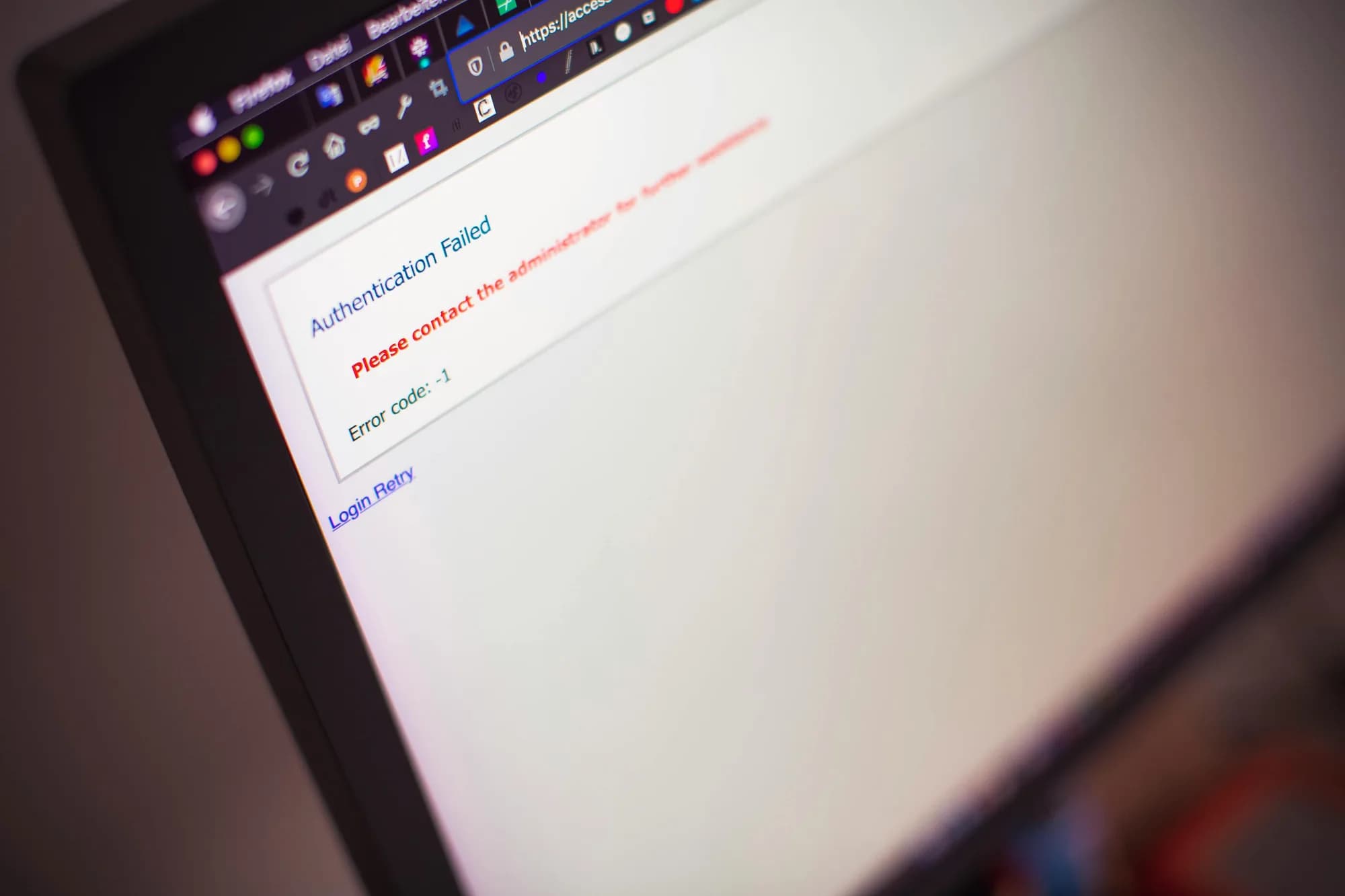
Win + H does nothing in some apps
Microsoft's own community confirms this is a real reader pain point. Apps that capture keyboard input at a low level (full-screen games, certain Citrix or RDP windows, some legacy IMEs) can swallow the shortcut so the dictation toolbar never opens. The text field also has to be a real OS-level edit control; some custom-rendered text areas in Electron or Java apps will not accept it. If Win + H does nothing, click into a Notepad window first to confirm Voice Typing itself is on. If Notepad works and your other app does not, it is the app, not Voice Typing.
Apps run as administrator block dictation
If your text editor or IDE is launched "Run as administrator", a non-elevated dictation process (Whisper or Voice Typing) cannot inject text into it. Windows UAC blocks cross-elevation IPC. Either run both elevated or both unelevated. The fix on Whisper is one of two: right-click the editor and uncheck "Run as administrator" in compatibility settings, or right-click Whisper and pick "Run as administrator" so both processes share the elevation level.
Ctrl + Space collides with IMEs and autocomplete
Whisper's default hotkey on Windows is Ctrl + Space. It is also the default toggle for several Asian-language IMEs (Chinese, Japanese, Korean), the trigger for VS Code IntelliSense, and the autocomplete trigger in Jupyter. If you live in any of those, change Whisper's hotkey before you change anything else. Settings → Hotkeys, pick a chord nothing else uses. Ctrl + Right-Shift is what I run on the machines where Ctrl + Space is taken. This is the single most common support email we get. Pick a hotkey nothing else uses, and the rest of week one is uneventful.
A small story that might save you an evening. The first version of Whisper's hotkey handler fired the recording-stop callback six times per real keypress on Windows. Worked fine on a clean install, broke on customer machines that had any kind of language input enabled. Took several days of telemetry, a 50ms debounce that was not enough, then a 300ms debounce that finally was. Windows IME generates phantom Ctrl + Space release events at unpredictable intervals; you debounce or you lose your mind. We picked the first one. The debounce is invisible to you; it just sits there, doing its job, the way most good infrastructure does.
If your Win + H toolbar opens but the microphone meter never moves — or the whole shortcut does nothing — that's a different problem with its own short fix list: eight verified fixes for Windows voice typing that stopped working.
Further reading
If you only remember one thing, remember this: your Windows PC already does voice to text, for free, well enough for short notes. Use it. When the privacy story (Azure-routed audio), the lack of enhancement, and the limits on long-form dictation start costing you real time (usually around the 200-word mark, usually about a week in) that is when a real dictation tool earns its keep. Try local first if you care about privacy or you are mostly offline. Cloud is the highest-quality path if you do not. The toggle is one switch in Settings, and the hotkey is the same. If you are weighing setup steps in your head right now, the fastest experiment is: install Whisper, set Cloud mode with your OpenAI key, hold Ctrl + Space, dictate this paragraph back into a Notepad window, and see whether you ever want to go back to typing. I bet you don't.
Try it on your Windows PC
Reviewed on 2026-05-04 against the live desktop app at v2.4.x. The defaults (Ctrl + Space push-to-talk on Windows, RightOption push-to-talk on macOS) come straight from the app source.



