 By Denys Medvediev
Troubleshooting
Microphone not detected for dictation? 7 fixes
When dictation reports no microphone, the problem is almost always the operating system, not the app. Here is the fix order for Windows and Mac.
Last updated: June 2026
Dictation that reports no microphone almost always fails at the operating system, not the app. The mic is muted, unplugged, set as the wrong input device, or blocked by a microphone privacy permission. The fix order is: confirm the computer hears the mic, grant access, select the right input device, then reconnect USB or Bluetooth hardware.
I once spent twenty minutes blaming a dictation tool for not hearing me. The microphone privacy toggle was off. Twenty minutes. The cause was a switch I'd never touched, three menus deep in system settings. The number worth knowing: a built-in laptop mic and a $20 USB mic produce wildly different transcripts — and neither matters if the operating system can't see the device at all. So we start there, at "can your computer even hear this thing," before any app gets the blame.
The good news is that "not detected" is the easy half of dictation problems. It is hardware and permissions — switches you can flip. This page covers the case where dictation genuinely cannot find your microphone, on Windows and on Mac, in one place. Most readers fix it in the first three sections.
First, find out if your computer can even hear the mic
Before you touch any dictation setting, answer one question: does the operating system hear the mic? This is the diagnostic gate, and it splits every microphone problem into two camps.
On Windows, open Start > Settings > System > Sound. Under Input, pick your microphone, then open its Properties and choose Start test while you speak normally. On Mac, open the Apple menu > System Settings > Sound > Input, select the device, and watch the input level while you talk.
Watch the level while you speak. If it moves, the computer hears the mic — your detection problem is almost solved, and you can skip to selecting it as the default. If it stays flat, the computer is not hearing the mic at all. That is the case this article fixes. The next three sections are the order to work through.
Windows: make the mic the default input and grant access
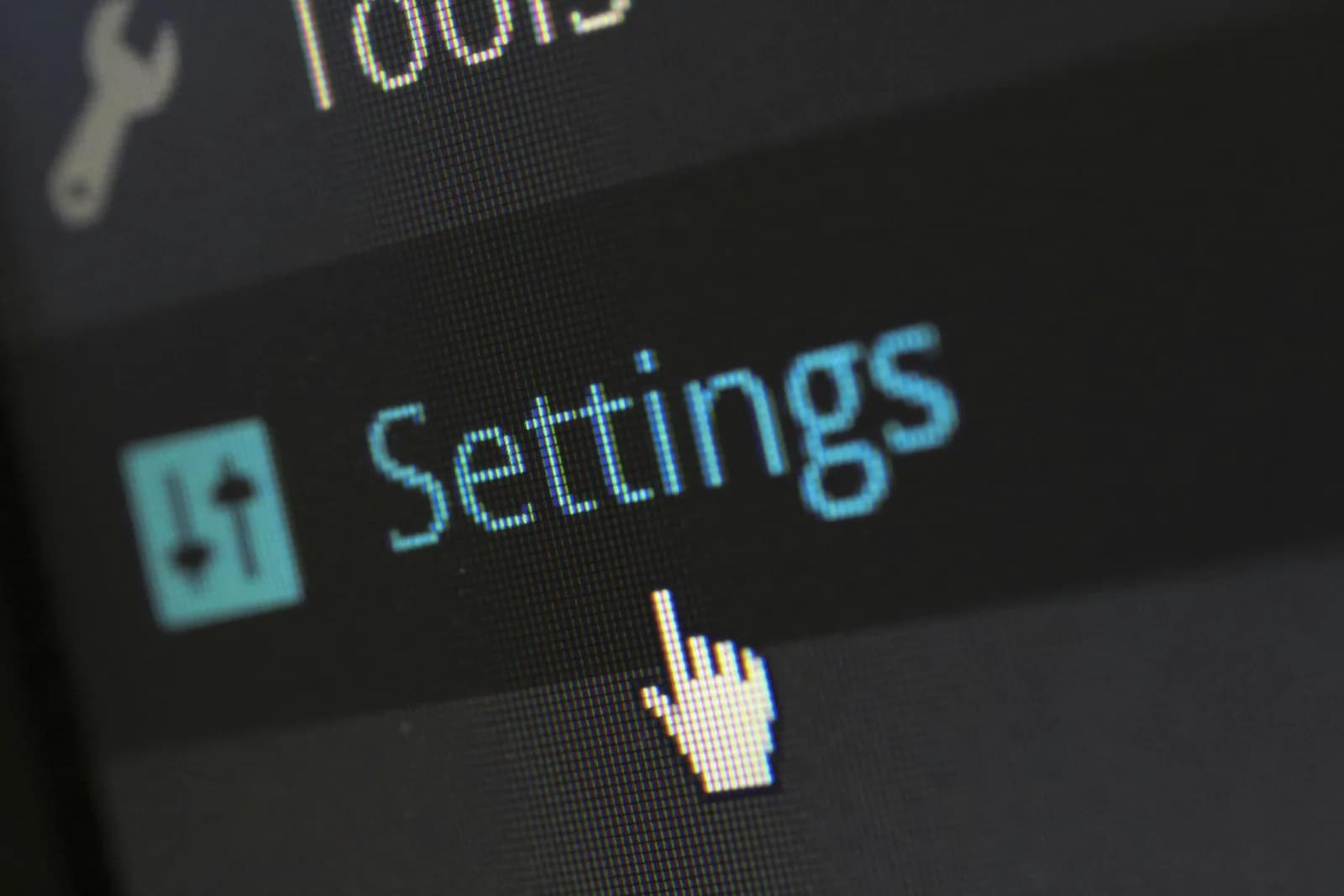
Windows has two separate things that can hide a mic from a dictation app: the wrong default input device, and a microphone privacy permission that is switched off. Check both.
For the default device, open Start > Settings > System > Sound, and under Input select the microphone you actually want to use. The mic at the top of the list is whatever Windows guessed, which is often the webcam mic or a virtual cable, not the headset you plugged in. Pick the real one.
For permission, open Start > Settings > Privacy & security > Microphone. Turn on Microphone access, then Let apps access your microphone. A desktop dictation tool needs one more toggle: Let desktop apps access your microphone. That last switch is the one people miss — it sits below the per-app list and looks like a footnote. It is not. It is the gate every installed desktop program goes through.
If the modern Settings screen is fighting you, the old Control Panel route still works. Press Windows + R, type mmsys.cpl, open the Recording tab, right-click your mic, and choose Set as Default Device. Same setting, 2009 outfit, sometimes faster.
Mac: pick the mic in Sound settings and let the app listen
Mac splits the problem the same way: device selection, then permission.
Open the Apple menu > System Settings > Sound, click Input, and select the device you want from the list of sound input devices. Drag the volume slider to set the input level. Every input device your Mac can see is listed here; a built-in mic shows up as "[your Mac model] Microphone." If your external mic is not on the list, your Mac genuinely is not detecting it, and the USB or Bluetooth section below is your next stop.
Then grant permission. Open System Settings > Privacy & Security > Microphone and switch on the app you are dictating with. macOS blocks microphone access per app by default, so a new dictation tool starts with the door shut until you open it. Apple's own dictation troubleshooting points to this exact path, and adds two more for the built-in feature: confirm Dictation is on in Keyboard settings, and raise the input volume on an external mic.
USB and Bluetooth mics: the reconnect dance that works
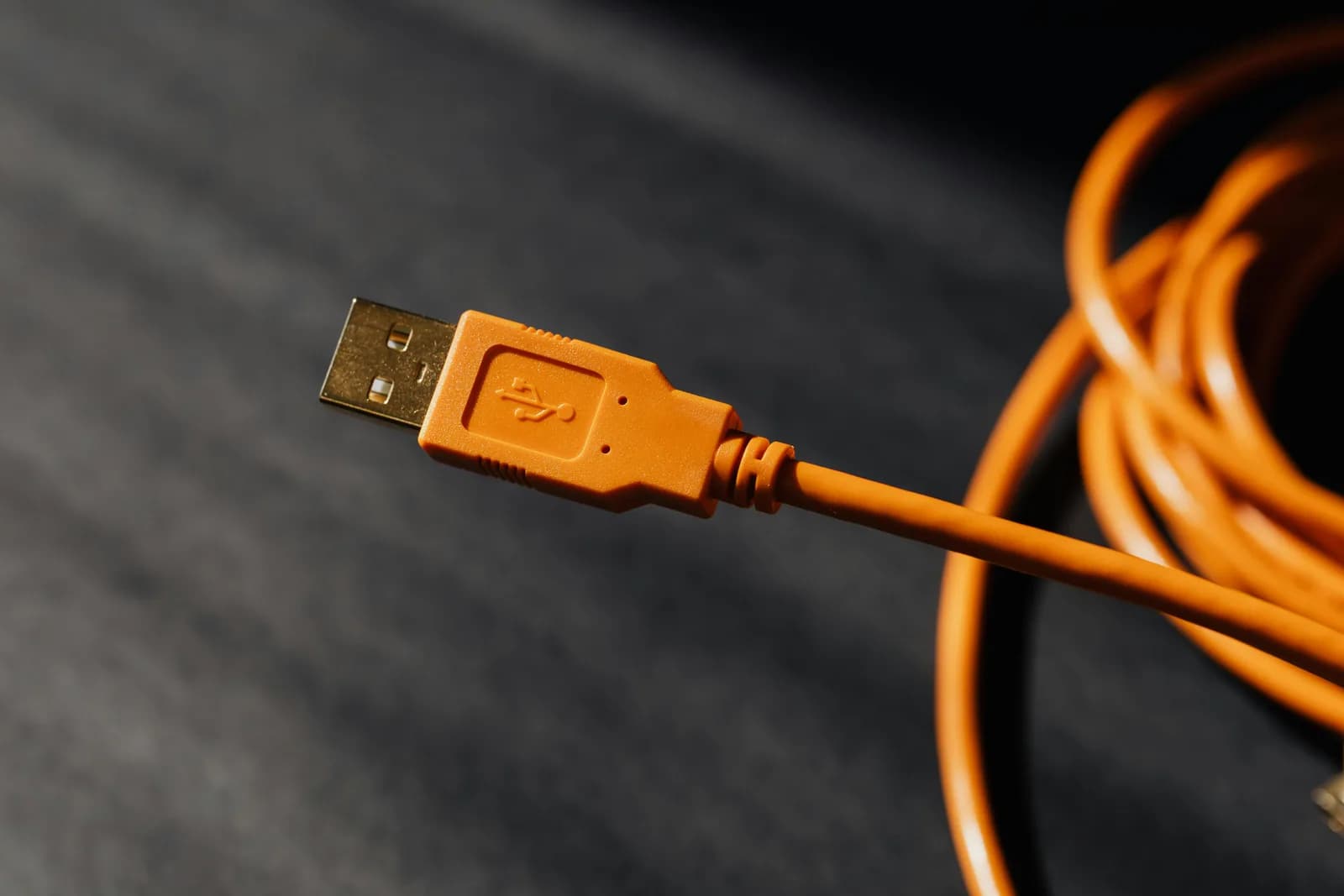
USB and Bluetooth mics fail to be detected for reasons that have nothing to do with software. Three things fix most of them.
Plug USB mics directly into the computer, not into a hub or a monitor's USB port. Hubs share power and bandwidth, and a mic is often the device that loses. A direct port is boring advice that works more often than any driver reinstall.
For a stuck audio path — the mic is connected but dead — switch the input device to something else and back again. This resets the connection without a restart. For Bluetooth specifically, forget the device and re-pair it; a half-paired headset will sit in your settings looking connected while passing no audio.
This is also where the boring truth earns its keep. "AI" does not fix bad audio. A $20 USB mic does more for transcription accuracy than any model upgrade — the jump from a built-in laptop mic to a podcast-grade USB mic improves accuracy more than the gap between Whisper's smallest and largest models. If a mic is detected but the transcript is mush, the hardware is the lever.
When the mic is detected but dictation still does nothing
Here is the honest fork. If the input level moves when you speak but dictation still produces no text, your microphone is fine. That is not a detection problem — it is a recognition or app-permission one, and the fixes are completely different.
Do not keep reinstalling drivers for a mic the operating system already sees. We covered that case separately, in microphone works but dictation doesn't. If your level moved back in the first section, that is the article you want. This one ends at "the computer cannot hear the mic."
A tool that lets you pick the mic directly
Half of these problems share one root cause: the operating system silently picked the wrong input device, and the app inherited the bad guess. Whisper, the dictation app we make, addresses that directly. Settings → Recording → Microphone is a real dropdown listing every connected input plus a "Default System Microphone" option. You lock recording to the exact mic you want, and the device you pick is the device that records — no silent fallback to the wrong default.
There is also a "Refresh microphone list" button. Plug in a USB or Bluetooth mic after the app is running, click Refresh, and it re-scans without a restart. That is the exact scenario — mic added after launch — that forces a relaunch elsewhere.
Granting access is the same as above — the "Let desktop apps access your microphone" toggle on Windows, the per-app switch under Privacy & Security > Microphone on Mac. Then you hold the hotkey — Ctrl+Space on Windows, Command+Option on Mac — speak, release, and the text lands at your cursor. Local transcription runs on your own machine and covers 90+ languages on the multilingual models; the English-only ".en" variants handle English alone.
When to skip all of this and use built-in dictation
If your computer already hears the mic and you only dictate short bursts — a text reply, a calendar note, a one-line message — you do not need a third-party app. The dictation built into Windows and macOS is free and already wired to the same input device you just fixed.
Apple's built-in dictation pauses on its own after a stretch of silence, but for a 40-word reply that is plenty. My younger daughter wrote a full email to her grandmother on built-in dictation before I had explained what a microphone permission even was. If yours works for short notes, stop here. A separate app earns its place around the 200-word mark, where built-in tools start hurting.
Most "no microphone" errors are not really about the microphone. They are about a switch nobody told you existed, sitting in a settings panel you open once a year. Flip the right one and the mic that was "broken" turns out to have been listening the whole time. If you are deciding which dictation route fits your setup once the mic is back, which Whisper model to use walks through the choice — and if your trouble is the silent-text kind on Windows or Mac, those pages start where this one stops.
Want to pick your mic in two clicks?
Download Whisper, open Settings, and choose the exact input device that records — no silent fallback to the wrong default.



