 By Denys Medvediev
Guide
Dictation software for journalists
Reporters draft faster by talking, not typing. Press a hotkey, speak, and your words land at the cursor in any app — your CMS, a doc, a notes file. This is for composing your own copy and field notes, not for transcribing an interview.
Last updated: June 2026

Dictation software for journalists turns a reporter's spoken words into text at the cursor in any app. A hotkey starts it; the draft, intro, or field note lands where the cursor is. It is built for composing your own copy by voice, and runs offline for sensitive notes. It does not transcribe interviews — that is a separate job.
A reporter's day is mostly typing things twice. You scribble a quote in a notebook on the courthouse steps, then type it up at your desk. You draft the intro in your head on the walk back, then lose half of it by the time the laptop is open. The keyboard is the bottleneck, and the keyboard doesn't care that you're on deadline.
People search for "dictation software for journalists" looking for one tool that does everything — drafting, notes, and recording the city council meeting. There isn't one, and I'd rather say that on line two than waste your afternoon. Dictation is for the words you compose yourself. Recording a source and turning that audio into a verbatim transcript is a different machine entirely. This guide is about the first job, and it tells you plainly when to reach for the second.
Here's the distinction most pages chasing this keyword blur on purpose. Dictation is you talking and the computer typing what you say, into the field your cursor is in. Transcription is recording someone else — a source, a panel, a phone call — and getting an accurate text record back afterward. Same raw idea, completely different tool, completely different stakes.
So the real question isn't "what's the best dictation app for journalists." It's "what fits which part of the job." A hotkey-driven dictation tool like Whisper is excellent for drafting your own copy, banging out field notes, and capturing an idea before it evaporates. For the interview itself — multiple speakers, quotes you'll print and stand behind — you want a dedicated transcription service. I'll walk through the dictation side in detail, set it up in two minutes, and draw the line clearly so you don't trust the wrong tool with a quote.
Why reporters reach for dictation

The honest job-to-be-done is speed before the thought goes cold. A reporter has the intro half-written in their head leaving the press conference, has the angle clear walking to the car, has the lede phrased perfectly in the shower — and then sits down at a keyboard and watches a third of it leak out through their fingers. Talking is roughly 145 words a minute. Typing is around 40. The gap is where good first drafts go to die.
Then there's the hand. People who write for a living write a lot, and wrists keep score. Dictation isn't a medical fix and I won't pretend it is, but it does take the keyboard out of the loop for a while, which is a real productivity relief on a heavy filing day. You rest the hands, the draft still gets written, and the copy desk never knows the difference. That's the whole pitch — not therapy, just fewer keystrokes between your head and the page.
And it's the small captures that add up. The one quote you want to log before you forget the exact phrasing. The reminder to call the second source back. The three-line note about what the room felt like, which you'd never type one-handed on the walk but will happily say out loud. None of these are articles. All of them are the connective tissue of reporting, and all of them are faster spoken than typed.
Press a hotkey, talk, the words land in your draft
The mechanic is boring, which is exactly what you want under deadline. You press a hotkey, you speak, you release, and the transcript pastes at your cursor in whatever app has focus. Whisper holds a short tail after you let go, so your last word doesn't get clipped. Because it pastes at the operating-system cursor, your CMS draft field, a Word doc, Google Docs in the browser, a plain notes file, or a Slack message to your editor are all just "a text box." Same key, same behaviour, everywhere.
That's the part the landing pages overcomplicate. There's no plugin to wire into your publishing system, no integration to wait on from the IT desk, no export step. Your cursor is in the draft, you talk, the words appear in the draft. A small capsule shows up while you speak, so you know it's listening and recording:
The hotkey is the one thing worth getting right up front. On Windows it's Ctrl+Space; on Mac it's Command+Option, a modifier-only push-to-talk you hold while speaking. Both are changeable in Settings if they clash with a shortcut your editing tool already owns. An early user emailed at 2:14am — the hotkey was colliding with their audio software, and the message ended with the word "unusable." I shipped a customizable-hotkey panel eight minutes later and went back to bed. So now every hotkey is yours to remap. If you've set up dictation on Windows or on Mac before, this is the same muscle memory pointed at your newsroom tools.
Set it up in two minutes (Windows or Mac)
You need a Mac on Apple Silicon or a Windows 10-or-newer PC, a working microphone, and whatever you draft in — open in the desktop app or the browser. The whole local pipeline is free for any signed-in account, with no payment method asked for at sign-up. Here's the sequence.
Step 1 — Install Whisper and sign in.
Download from the download page, install, and create a free account. No card. The whole local transcription pipeline opens right away.
You'll know it worked when the app's tray icon appears and the setup wizard offers to pick a model.
Step 2 — Pick a transcription path.
The app doesn't choose for you. You get three: Cloud (OpenAI, bring your own key), Local Parakeet, or Local Whisper. For sensitive notes and source material, start local — more on that two sections down.
You'll know it worked when a model finishes downloading and shows as ready.
Step 3 — Confirm your hotkey.
Windows defaults to Ctrl+Space, Mac to Command+Option held as push-to-talk. On Mac, grant the Accessibility permission when prompted; without it, the paste-at-cursor can't reach other apps.
You'll know it worked when a test recording pastes into any text field.
Step 4 — Put your cursor in your draft and talk.
Open your CMS, doc, or notes file, click into the text, hold the hotkey, say a sentence, release. The transcript appears where the cursor is.
You'll know it worked when your spoken sentence is sitting in the draft as text.
The slow part is the model download, not the setup. Everything else is the four steps above. Once it's running, getting a thought out of your head and into the draft stops being a typing task and starts being a talking task.
Drafting copy and capturing field notes by voice
In practice it splits into two modes, and they feel different. The first is drafting at the desk: cursor in the CMS or the doc, talk through the intro, the nut graph, the section you've already reported out. You won't dictate a polished final — nobody does — but you'll get a fast, messy first draft on the screen in a fraction of the time, and editing text that exists beats staring at a blank field. The custom-vocabulary and hotword features in local Whisper help here too, if your beat is full of names and jargon a generic model fumbles.
The second mode is capture in the field, and this is where the hotkey earns its keep. You're walking out of a hearing and you say the three things you don't want to lose, straight into a notes file. You log a phone number, a follow-up, the exact wording of an on-the-record line you jotted in shorthand. These aren't for publication as-is — they're your raw material, the stuff you'd otherwise type up later from a scrawl you can't read. Say it once, cleanly, while it's fresh.
One genuinely useful extra in Cloud mode, and I'll keep it honest about scope: you can say the activation phrase "Hey whisper" to fire a single quick web lookup mid-draft — a date, a spelling, a title — and the answer comes back in a couple of seconds. It's a fast fact-check convenience, not a research engine, and a journalist verifies anything that matters against a real source anyway. Handy for "was it the 2019 or 2020 budget" without leaving the draft. Not a substitute for reporting.
Local or cloud: which mode for sensitive notes
For a journalist, start with local mode, and the reason is source protection, not speed. A note about a confidential source, an unpublished draft of a sensitive story, a working file you'd never hand to a vendor — local mode runs entirely on your machine with nothing sent to a server. That's the right default when the material could put a source at risk. Cloud becomes the escape hatch for the rare hard recording, not the everyday tool. If your Mac is Apple Silicon or your PC is from the last few years, local handles daily dictation without complaint.
Here's how the three paths differ, because the app makes you pick and I'd rather you pick well:
- Local Parakeet — NVIDIA's TDT engine, around 600 MB, and the fastest local option — 5 to 10 times faster than Whisper on CPU. Covers English plus 24 other European languages, 25 in total. No translate-to-English. If you draft in English or another European language, this is the quick, fully offline pick.
- Local Whisper — slower than Parakeet on the same machine, but the multilingual builds cover 99 languages and can translate to English. The English-only builds are English-only, not 99. Pick this for Chinese, Japanese, Korean, translation work, or when you want custom vocabulary and hotwords for a name-heavy beat. Default English model is around 480 MB.
- Cloud (OpenAI, BYOK) — best accuracy and the quick web lookup, using your own OpenAI key billed straight by OpenAI. Transcription runs on gpt-4o-mini-transcribe by default. Needs internet, so it's the one path that leaves your machine — keep it off anything source-sensitive. The Cloud surface is part of Whisper Pro.
The boring truth is that for the kind of drafting and note-taking most reporting involves, local is plenty. Both local engines run fully on your machine, which is the entire point when the file might name a source. Cloud earns its place when you want top-tier accuracy on a difficult bit of audio or the quick mid-draft lookup. For a daily filing habit, start local and reach for cloud only when local leaves you wanting.
Turning a spoken draft into clean copy
Raw dictation comes out as a run-on. You say "okay the council voted four to three on the rezoning um Henderson against quote this sets a bad precedent end quote follow up with the planning office tomorrow," and that's the unpunctuated wall any speech engine hands you. Cleaning it up is where the modes diverge.
Windows Voice Typing adds punctuation as you speak, and macOS Dictation handles basics when you say "comma" or "period." For heavier cleanup — stripping the filler, fixing the run-ons, turning a spoken paragraph into something you'd actually drop into a draft — Whisper can run an AI pass. Say "Hey whisper" and the text gets enhanced before it lands. On a local model that runs through Ollama; in cloud mode it's gpt-5-mini by default.
okay the council voted four to three on the rezoning um henderson against quote this sets a bad precedent end quote follow up with the planning office tomorrow
Council voted 4–3 on the rezoning. Henderson against: "This sets a bad precedent." Follow up with the planning office tomorrow.
One firm caveat, because this is journalism and accuracy is the job. An AI cleanup pass is for your own drafts and notes — it tidies the words you spoke. Do not lean on it to produce a verbatim quote you'll print and stand behind. If a quote has to be exact for the page, you check it against the source recording or your notes, every time. Dictation gets your draft down fast; it does not certify a quote. Anyone telling you a speech engine gives you publication-ready, word-perfect quotes is selling you a demo, not a Tuesday.
That same speak-then-clean flow pays off well beyond reporting — you can also dictate clean prose into any writing app with the one hotkey, so a long passage becomes a few spoken sentences instead of a paragraph you type out.
When to skip dictation and use a transcription tool instead
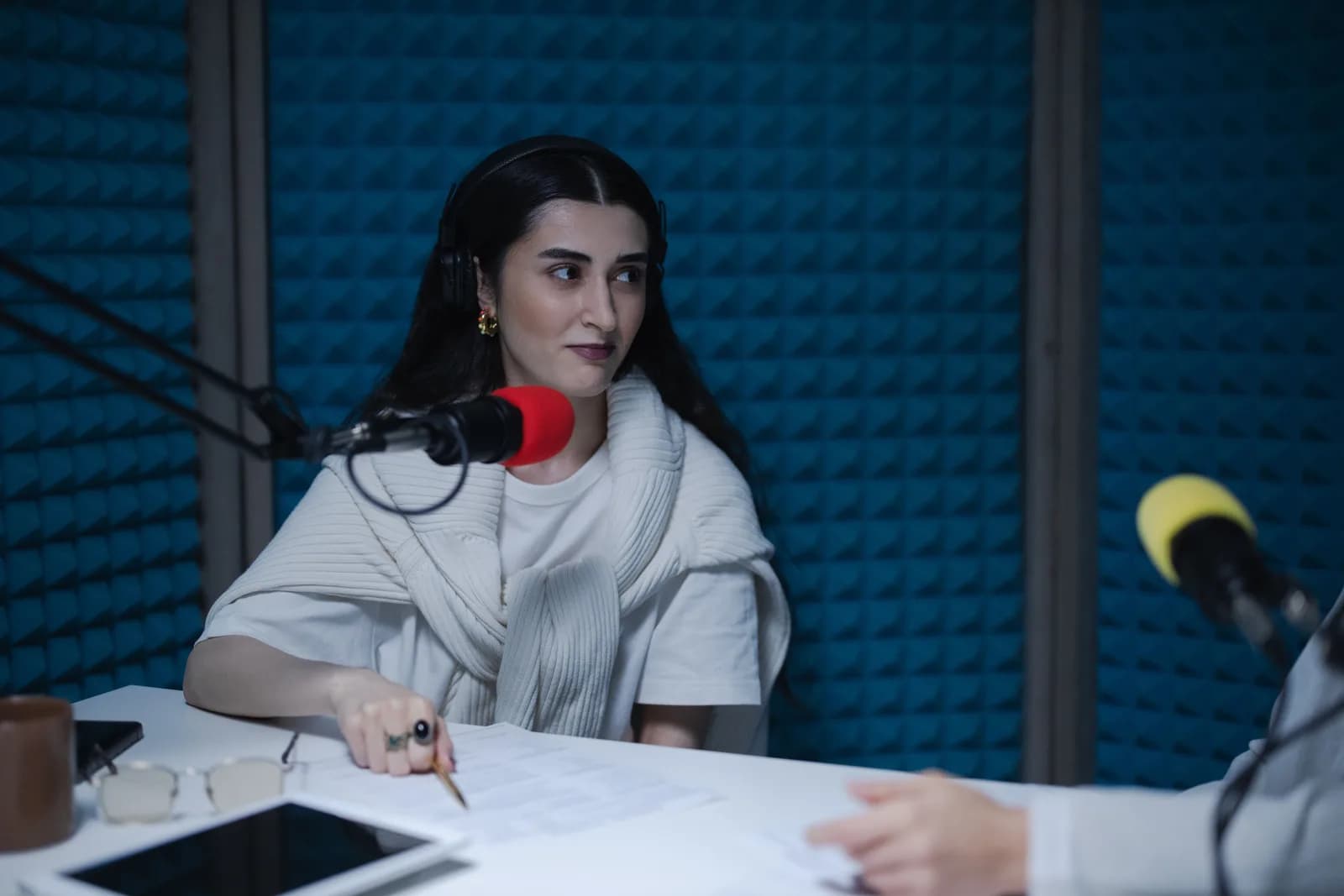
This is the load-bearing line of the whole guide, so I'll be blunt. The moment you're recording another person — an interview, a source on the phone, a panel, a press briefing with several voices — dictation is the wrong tool. Dictation is built to type the words you say into the cursor, one speaker, live. It does not separate speakers, it isn't tuned to produce a verbatim record of someone else's audio, and a quote you'll print is not the place to find that out.
For that job, reach for a dedicated transcription service — the category built around multi-speaker audio, speaker labels, timestamps, and a text record you can check a quote against. That's a genuinely different product, and a good one is worth paying for when accuracy on someone else's words is the deliverable. If you need certified or legal-grade transcripts, that's a further specialist service again, and I won't pretend a dictation hotkey covers it.
And sometimes the right tool is already free on your machine. If you're only dropping a two-line note or a quick reminder, your operating system has you covered. On Windows, press Windows key + H and the built-in Voice Typing bar opens at your cursor; it punctuates on its own and is fine for short bursts, though it routes through Microsoft's servers and needs internet, so it isn't an offline option — which matters when the note names a source. On Mac, Dictation lets you speak to enter text anywhere you can type, set up in System Settings under Keyboard, and on Apple Silicon general text can be processed on-device. Reach for a dedicated system-wide tool when the built-ins start hurting: long drafts, multilingual work, offline privacy, or one hotkey that behaves the same in your CMS, your doc, and your notes.
If most of what you capture is short notes rather than full drafts, the logic in voice-to-text note-taking is the closest fit, and it leans harder on quick capture than on long-form composition.
Dictation won't report the story for you, and it won't transcribe your interview — those were never its jobs. What it does is take the keyboard out of the loop while you draft your own copy and log your own notes, fast, offline if the material is sensitive. I dictated most of this guide into a plain notes file with a hotkey that doesn't care which window it's in, then cleaned it up and moved it into the draft. The interview I did for it, I sent to a transcription service. Right tool, right job. That's the whole trick.
Try it on your next draft
Hold the hotkey, talk, release. The first draft lands in whatever app your cursor is in — your CMS, a doc, a notes file. The interview still goes to a transcription tool.
Free local mode for any signed-in account. No card required to start.



