 By Denys Medvediev
Tutorial
Voice to text in GitHub: how it actually works
GitHub has no dictation of its own — its issue, PR, comment, and markdown boxes are plain web textareas. A system-wide hotkey app holds a key, transcribes what you say, and pastes it into whichever field you have focused.
Last updated: June 2026
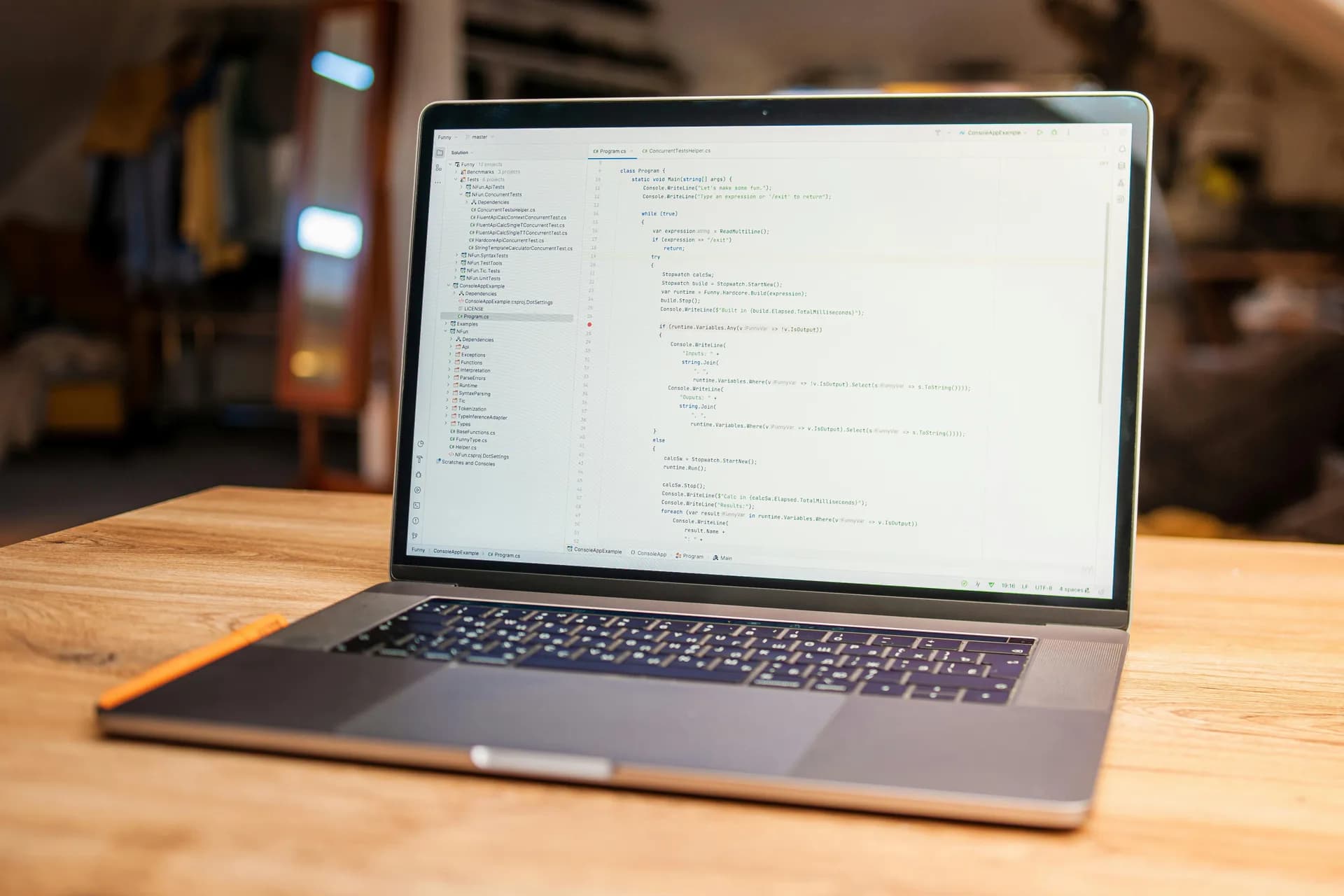
Voice to text in GitHub means dictating prose into GitHub's text fields with a system-wide hotkey app, because GitHub has no built-in dictation of its own. Its issue, pull request, comment, and markdown boxes are plain web textareas. A tool like Whisper holds a hotkey, transcribes what you say, and pastes it at the cursor — into the issue, PR, or review note you have focused.
I spent a week last year convinced GitHub had quietly shipped a voice button somewhere in the issue editor. It had not. The issue body is a textarea. The PR description is a textarea. The review comment, the Discussions box, the README editor — all textareas, the same kind a contact form uses. There is no microphone icon hiding in a menu. The boring truth is that the writing you do around your code on GitHub is just text input, and any decent dictation tool can fill it.
That is good news, because it means you are not waiting on GitHub to build a feature. You bring your own voice layer. On Windows or Mac, Whisper sits at the operating-system level, so the same hotkey works in the issue editor, the PR description, a code-review thread, your IDE, and Slack — anywhere a cursor blinks. You click the field, hold the key, talk, and release. One important caveat up front, and I will keep saying it: this is for the prose, not the code.
GitHub has no voice typing. Your hotkey does the work.
Let me answer the question people actually type into Google. No, GitHub does not have built-in voice to text. There is no native dictation in the issue editor, the PR form, the review panel, Discussions, or the wiki. Those are standard web textareas. To dictate into them, the voice has to come from somewhere else: your operating system, your browser, or a third-party app.
GitHub never blocks dictation. It just provides none of its own. So your choices are roughly three. Your OS has dictation built in — Windows Voice Typing on Win+H, or macOS Dictation. A browser extension like Voice In can type into a Chrome or Edge tab. Or a system-wide desktop app like Whisper dictates into any field in any app, browser or not.
The difference between those three is reach. OS dictation is free and works on one platform at a time, quality varies. A browser extension only lives inside the tab — it cannot follow you into your IDE or the GitHub CLI, and it runs in the cloud. A desktop app like Whisper is not bound to a tab; because it works at the OS level it dictates into GitHub in Chrome, Firefox, Safari, or Edge, and into a commit message in GitHub Desktop too.
What you can actually dictate (and the one thing you can't)
Here is the line I will not let you cross by accident. Whisper dictates the writing around your code. It will not write the code itself.
What that covers is most of a developer's typing day, honestly. Issue reports. Pull request descriptions. Code-review notes. Discussions replies. README and markdown docs. The prose that explains the change, not the change. When you speak a paragraph describing why a migration is risky, Whisper handles it fine. When you try to dictate the migration, you are going to have a bad afternoon.
The reason is simple. Spoken code does not survive the trip. Function names, JSON, snake_case versus camelCase, a kubectl flag, an API path — those come out as best-effort English and need a manual fixup. A voice model hears "user underscore I D" and writes "user ID," and now you are correcting it. So dictate the sentence that says "this PR fixes the null check in the auth middleware," then type the actual identifier. Most issue and PR bodies are 80% explanation and 20% code snippet anyway. Dictate the 80, type the 20.
Press a hotkey, talk, get text in the focused field
The mechanic is the same one you would use in any other app, which is the whole point. Click into the GitHub field you want to fill. Hold the hotkey. Talk. Release. The transcript appears at the cursor.
The default hotkey is Ctrl+Space on Windows and Command+Option on macOS. Both are push-to-talk: hold while you speak, release to stop. You can change them in settings if they clash with something — and if you have ever fought a hotkey conflict, you know why that setting earned its place (more on that below).
One honest detail about scope. Whisper pastes into the single field you have focused, one at a time. It does not fill out a whole GitHub issue form in one breath. So the flow for a new issue is: click the title, dictate it, click the body, dictate that. Two fields, two presses. It feels less like magic and more like a fast typist who never touches the keyboard. That is the right mental model.
The whole app, live
This is the actual app, running right here — not a screenshot. Poke around. The settings, the hotkey picker, the model choices are the real thing.
A couple of things worth knowing while you click. There is no GitHub-specific tab and no "GitHub mode," because there does not need to be. To Whisper, a GitHub PR description is a text field like any other. The same setup that dictates into the issue editor dictates into your email and your IDE. You configure it once. The reach is the feature.
Where it pays off: issues, PR descriptions, reviews, discussions
The payoff is the boring, repetitive writing — the stuff you put off because typing it is a chore.
Issues. A good bug report is mostly narration: what you did, what you expected, what happened instead. That is dictation's home turf. Talk through the repro steps the way you would explain them to a colleague at your desk, then paste in the stack trace by hand.
Pull request descriptions. The PR body that everyone skips writing because the diff "speaks for itself" (it does not). Dictate the why — the context the reviewer needs — and let the diff speak for the what.
Code reviews. Review comments are where tone matters and where people under-explain. Speaking a review note tends to come out more human and more complete than typing one between meetings. You will write "this works, but it will break when the list is empty" instead of just "edge case?"
Discussions and docs. Long-form prose, which is exactly what voice is good at and exactly what nobody wants to type. A README intro, a Discussions reply, a migration guide — dictate the draft, clean up the markdown after. The same logic applies to dictating into Jira tickets and other trackers; GitHub is just one more field on the pile.
Clean up the dictation automatically
Raw dictation has filler. "Um," "you know," the sentence you started twice. Whisper has an optional AI cleanup pass that fixes filler words, punctuation, and casing so the issue or PR reads like you wrote it carefully.
There are two flavors. In the free local tier, the cleanup runs on your machine via Ollama. In Pro, you bring your own OpenAI key and the cleanup runs in the cloud, with web answers available too. Either way it is optional — turn it off and you get the raw transcript. I leave it on for PR descriptions and off for quick comments, because a quick comment does not need editing and a PR description does.
One thing cleanup will not do is rescue spoken code. It polishes the English. It does not know that you meant getUserById when you said "get user by I D." Keep dictating the prose; keep typing the identifiers.
Offline and private: nothing leaves your machine in local mode

If you dictate issues and PRs about code that is not public, where the audio goes matters. In Whisper's local mode, transcription happens entirely on your machine. Nothing you say is sent to a cloud service. No internet is needed during transcription at all — the only time you go online is the one-time model download, which ranges from about 140 MB to 3 GB depending on which model you pick.
This is the one place I will give you an actual opinion. Cloud-only dictation is a privacy disaster waiting to be transcribed. I once watched an internal team rack up a five-figure cloud bill in a single quarter because a homegrown dictation prototype sent every utterance to an API — and the worse part was not the bill, it was that everyone's spoken notes about an unreleased product now lived in a vendor's logs. Your boss's salary spreadsheet, the security issue you are filing privately, the proprietary architecture you are describing in a PR — none of that should leave your laptop just because you wanted to type a paragraph with your voice. Your machine already has a microphone and a CPU. For one paragraph, it does not need a server in the loop. If your tool only runs in the cloud, that is the part I would fix first.
What it is not for (writing code)

You may have come here looking for a way to write code by voice, or you remember "Hey, GitHub!" and wonder where it went. Two honest answers.
"Hey, GitHub!" and GitHub Copilot Voice were a GitHub Next technical preview. GitHub discontinued the preview in 2024. It never became a product; the learnings rolled into the VS Code Speech extension. So if a blog post tells you to enable "Hey GitHub" today, it is out of date by a couple of years.
The voice-for-code lane still exists — it just lives in your editor and terminal, not on github.com. The VS Code Speech extension (sometimes called "Hey Code") lets you talk to the editor and to Copilot Chat for code and commands. And GitHub Copilot CLI recently added local voice input that drives the Copilot agent in the terminal. Both of those are for steering code and an AI agent. Neither dictates prose into a GitHub issue in your browser. That is a different lane, and it is the one Whisper owns: the writing around the code.
When to skip Whisper for your GitHub workflow
I would rather you used the right tool than the one I make. So here is when to skip Whisper.
If what you actually want is to drive Copilot or your editor by voice — "fix this function," "run the tests," "explain this block" — that is the code/agent lane, not prose. Use the VS Code Speech extension or GitHub Copilot CLI voice input instead. They talk to the machine; Whisper writes the words a human reads.
If you only ever dictate the occasional one-line comment, your OS already does that for free. Press Win+H on Windows or turn on Dictation on macOS, and you can drop a quick sentence into a GitHub field with nothing to install. Whisper starts earning its keep when you are writing real paragraphs across many apps, want it to work offline, or want one hotkey everywhere instead of an OS feature that only covers some fields. Below that bar, the built-in option is fine, and I will not pretend otherwise.
Free local, with Pro for cloud
The local pipeline — transcription, the on-device AI cleanup, the hotkey, everything you need to dictate into GitHub — is free for signed-in users, and there is no card required at signup. You install it, sign in, and start dictating.
Whisper Pro adds the cloud surface: OpenAI cloud transcription, cloud AI cleanup with your own key, and web answers, with a short trial for that tier. For dictating issues and PRs, the free local tier covers the whole job. The numbers for Pro live on the pricing page; I am not going to quote them at you mid-paragraph.
One last thing about that hotkey
A word on why the hotkey is customizable, since it ties the whole thing together. The first version of Whisper fired its recording-stop six times per keypress on certain Windows machines — phantom release events from the input framework, the kind of thing that works on a clean install and breaks on a real one. It took a 300ms debounce and more time than I will admit to make it reliable. I learned more about Windows input handling than I ever wanted to. The lesson stuck: the hotkey has to bend to your machine, not the other way around. Click into the field, hold the key, talk. The code, you still type yourself — and I think that is the honest version of the deal.
Dictate your next GitHub issue
Click into the field, hold the key, talk, release. The transcript lands where your cursor is — in the issue editor, the PR description, and every other app too.
Free local mode for any signed-in account. No card required to start.



