 By Denys Medvediev
Guide
How to write a book by dictation
You write a book by dictation the same way you'd talk it through to a friend: outline first, then speak each scene into Word, Scrivener, or Docs through a system-wide hotkey. Don't edit while you talk. Clean it up after.
Last updated: June 2026
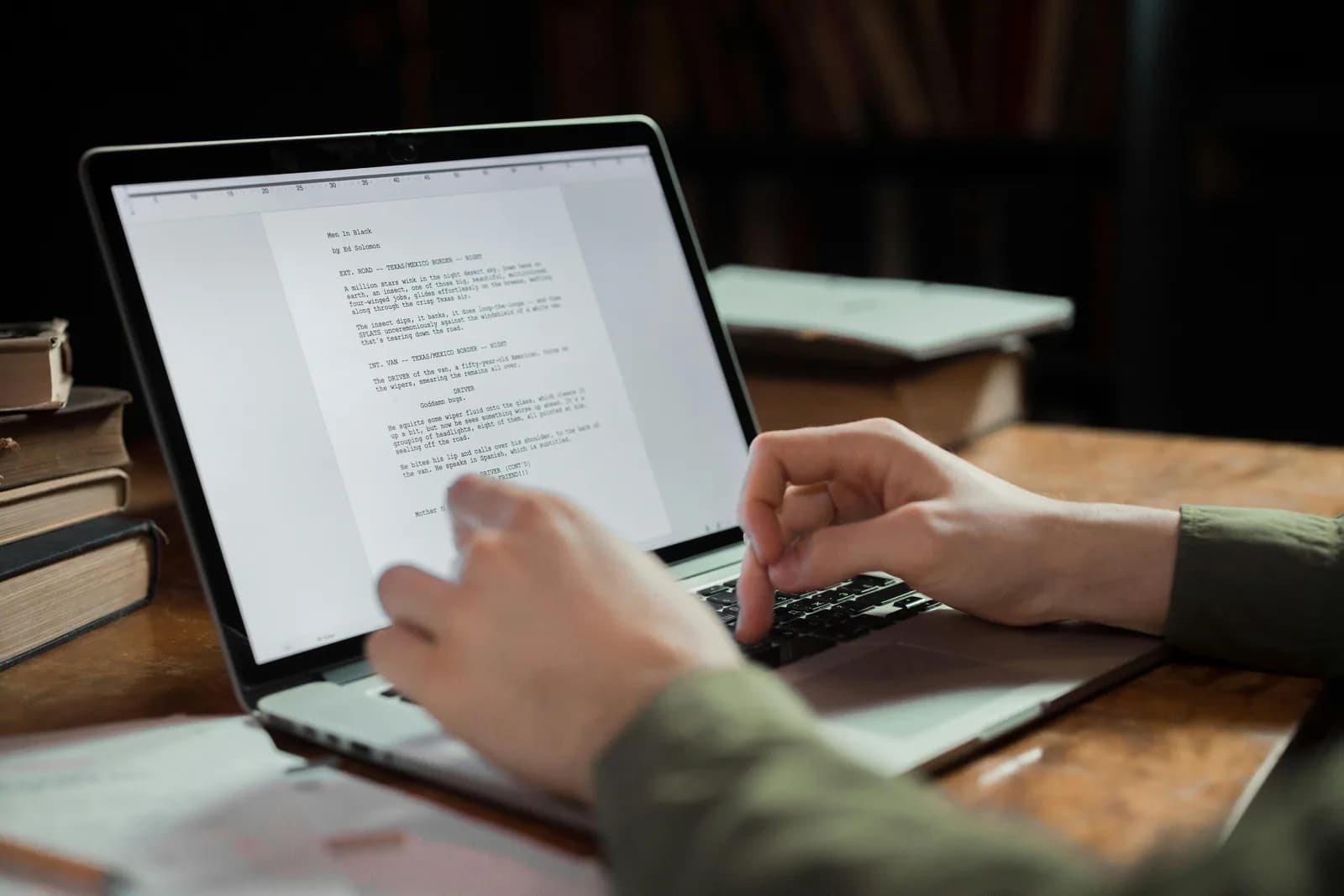
To write a book by dictation, an author outlines first, then speaks each chapter into Word, Scrivener, or Google Docs through a system-wide dictation hotkey. The rule is to talk the whole scene without stopping to edit, then run a cleanup pass afterward. Speaking runs near 145 words a minute against roughly 40 for typing.
The first time I tried to dictate instead of type, I caught myself editing every sentence the moment it landed on screen. Talk, stop, fix the comma, talk again. After twenty minutes I had four clean paragraphs and a sore jaw. That is exactly the wrong way to do it, and it's the way almost everyone starts.
Dictating a book is less about the software and more about a habit you have to unlearn. Your inner editor wants to fix the words as they appear. The whole speed-up of dictation comes from telling that editor to wait. Get the words out at talking speed, mess and all, then tidy them in a separate pass. Speaking is about three and a half times faster than typing, but only if you let it run.
Here's the part most "dictate your novel" pages skip. The tool barely matters. A chapter in Scrivener is a text box, the same as a Google Doc or a blank Word file. Dictation that pastes at your cursor doesn't care which one you're staring at.
So the real question isn't "what app writes a book by voice." Nothing writes the book for you. The question is "how do I get spoken words into my manuscript at full speed and clean them up after," and the answer has three honest parts: the built-in dictation your computer already has, a system-wide hotkey that works everywhere, and a workflow that keeps your inner editor quiet until the words are down. I'll walk all three, set one up in two minutes, and tell you when the built-in is all you need.
Why authors dictate instead of type
The numbers are the easy part. Most people type around 40 words a minute and speak around 145. That's roughly three and a half times faster, which on a 90,000-word manuscript is the difference between a draft that takes months and one that takes weeks. But raw speed isn't really why authors do it.
The bigger reason is that talking is how stories already live in your head. You don't think a scene in justified paragraphs; you think it as someone telling it. Dictating lets you narrate the rough draft the way you'd describe the chapter to a friend at the kitchen table, then shape it later. The keyboard puts a layer between the thought and the page. Voice removes that layer for the messy first pass, which is the pass where most books stall.
There's a physical reason too, and it's the one nobody mentions until their wrists start complaining around chapter twelve. Drafting a whole book is a lot of keystrokes. Speaking the scaffolding by voice and saving the keyboard for fine edits spreads the load across the day. That's a comfort and productivity point, not a medical claim — but if hours of typing are the thing slowing you down, dictating to rest your hands part of the time is a reasonable lever to pull.
The quickest way: your computer already dictates
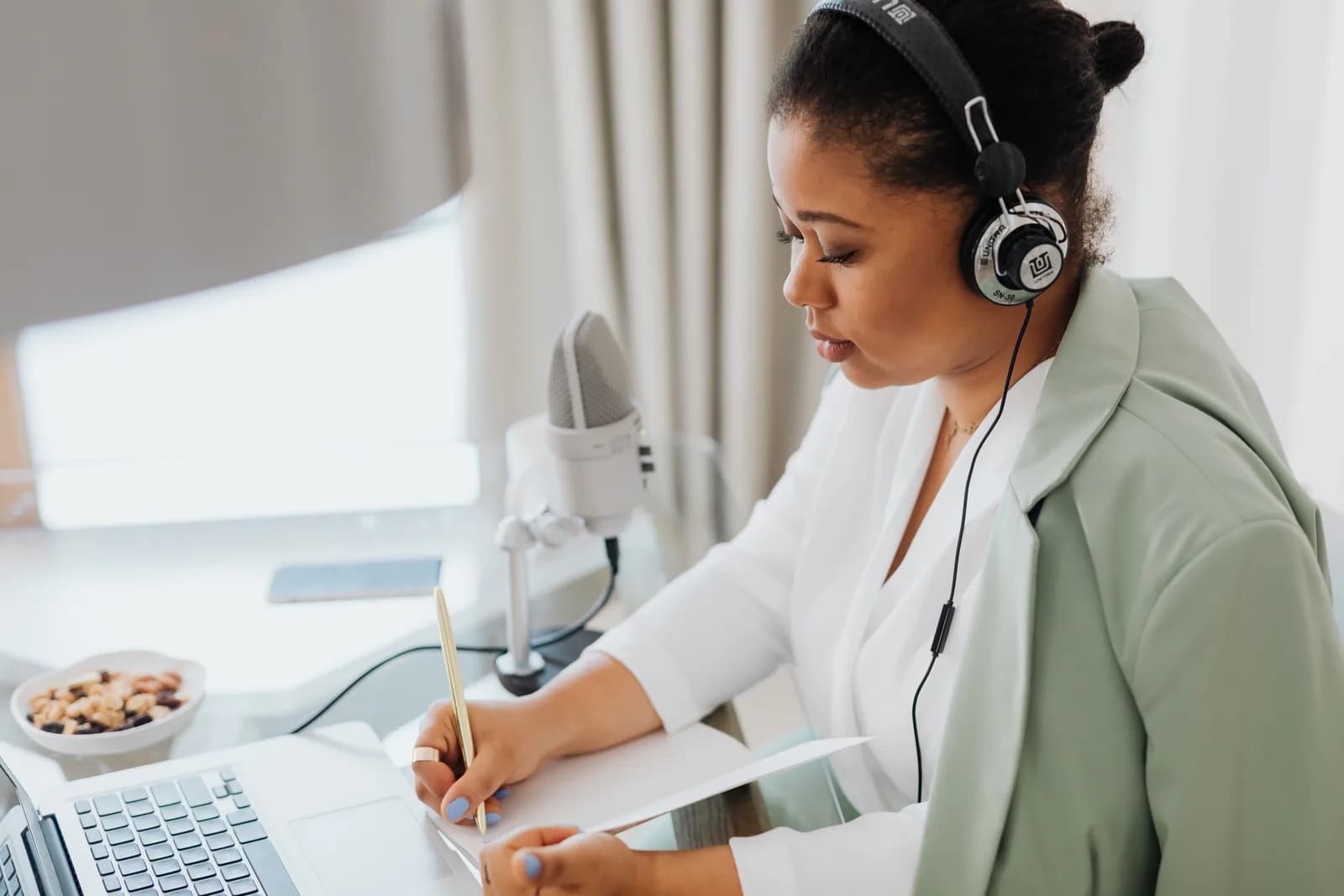
Before you install anything, know that your operating system can already do this, free, and for a short session it's genuinely enough. On Windows, put your cursor in your manuscript and press Windows key + H. The Voice Typing bar opens, you talk, and the words land where your cursor is — Word, Scrivener, a browser-based Google Doc, any of them. It adds punctuation on its own as you speak.
On a Mac, turn on Dictation in System Settings under Keyboard, then trigger it with the shortcut you set there. It works anywhere you can type and, on Apple Silicon, can process general text on-device once the speech models download. Say "comma," "period," or "new paragraph" and it punctuates as you go.
The catch for a whole book is two-fold. Windows Voice Typing routes through Microsoft's servers and needs an internet connection, so it isn't an offline option — which matters when you're drafting a manuscript you'd rather not send anywhere. And both built-ins are tuned for short bursts: a text, an email, a paragraph. They tend to time out, mishear unusual character names, and offer no way to teach them your invented vocabulary. Across an 80,000-word draft those small frictions add up. That's the line where a dedicated tool starts to earn its place.
Set up Whisper in two minutes (Windows or Mac)
A system-wide dictation tool fixes the two built-in limits at once: it works offline and it works the same in every writing app you open. You need a Mac on Apple Silicon or a Windows 10-or-newer PC, a working microphone, and your manuscript open in Word, Scrivener, Google Docs, or whatever you draft in. The whole local pipeline is free for any signed-in account, with no payment method asked for at sign-up. Here's the sequence.
Step 1 — Install Whisper and sign in.
Download from the download page, install, and create a free account. No card. The whole local transcription pipeline opens right away.
You'll know it worked when the app's tray icon appears and the setup wizard offers to pick a model.
Step 2 — Pick a transcription path.
The app doesn't choose for you. You get three: Cloud (OpenAI, bring your own key), Local Parakeet, or Local Whisper. For a private manuscript, start local — more on that two sections down.
You'll know it worked when a model finishes downloading and shows as ready.
Step 3 — Confirm your hotkey.
Windows defaults to Ctrl+Space, Mac to Command+Option held as push-to-talk. On Mac, grant the Accessibility permission when prompted; without it, the paste-at-cursor can't reach other apps. Both keys are changeable in Settings if they clash with something you already use.
You'll know it worked when a test recording pastes into any text field.
Step 4 — Put your cursor in your manuscript and talk.
Open your chapter, click where the next paragraph goes, hold the hotkey, speak a few sentences, release. The transcript appears where the cursor is, in the document.
You'll know it worked when your spoken sentences are sitting in your manuscript as text.
The slow part is the model download, not the setup. Everything else is the four steps above. Once it's running, drafting a chapter stops being a typing task and becomes a talking task — which is the whole point.
If you've set up dictation on Windows or on Mac before, this is the same muscle memory pointed at your manuscript.
Outline first, then dictate scene by scene
Dictation rewards a writer who knows where the scene is going before they open their mouth. The workflow that actually works is boring and repeatable: outline first, then talk through the book in chunks, then clean it up later. Skip the outline and you'll spend the draft narrating yourself into corners.
Start each session with a few bullet points for the scene — who's in it, what changes, where it ends. Those don't need to be dictated; type them, they're scaffolding. Then put your cursor at the next blank line, hold the hotkey, and narrate the scene the way you'd tell it out loud. A small capsule appears while you speak so you know it's listening, and Whisper holds a short tail after you release so your last word doesn't get clipped.
The one rule that matters more than the rest: don't edit while you speak. The instant you stop to fix a comma or reword a line, you've dropped out of the scene and back into editor-brain, and the two don't share a gear. Talk the whole chunk through — a scene, a section, a beat — and only then look at the screen. Dictate in sittings of ten or fifteen minutes, name your characters and places the same way every time so the transcript stays consistent, and leave the run-ons and the missing punctuation alone. The cleanup pass exists precisely so the drafting pass can be fast and ugly. Get the words down at talking speed; shape them after, the way you would type faster with your voice anywhere else you write.
Local or cloud: which mode for a manuscript
For a book draft, try local mode first. A manuscript is the one document most authors are genuinely protective of — half-formed, unpublished, sometimes under contract. It's a strange choice to keep it on your own disk and then route your voice through a cloud to get the words there. If your Mac is Apple Silicon or your PC is from the last few years, local handles a full drafting session without complaint, and cloud becomes the escape hatch rather than the default.
Here's how the three paths differ, because the app makes you pick and I'd rather you pick well:
- Local Parakeet — NVIDIA's TDT engine, around 600 MB, and the fastest local option — 5 to 10 times faster than Whisper on CPU. Covers English plus 24 other European languages, 25 in total. No translate-to-English, no custom vocabulary. If you draft in English or another European language and your character names are ordinary, this is the quick, fully offline pick.
- Local Whisper — slower than Parakeet on the same machine, but the multilingual builds cover 99 languages and can translate to English, and it supports custom vocabulary — useful when your book is full of invented names, places, and terms you can teach it to spell. The English-only builds are English-only, not 99. Default English model is around 480 MB.
- Cloud (OpenAI, BYOK) — best accuracy and web access, using your own OpenAI key billed straight by OpenAI. Transcription runs on gpt-4o-mini-transcribe by default. Needs internet, so it's the one path that leaves your machine. The Cloud surface is part of Whisper Pro.
The boring truth is that for the kind of prose that fills a first draft, local is plenty. Both local engines run fully on your machine with nothing sent to a server, which is exactly what you want for a manuscript. If your book leans on a lot of invented vocabulary — fantasy names, fictional places, a made-up technical term you use forty times — local Whisper's custom vocabulary is the deciding feature, because it stops the transcript from guessing the same name five different ways. Cloud earns its place when you want top-tier accuracy on a tricky recording session. For day-to-day drafting, start local and reach for cloud only when local leaves you wanting.
Run the cleanup pass after the words are down
Raw dictation comes out as a run-on. You say "she crossed the room she didn't look at him she just opened the window um and waited," and that's the unpunctuated wall any speech engine hands you. That's fine — that's the deal you made for talking speed. Cleanup is a separate pass, and it's where the draft turns back into prose.
Windows Voice Typing adds punctuation as you speak, and macOS Dictation handles basics when you say "comma" or "period." For heavier cleanup — stripping the "ums," fixing the run-ons, turning a spoken paragraph into something you'd actually keep in the manuscript — Whisper can run an AI pass. Say the activation phrase "Hey whisper" and the text gets enhanced before it lands. On a local model that runs through Ollama; in cloud mode it's gpt-5-mini by default.
she crossed the room she didn't look at him she just opened the window um and waited for the noise from the street to fill the silence
She crossed the room. She didn't look at him; she just opened the window and waited for the noise from the street to fill the silence.
One honest limit, because authors get sold the opposite. The AI pass tidies punctuation and filler. It does not rewrite your prose, fix continuity, or decide that a scene is working. It won't catch that your hero's eyes changed color between chapters, and it shouldn't — that's your job, and it's the job that makes the book yours. Treat the cleanup pass as a typist tidying the transcript, not as a co-author. The voice work gets you a fast, rough draft; the actual writing — the choices, the structure, the line that lands — stays with you.
That same speak-then-clean rhythm carries past fiction — the long-form drafting habit is identical whether you're writing a novel or a thesis chapter, because the workflow is the same: outline, talk the section through without stopping, then clean it in a pass of its own.
When the built-in is all you need

Sometimes the free tool already on your machine is the right call, and pretending otherwise would be dishonest. If you only dictate in short bursts — a line of dialogue that just occurred to you, a note-to-self in your outline, a paragraph between meetings — your operating system covers it for nothing. Windows key + H on Windows, the Dictation shortcut on Mac. Don't install an app to capture a single sentence.
There's also a job that looks like book dictation but isn't, and it's worth naming so you don't pick the wrong tool. Transcribing a recorded audio file — an interview you taped, a voice memo of yourself thinking out loud on a walk, an author event recording — is a different task from dictating live. Dictation types the words you speak into your microphone right now; it isn't built to chew through a multi-speaker recording after the fact. For that, use a service made for audio-file transcription. Live dictation and recorded-audio transcription are two different jobs, and a tool that's great at one is usually mediocre at the other.
Reach for a dedicated, system-wide tool when the built-ins start hurting: full chapters instead of bursts, offline privacy for an unpublished manuscript, invented vocabulary you need spelled consistently, or simply wanting one hotkey that behaves the same in Scrivener, Word, and your email. Below that bar, use what's free. I'm not going to tell you to install software to dictate a grocery list.
If your project is academic rather than fiction, the same chapter-by-chapter logic applies in dictating a dissertation, where invented vocabulary becomes field jargon and the privacy argument gets even sharper.
No app writes the book. It never will, and on the days the scene won't come, that's a small mercy — there's no software to blame, just the work. What dictation changes is the speed of the messy first pass: outline, talk it through, clean it after. I drafted most of this guide by talking at my screen and only looked at the words once they were all down. The first three paragraphs I tried to perfect as I spoke are still the worst three I wrote.
Talk your next chapter onto the page
Outline the scene, hold the hotkey, narrate it through, release. The draft lands in whatever manuscript your cursor is in — and in every other app too.
Free local mode for any signed-in account. No card required to start.



