 By Denys Medvediev
Tutorial
Word dictation not working
Word dictation usually stops working for one of two reasons: the Dictate button is missing because that copy of Word has no Microsoft 365 subscription, or the button is there but Word cannot reach the microphone or the internet it needs. The first is a licensing gap, not a bug. The second is a two-minute settings fix.
Last updated: June 2026
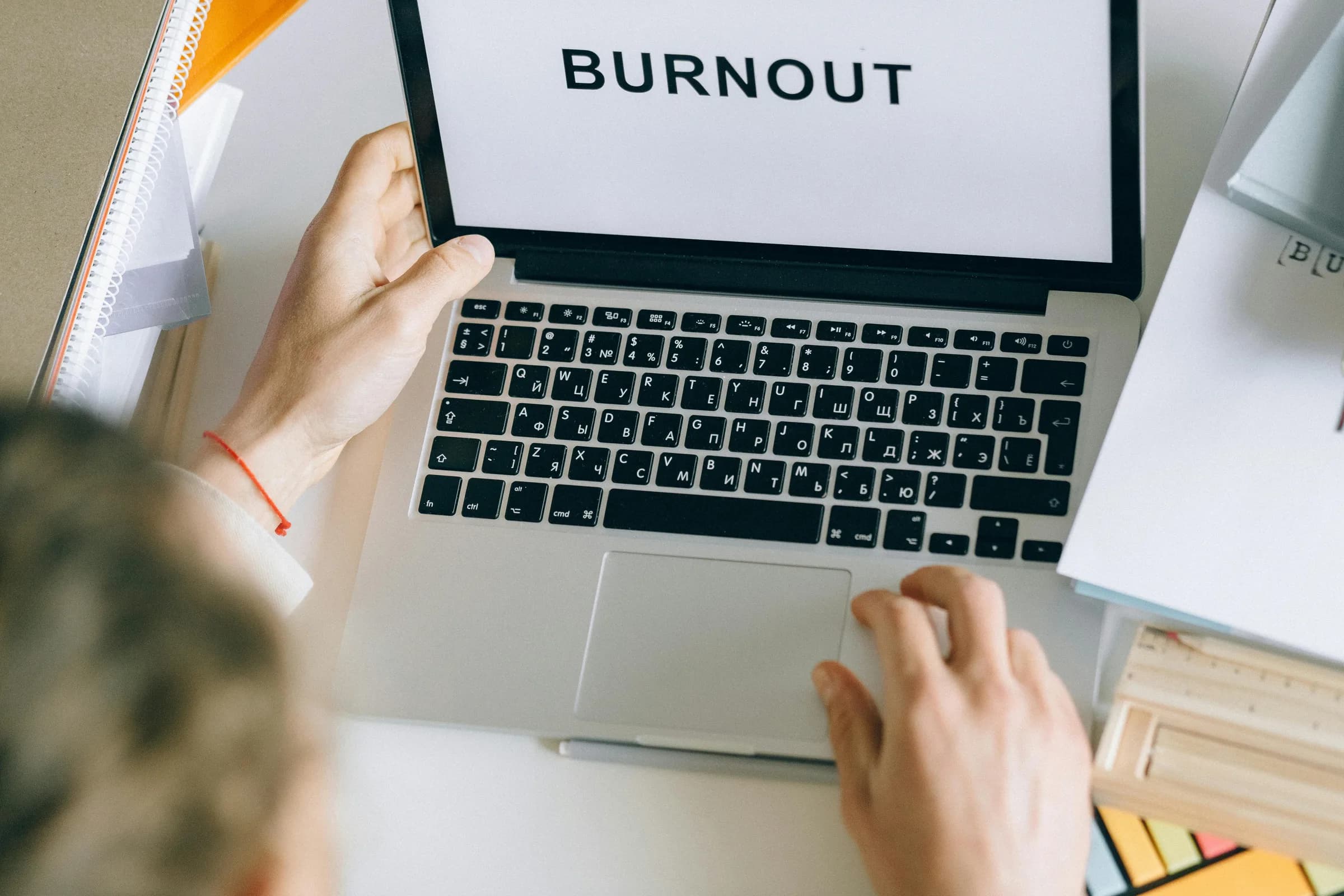
Word dictation usually stops working for one of two reasons: the Dictate button is missing because that copy of Word has no Microsoft 365 subscription, or the button is there but Word cannot reach the microphone or the internet it needs. The first is a licensing gap, not a bug. The second is a two-minute settings fix. If you just need to dictate a paragraph and do not have Microsoft 365, Windows' free Win + H voice typing, or a system-wide desktop app, dictates into Word without any of it.
The same support message keeps arriving in different words: "Dictate just disappeared." Nine times out of ten, nothing disappeared. The button was never there, because Dictate is a Microsoft 365 feature and a one-time-purchase copy of Word does not get it. That single fact explains more "not working" reports than every microphone glitch combined.
When dictation does stop, it is rarely mysterious: a subscription you do not have, a microphone Windows will not share, or a server Word cannot reach. We will check all three, in the order things break. And if Word's own Dictate keeps fighting you, I will show you a way to dictate into Word that does not depend on any of it.
No Dictate button at all? You probably do not have Microsoft 365
The popular fix-lists skip this cause, and it is the most common one. Word's Dictate feature requires an active Microsoft 365 subscription, and you have to be signed in with it. Microsoft says so in plain terms: "Dictate is not available in Office 2016 or 2019 for Windows without Microsoft 365." No subscription, no button. There is nothing to fix in the settings because the feature was never installed.
Oops, there was a problem. Please try again later.
Microsoft's troubleshooting page even has a section titled "Can't find Dictate button," and its answer is the same: an active Microsoft 365 subscription is required, and you have to be signed in with it (the grammar there is theirs, not mine). Microsoft names 2016 and 2019 directly; the one-time-purchase 2021 and 2024 releases sit in the same non-subscription boat, so the rule still applies even where Microsoft skips the year.
The test: The test: open Word, go to the Home tab, look at the right end of the ribbon. If there is no Dictate microphone icon, you are not signed into Microsoft 365 with an active subscription. Sign in with the right account, or skip to the free Win + H option further down.
The fast checklist: what to try first
If the Dictate button is there but does nothing, run this list before the deeper sections. Most "not working" cases end here.
Check the microphone. Make sure it is not muted, is plugged in, and is set as the default input device in Windows sound settings.
Confirm your subscription. You need to be signed into Microsoft 365 with an active subscription for Dictate to appear and work at all.
Check your connection. Dictate is cloud-based, so confirm you have a working internet connection before anything else.
Close the other app holding the mic. Teams, Zoom, or a browser tab can hold the microphone. Close whatever else might be using it, then retry Dictate.
Refresh Word for the web. In the browser version, refresh the page and grant the browser microphone permission when it asks.
The keyboard shortcut to toggle the mic, once Dictate works, is Alt + ` (backquote) on Windows and Option + F1 on Mac. If none of these five lands, keep reading.
Your mic works everywhere except Word
Here is the frustrating one. The mic records fine in Voice Recorder, colleagues hear you on calls, and Word still acts deaf. The usual culprit is a permission Windows applies per-app. Open Settings, then Privacy and security, then Microphone, and make sure microphone access is on and desktop apps are allowed to use it. Word sits behind that switch like every other desktop app.
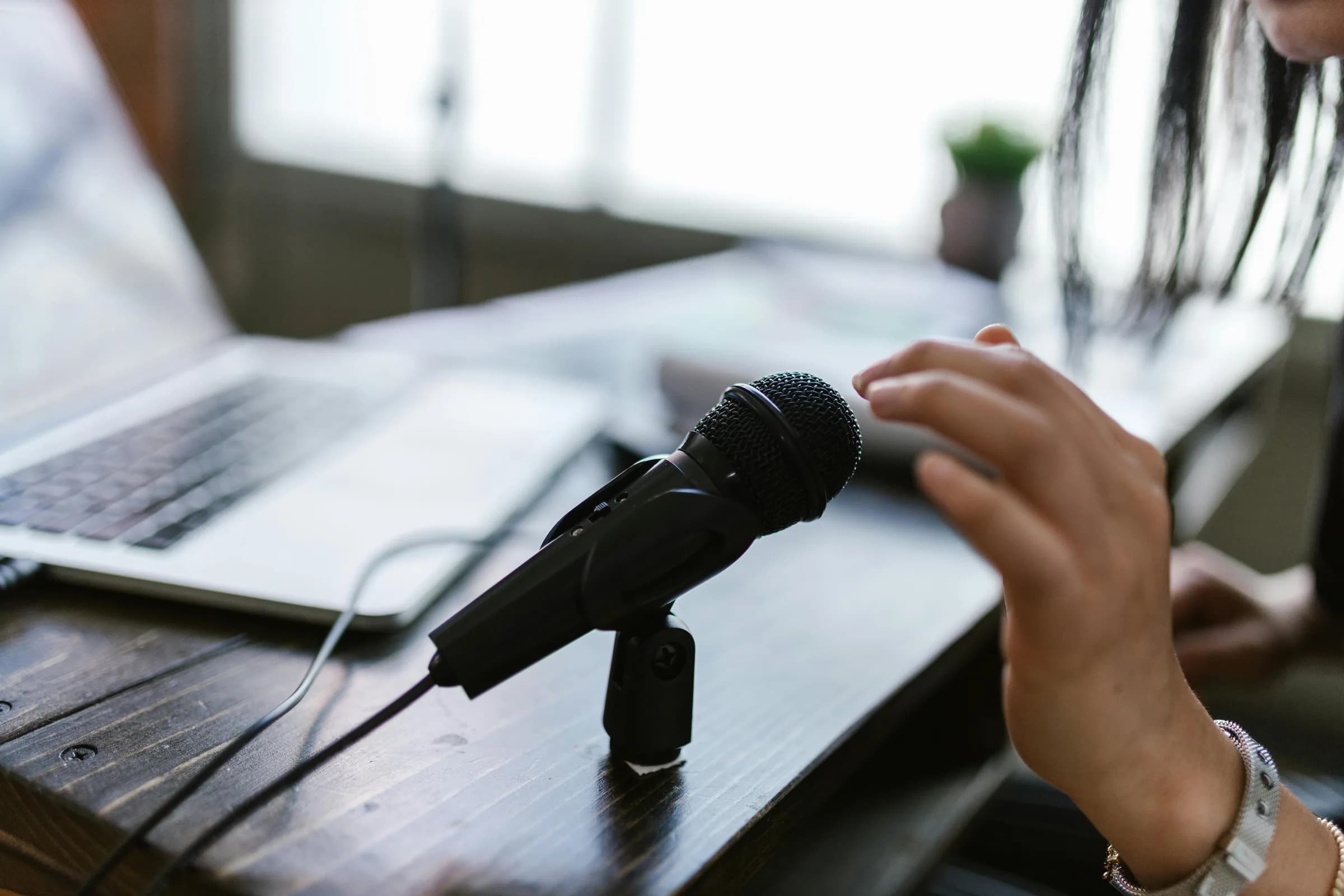
Two specific messages narrow it down. If you see "Dictation can't hear you," or nothing happens as you speak, the mic is muted or the wrong input is selected, so switch the input. If you see "We don't have access to your microphone," another app is holding it; close that app and try Dictate again. In Word for the web there is one extra step: refresh the page, click Dictate again, and grant the browser permission when the prompt appears. Browsers gate the mic separately, so a permission you granted last month can reset itself after an update.
You know it worked when you press Dictate, say a test sentence, and the words land on the page within a second or two — if they do, the permission stuck and you can move on. One last gotcha: a $20 USB mic does more for accuracy than any setting you can toggle. If Word hears you but the words come out wrong, the problem is the audio, not the software.
The "Oops, there was a problem with Dictation" error
People paste this error into search at 11pm. The wording — "Oops, there was a problem with Dictation" — comes from user reports rather than Microsoft's documentation, so treat the fixes as commonly reported rather than gospel. They are low-risk and worth trying in order: check your internet, sign out of Microsoft 365 and back in, update Office to the latest version, and run the Office repair tool if it persists. Most "Oops" reports clear after the sign-out-and-back-in step, because Dictate's cloud token had gone stale.
You know it is fixed when you reopen the Dictate toolbar, speak a line, and the banner stays gone while the text flows — if the "Oops" returns on the next click, move to the repair step. An error that needs a sign-out, an update, and a repair tool to clear is an error about a server you do not control. That is the nature of cloud dictation, and it brings us to the next cause.
Dictate needs the internet, and a VPN can break it
Word's Dictate is not running on your laptop. It is cloud-based. Microsoft is explicit: "Dictation lets you use speech-to-text to author content in Microsoft 365 with a microphone and reliable internet connection." No connection, no dictation. Your audio leaves your machine, gets transcribed on Microsoft's servers, and comes back as text. When the round trip fails, Word goes silent.
A VPN or a corporate proxy can quietly kill it too. Because Dictate talks to Microsoft's speech servers, a strict VPN or a work firewall can cut off that conversation and dictation just stops. Microsoft does not name VPNs on its page, so treat this as a consequence of the cloud dependency, not a Microsoft instruction. The test is blunt: turn the VPN off, try Dictate, and see if it wakes up. If it does, you have your answer and a conversation to have with IT.
When Dictate runs but garbles your words or just fails
If Dictate runs but the words come out as nonsense, the spoken language is probably mismatched. Word's Dictate reads its language from a "Spoken Language" drop-down in the Dictate toolbar. If that is set to one language and you are speaking another — or if your Windows keyboard and speech settings disagree — Dictate transcribes with full confidence and gets every word wrong. It is not broken. It is listening for the wrong words.
Open the Dictate toolbar, find the spoken-language drop-down, and set it to the language you are speaking. Match the Dictate language to your voice first; if that fixes it, you can stop chasing microphone settings you never needed to touch. I have spent a full evening on the "wrong input device" theory before noticing the language was set to a country I have never lived in, so I say this from experience, not from the manual.
When the symptom is instead "everything looks right and it still fails," the install itself is suspect. Repairing Office rebuilds the bits Dictate depends on without touching your documents. On Windows, open Settings, go to Apps, find Microsoft 365 or Office, choose Modify, and run the repair: quick repair first, then online repair if needed. It is the troubleshooting equivalent of turning it off and on again, except it replaces the broken files, and it clears a surprising share of stubborn Dictate failures.
When to skip Word's Dictate entirely
Here is the honest take the other fix-lists never give you. If you just need a quick paragraph and you do not have Microsoft 365, do not buy a subscription for it. Windows has voice typing built in. Press Win + H, and a dictation bar appears that works in any text field — Word, Notepad, a browser, a chat box — with no Microsoft 365 required. It is a different feature from Word's Dictate, it is free, and for short notes it is plenty. Paying for a subscription purely to dictate, when Windows already ships dictation for nothing, is a tax on not knowing the shortcut exists.
Win + H has limits. It is Windows-only, it leans on the cloud too, and it lacks the document-aware niceties of Word's own Dictate. But for the reader whose only goal is "stop typing this one email," it is the fix, and I would rather point you there than watch you pay a monthly subscription for a button.
If you want that decision laid out properly, Win+H vs Dictate in Word compares both against a system-wide tool.
How Whisper fixes most of this for good
Most of the failures above share a root: Word's Dictate is a cloud feature welded to a subscription. Take away the subscription, the internet, or the right account, and it falls over. Whisper by Remskill takes a different approach: a system-wide desktop app, not a Word add-in. You press a hotkey, speak, and the text appears at your cursor in any app — Word, Word Online in a browser, your email, a code editor, anywhere a cursor blinks.
The default hotkey is Ctrl + Space on Windows; on Mac you hold Command and Option together and release either key to stop. Because Whisper's local pipeline runs entirely on your machine through a pure-Rust engine, it works offline. No reliable-internet requirement, so no VPN or proxy can cut it off. No Microsoft 365 sign-in, because it is not Microsoft's feature. There is no Dictate button to go missing, because there is no button — there is a hotkey that behaves the same in every editor.
What Whisper looks like: models, languages, and AI cleanup
The local transcription side is free for any signed-in user, with no card required to start. You pick how it runs: NVIDIA's Parakeet engine (~600 MB) for fast English plus 24 European languages, or Whisper's multilingual models for 99 languages with auto-detect, or the English-only models if that is all you need.
If you want best-in-class cloud quality and live web answers, Pro mode runs on your own OpenAI key. None of it hangs on a Dictate button being present, a subscription being active, or a server being reachable. The same hotkey works on Windows and Mac alike, and the Windows voice-to-text walkthrough shows the setup end to end.
I remember a relative in the late 1990s with Dragon NaturallySpeaking on a Windows 98 machine — 45 minutes of reading words aloud to "train" it, a four-second delay per sentence, then the headset thrown across the room. The headset survived; the dictation experiment did not. Twenty-five years later, dictation should not need a subscription or a server in another state to type one paragraph. When it does, that is the bug — even if the software calls it a feature.
Further reading
If your Word dictation is broken, work down the list in order: no button means no subscription, no sound means the microphone, no response means the connection. Fix those and Dictate usually comes back. And if you are tired of a feature that vanishes with your subscription, dictate into Word the way you would on any other app — with a hotkey that does not care which version of Office you bought.
Dictate into Word without the Dictate button
Hold the hotkey, talk, release. The transcript lands wherever your cursor is — a Word document, an email reply, a browser tab — with no subscription, no server, and no button to go missing.
Free local mode for any signed-in account. No card required to start.



