 By Denys Medvediev
Tutorial
Voice to text in Jira
Jira never shipped a dictation button. Here's what actually turns your voice into a typed ticket — your OS for the odd field, or a hotkey app that pastes a cleaned-up summary, description, or comment straight into Jira, in the browser or the desktop app.
Last updated: June 2026
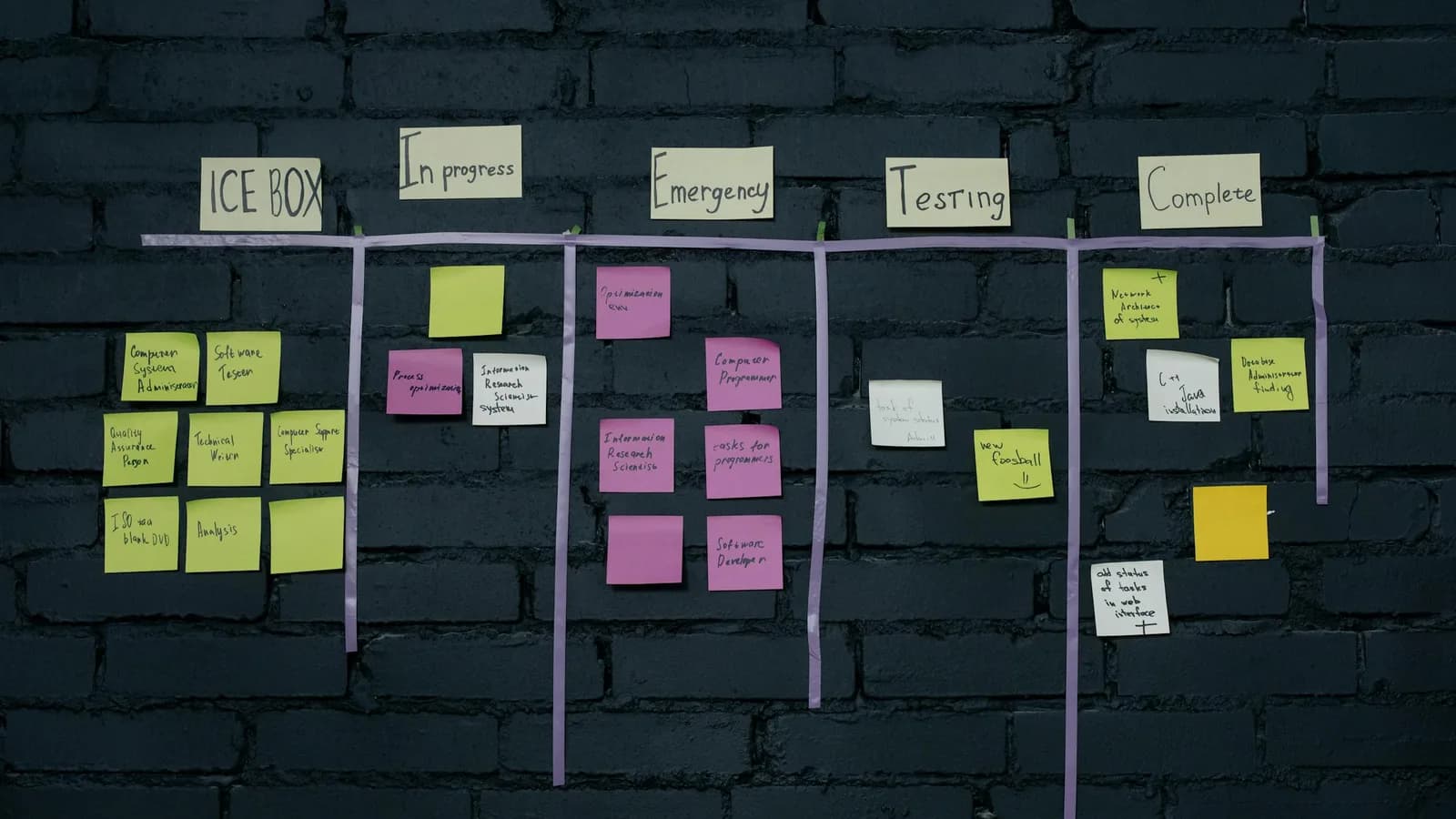
Jira has no built-in dictation for filling in tickets. To turn talking into a typed Jira issue, use your operating system's voice typing (Windows logo key + H, or the Mac Dictation shortcut) for a quick field, or a system-wide hotkey app like Whisper that pastes a cleaned-up summary, description, or comment straight into the field your cursor is in, in the browser or the Jira desktop app.
Most people land on this search after clicking into a Jira description field and instinctively looking for a microphone icon. There isn't one. Atlassian built Jira around the keyboard, and a fresh ticket is a small pile of empty boxes waiting to be typed into: a summary, a description, an acceptance-criteria block, then a comment thread that grows for the life of the issue. The honest answer is that Jira itself won't dictate any of that for you, and the typing adds up faster than anyone admits in standup.
Here's the lay of the land. Jira gives you fields and a rich-text editor, none of which listen to your voice. Your phone keyboard and your computer's OS both have free dictation that types into those fields. A desktop dictation app sits on top of all of it: hold a hotkey, talk, and the text lands wherever your cursor is, a Jira field included. This guide walks through each option, in order of effort, shows you what it looks like, and tells you when to skip the app entirely and use what you already have.
Does Jira have built-in voice-to-text?
No. Jira has no dictation feature that turns your speech into typed text in a ticket. There's no microphone button in the summary box, none in the description editor, none in the comment field. Atlassian's editor is a keyboard-first rich-text surface, and voice input was never part of it.
That's not a knock on Jira; it's just where the responsibility sits. Dictation is an operating-system or third-party-tool job, the same way it is in Gmail, Notion, or a code editor. Jira renders the text box. Something else has to put your voice into it. The good news is that anything that can type into a normal text field can type into a Jira field, because to your computer it's the same thing: a cursor sitting in an editable box.
So if you want your voice to become a typed ticket, the tool that does it lives outside Jira. Your OS is one option. A dedicated dictation app is the other. Both are below, and they behave the same whether you're in Jira Cloud in a browser tab or the standalone desktop app.
Typing tickets all day vs. talking them out
The case for dictating Jira tickets is plain arithmetic. Speaking runs about 145 words per minute; typing for most people is closer to 40. That's roughly three and a half times faster. A bug report you'd grind out in three minutes of typing, you can talk through in under one, and you can do it while you're still looking at the broken screen instead of switching back to the keyboard.
The counterweight, because there always is one: a Jira field like a story-point estimate or a fix-version is two characters, and dictation does nothing for those. Voice earns its keep on the prose — the description that explains what's actually wrong, the repro steps, the comment where you think out loud about a fix. That's the threshold. Tiny structured fields, keep typing. Anything that's a sentence or a paragraph, talk it out.
The fastest way: a system-wide hotkey
Here's where a dedicated app changes the math. Whisper by Remskill is not a Jira plugin, a Marketplace app, or a browser extension. It's a desktop app that works like a keyboard: press a hotkey, speak, and the transcript is pasted at the cursor, in any app, a Jira field included. It works the same in Jira open in a browser and in the Jira desktop app, because as far as your computer is concerned, you're just typing.
Setup is short:
Download and install Whisper on Windows 10 or 11, or a Mac with Apple silicon.
Sign in. The local pipeline is free, with no payment method required at signup.
Note your hotkey. On Windows the default is Ctrl+Space; on a Mac it's holding Command+Option together as push-to-talk, releasing either key to stop. You can change it in Settings, Recording if it clashes with a shortcut you've already bound. The whole "pick your own hotkey" panel exists because I shipped a hardcoded one first and it cheerfully collided with someone's other software at two in the morning. I have a master's degree.
Click into a Jira field. Hold the hotkey, describe the ticket, release.
That's the whole loop. The transcript appears in the summary or description box, you read it, you save the issue.
Speak, and the ticket fills in
Once it's running, the experience is unremarkable in the best way. You click into the description field, hold the key, describe what's wrong, let go. A second or so later the text is sitting in the box as if you'd typed it. No copy-paste from a separate window, no transcript to fish out, no recording to manage. You move to the next field and do it again, or just save.
Because the local transcription runs on your machine (pure-Rust, no Python sidecar, no server in the loop), it works offline. For a lot of teams that's the part that matters. The text of a ticket — a security flaw, a customer name, an internal system detail — never leaves your laptop. Windows' own built-in voice typing needs an internet connection to work at all; Whisper's local mode does not.
Cleaning up a rambly ticket with AI
Spoken language is messy, and ticket descriptions dictated in the heat of a bug are messier than most. You say "um," you restart, you trail off into "you know what I mean." Whisper has an optional AI enhancement step that trims filler and tidies the phrasing before it pastes. So "uh yeah so the, the login thing, it breaks when, when you, like, refresh twice" becomes "The login flow breaks when you refresh the page twice." On a Jira description that the next person actually has to read, that's the difference between a usable ticket and a riddle.
That cleanup runs locally through Ollama, free, on your own machine. Pro users can route it through the cloud instead, but the filler-cleanup benefit doesn't require Pro; it's there in the free local pipeline. You can also turn it off and paste the raw transcript, which for a quick internal comment is often the right call.
What the full Whisper app looks like
The hotkey is the part you'll use most, but there's a settings surface behind it. You pick your transcription engine: Whisper models, whose multilingual variants cover 99 languages and the English-only .en builds cover exactly one, or NVIDIA's Parakeet, about 600 MB, 5 to 10 times faster than Whisper on CPU, covering English plus 24 European languages. You set your hotkey, manage history, and save presets — handy if your team writes tickets in a second language. None of that is required to dictate one Jira description. It's there when you want to tune.
Works in the browser and the desktop app
Jira shows up in a few shapes — Jira Cloud in a browser tab, Jira open in a pinned window, the dedicated desktop app some teams install. A system-wide hotkey app doesn't care which one you're in. It pastes text wherever your cursor sits, so the same press-talk-release loop works in all of them, and in the Jira mobile app your phone keyboard's microphone covers the same job.
This is the quiet advantage of an OS-level tool over an in-page extension. Browser extensions break when Atlassian reworks the editor, and they only work in the tab they're injected into. A hotkey app lives a layer below the browser, so it keeps working through Jira redesigns, and the exact same muscle memory carries over to your email, your docs, and your terminal. One tool, every text box.
When to skip the app and just use your OS
If you only dictate the odd Jira comment, don't install anything. Your computer already does this for free. On Windows, press the Windows logo key + H and voice typing opens in any text box, a Jira field included, with no subscription. On a Mac, the built-in Dictation shortcut (or the mic key) does the same, and on Apple silicon it runs on-device with no internet required. On your phone, the keyboard's microphone icon dictates straight into the Jira mobile app; that's iOS or Gboard doing the work, not Jira, but it works.
Windows · Win + H
macOS · Dictation
The one tradeoff worth knowing: Windows' Win+H needs an internet connection to run, while macOS dictation and Whisper's local mode don't. For a one-line "deployed, please verify," the OS tool is the right call. Where a dedicated app pulls ahead is volume, the filler cleanup, and dictating offline: the more tickets you write a day, the more those matter.
Pick the smallest tool that solves your problem. For one comment, that's the key you already have. For a full backlog-grooming session where you're writing a dozen real descriptions, the dedicated app stops feeling like overkill around the third ticket you didn't have to type.
What Whisper costs
The local dictation pipeline, transcription and the AI cleanup over Ollama, is free for any signed-in user, with no card at signup. So getting your voice into a Jira ticket with Whisper costs nothing. Whisper Pro adds the cloud features (OpenAI transcription, cloud AI enhancement, voice web search), and it carries a separate trial. The exact numbers live on the pricing page rather than here, because prices move and a blog post is a bad place to keep them current.
Further reading
Atlassian will probably bolt dictation into the editor eventually, the way every text surface gets there once enough people go looking for the microphone that isn't there. Until then, your computer already has the feature for the odd comment, and an app exists for the day you're writing your tenth real description and your wrists have opinions. Two tools, one problem. Most of the time you only need the smaller one.
Want your voice in your Jira tickets?
Download Whisper, hold the hotkey, talk your next ticket into shape. The local pipeline is free, no card at signup.
Free local dictation for every signed-in user. Pro adds the cloud features on a separate trial.



