 By Denys Medvediev
Tutorial
Transcribe YouTube videos: 3 ways
Three methods cover almost everything: open the video's own transcript panel, paste the link into a free generator, or dictate your own notes by voice. The first two need only a browser.
Last updated: June 2026
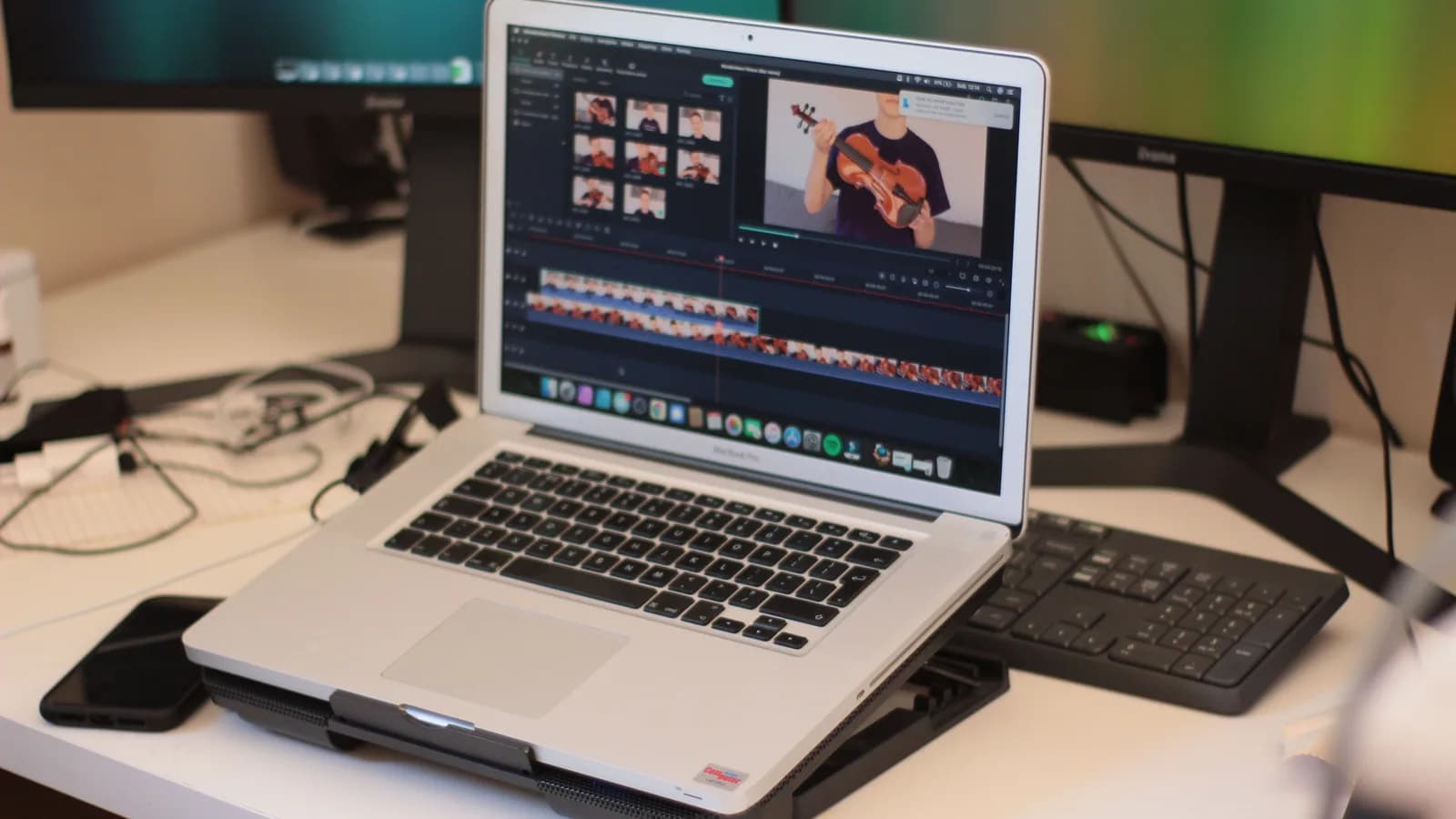
To transcribe YouTube videos, three methods cover almost everything: open the video's own Show transcript panel for any video with captions, paste the link into a free online transcript generator for cleaner text and downloads, or capture and dictate your own notes with a desktop tool. The first two need only a browser.
I spent twenty minutes last week trying to copy three sentences out of a forty-minute conference talk. Not transcribe the whole thing. Three sentences, said somewhere around the eighteen-minute mark, that I wanted to quote in an email. I scrubbed back and forth like I was defusing a bomb. The boring truth is most people reaching for a transcribe-YouTube-videos tool don't need the whole transcript. They need to read instead of watch, grab a quote, or turn a video into notes they can search later.
YouTube videos pile up in tabs the way unread books pile up on a shelf, and watching one at normal speed is the slowest way to get information out of it. Right now the search results for this are a wall of paste-a-link widgets, all near-identical, all promising free transcripts in seconds. Most of them work fine. The question is which method fits what you're doing. This guide walks through three: YouTube's own built-in transcript, free URL-paste generators, and a desktop dictation tool for the part those generators can't touch. By the end you'll know which to reach for in under ten seconds, and you won't be scrubbing a timeline with your jaw clenched. I read our support email, so I've watched a lot of people pick the wrong one first. Usually right after I picked the wrong one first.
The free way is already inside YouTube
If the video has captions, you already have the transcript. You don't need a tool, an account, or a credit card. Open the video, look under it for the description area, and click Show transcript. A panel opens beside the player with the full text, and as the video plays the panel scrolls to the line being spoken. Click any line and the video jumps to that moment.
This is the method most articles bury at the bottom, probably because there's nothing to sell around it. It works on desktop and on mobile. The catch: the video needs captions to exist in the first place. Most popular channels have them, auto-generated or uploader-added, but a small creator's older upload might not.
Check it worked: the transcript panel shows text that scrolls in time with the audio. If it doesn't open at all, the video has no captions, and you move to method two.
One more thing people miss. The transcript panel has a small menu to toggle the timestamps off, which makes the text far easier to copy as clean prose. That toggle lives in the panel, not the support docs. It's widely documented but not in YouTube's official help page. Worth knowing before you paste a wall of numbers into a document.
Paste a link, get cleaner text
When you want the transcript outside YouTube (to download it, run it through a summarizer, or read a video that fights you on the built-in panel), a free URL-paste generator is the move. The shape is always the same. Copy the YouTube URL, paste it into a box, get the text back.
Tactiq's free YouTube transcript generator takes a pasted URL, asks for no installation, no sign-in, and no email, and lets you download the result as a .txt file. It's upfront that the automatic speech recognition is not always 100% accurate, which is the honest thing to say. NoteGPT's generator does the same paste-a-link trick, hands back a timestamped transcript, supports multiple languages, lets you copy with or without the timestamps, and throws in AI summarization. The rank-one result, youtubetotranscript.com, advertises translation, length limits, and an API in its FAQ. Treat those as advertised, not tested.
Check it worked: you can select, copy, or download the transcript text. If the tool stalls or returns nothing, the video usually has no captions to pull from. These generators read YouTube's existing caption track, they don't listen to the audio.
That last sentence is the whole limitation. Which is where the third method comes in.
What the link tools can't do
Every method above depends on YouTube having a caption track to hand over. No captions, no transcript. That covers most public videos, but it leaves a gap: audio that isn't a public YouTube video at all. A private link someone shared with you. A live stream with no captions yet. A clip in a course player. Your own footage before you upload it.
It also leaves a second, quieter gap. Sometimes you don't want the video's words. You want your words about the video. The note you'd write while watching. The summary in your own phrasing. The three sentences you'd dictate to a colleague explaining why this talk matters.
This is where a desktop voice tool earns its place, and it's worth being precise about what it does and doesn't do. Whisper by Remskill is a hotkey-driven dictation app. Press the hotkey, speak into your microphone, and your words land as text at the cursor in whatever app you're in. It does not take a YouTube link and transcribe the video for you. That's the paste-a-link generators' job, not ours. What it does is let you watch a video and capture your own notes by talking instead of typing, which for a lot of people is the actual task hiding behind transcribe this video.
Talk your notes while the video plays
Here's the workflow I use. Play the video. When something's worth keeping, hold the hotkey, say the note out loud, release. The text appears in your doc. No tab switching, no pausing to type, no losing the thread.
On Windows the default hotkey is Ctrl+Space. On macOS it's a modifier-only push-to-talk chord: hold Command+Option together, release either key to stop. You can change it in Settings if it clashes with something. The recording overlay shows you it's listening, so you're never guessing whether it caught you.
Transcription runs two ways, and you pick. Local mode runs on your own machine through two pure-Rust engines: OpenAI Whisper, with model sizes from around 140 MB up to about 3 GB and 99 languages on the multilingual variants, and NVIDIA Parakeet TDT, a single ~600 MB model covering 25 languages (English plus 24 European ones), the faster of the two. Nothing leaves your laptop in local mode. Cloud mode is bring-your-own OpenAI key, using gpt-4o-mini-transcribe or gpt-4o-transcribe for the speech-to-text, for when you want the latest models and web access.
The local pipeline is free for any signed-in user; cloud is the Whisper Pro layer.
This is the part where I admit my own bias. Most productivity tools are typing problems in disguise. A note app, a clipboard manager, a second-brain with eleven nested databases: under all of it is the same act of moving your fingers across keys to capture something you already know how to say. Dictation skips the keyboard. Speaking runs around 145 words per minute against about 40 for typing, so a video note that took a minute to type takes about fifteen seconds to say. The fix for a typing problem usually isn't a slicker app. It's not typing.
Check it worked: you can watch the whole video and end up with a page of notes without ever touching the keyboard except to scroll.
Timestamps, SRT files, and other languages
Three things people ask for that don't all come from the same place, so let me sort them.
Timestamps. YouTube's built-in panel and NoteGPT both give you timestamped lines you can copy with or without the numbers. If you want timestamps tied to the video's existing captions, use those. A microphone dictation tool doesn't know where you are in someone else's video.
SRT and VTT subtitle files. This is a subtitle-export job. OpenAI's own speech-to-text API can output srt and vtt formats with the whisper-1 model, and editing tools like Descript produce caption files from media you upload. Whisper by Remskill pastes plain text at the cursor. It's built for getting words into your apps, not for authoring a .srt file. Right tool, right job.
Other languages. The paste-a-link generators handle multiple languages off YouTube's caption track. If you're dictating your own multilingual notes, the local Whisper engine covers 99 languages on its multilingual models and can translate speech to English; Parakeet covers 25 and does not translate. For step-by-step dictation setup, the voice-to-text app guide walks the whole thing.
Interviews and recorded conversations. The same file-drop flow handles recorded interviews, where you usually want clean speaker text out of a long sit-down. Our guide on how to transcribe interviews automatically covers that specific case end to end.
When to skip Whisper entirely
If your only job is reading a public YouTube video as text, skip Whisper and don't think twice. YouTube's built-in transcript is free, instant, and already installed in your browser.
If you need a downloadable file or a cleaner copy, a free generator like Tactiq does it with no account and no email and exports a .txt.
If you're cutting subtitles into a video you're editing, a heavyweight editor like Descript (which advertises 30-plus languages and up to 95% accuracy on uploaded media) is the right category, not us. We're for the part those tools don't touch: capturing your own words, by voice, while you watch.
The afternoon I lost twenty minutes to three sentences, my older daughter walked past, watched me scrub the same ten seconds for the fourth time, and asked why I didn't just read it. I told her the video didn't come with a transcript. She said everything has a transcript now, dad, and walked off to do homework she'd negotiate her way out of an hour later. She was mostly right. The transcript is usually already there: under the video, behind a link, or one hotkey away in your own words.
Try it on your next video
Download Whisper and dictate your next round of video notes instead of typing them.
Free for the whole local pipeline. No card at sign-up.



